Rotate a Picture or Text Box
1.Click the floating picture or text box that you wish to rotate.
2.Do one of the following.
 Click the round arrow that appears over the selected floating picture or text box and drag it in the direction to which you wish to rotate the object.
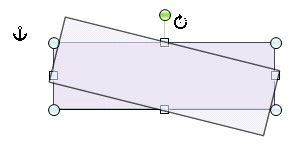
To rotate an object by 15 degree angles, drag the round arrow at the top of the object while holding down the SHIFT key.
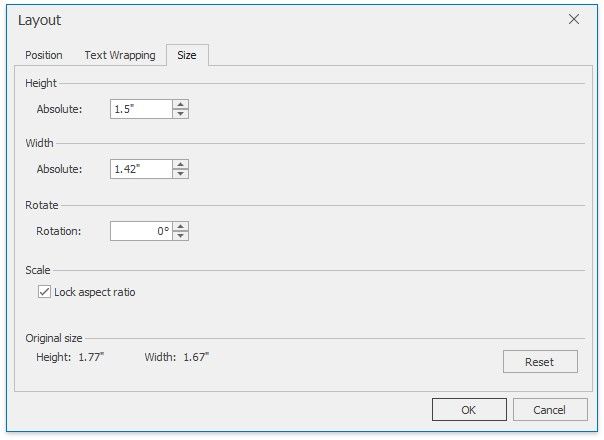
 Right-click a picture or text box to be rotated and select the More Layout Options... item from the context menu. Switch to the Size tab in the invoked Layout dialog and set the required value of the angle to rotate the object in the Rotation box.