Move a Picture or Text Box
Move a Picture or Text Box
1.Select the floating picture or text box that you wish to move.
2.Drag the object to the new location.
Move a Picture or Text Box Forward or Backward
When you add floating objects into a document, they are automatically inserted in particular layers. Objects can overlap. In this case the top object covers lower objects (in full or in part). You can move particular objects up and down in a stack one layer at a time, or move them to the top or bottom of a stack in one click.
1.Select the floating picture or text box that you wish to move up or down in the stack.
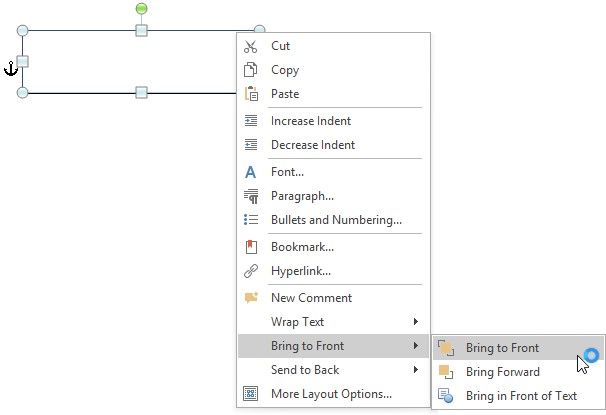
2.Select the required item from the floating object's context menu ...
... or Picture Tools / Format tab.
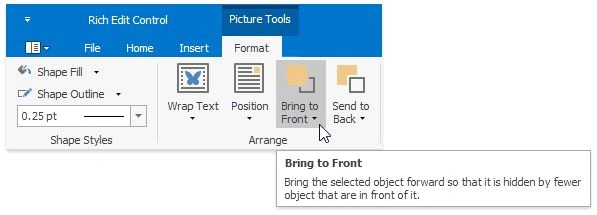
To move the selected floating object one layer forward to the front, click Bring to Front To move the selected floating object in front of the text layer and any other floating objects,
To move the selected floating object in front of the text layer and any other floating objects, Bring to Front -> Bring Forward
To move the selected floating object in front of the text layer, click Bring to Front -> Bring in Front of Text
To move the selected floating object one layer forward to the back, click Send to Back -> Send to Back
To move the selected floating object behind the text layer, click Send to Back -> Send Behind Text