Wrap Text around a Picture or Text Box
Wrap Text around Picture or Text Box
1.Select a picture or a text box.
2.To specify a way text wraps around the selected object, do one of the following.
 On the Picture Tools / Format tab, in the Arrange group, click Wrap Text and select the required type of text wrapping around the selected object from the invoked list.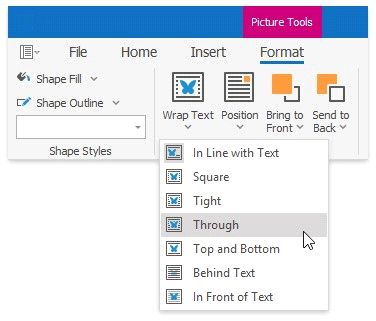
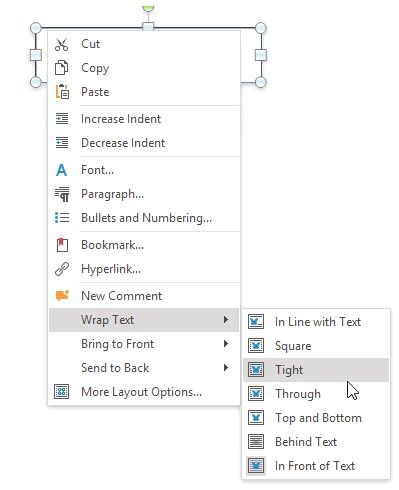
Right-click the selected floating object, and select the required type of the text wrapping from the Wrap Text submenu of the invoked context menu.
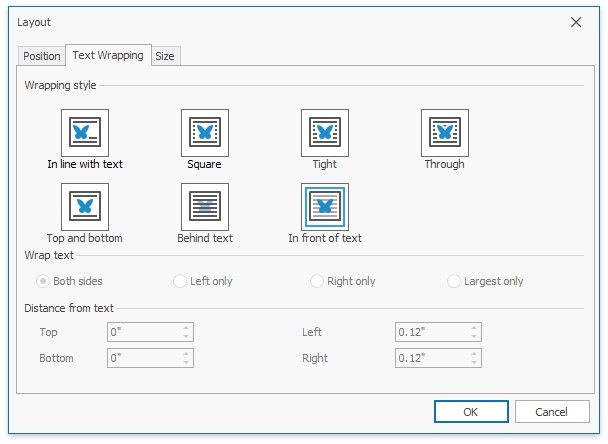
Right-click the selected floating object, and select the More Layout Options... item from the context menu. Switch to the Text Wrapping tab of the invoked Layout dialog and specify the required text wrapping settings for the floating object.
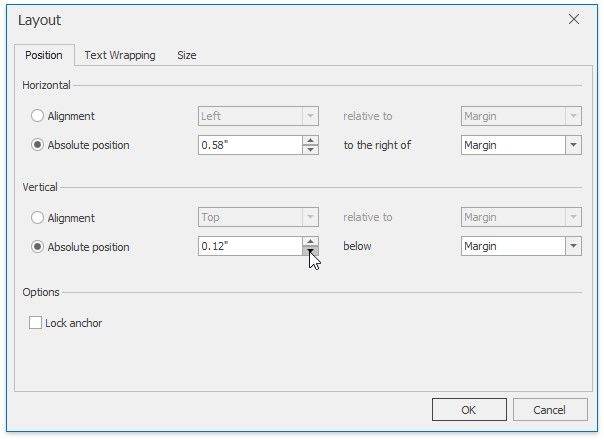
Position a Picture or Text Box within a Document
1.Select a picture or text box whose location you want to specify.
2.Specify an object location in one of the following ways.
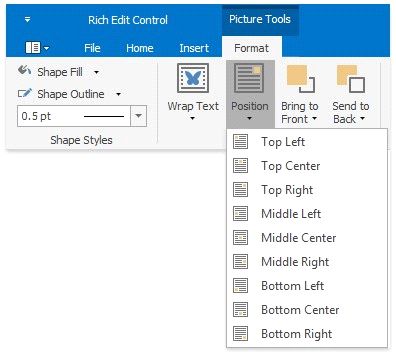
 On the Picture Tools / Format tab, in the Arrange group, click the Position button and select the required position of the object from the invoked list.
Right-click the object to be positioned and select the More Layout Options... item from the context menu. On the Position tab of the invoked Layout dialog, specify the required position for the floating object.