Add, Change or Delete a Text Box Fill
Specify a Text Box Fill
1.Select a text box whose background you wish to color.
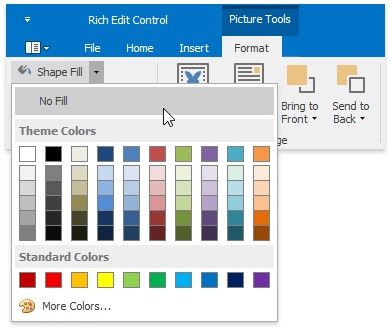
2.On the Picture Tools / Format tab, in the Shape Styles group, click Shape Fill button and select the required color.
Delete a Text Box Fill
1.Select a text box whose fill you wish to remove.
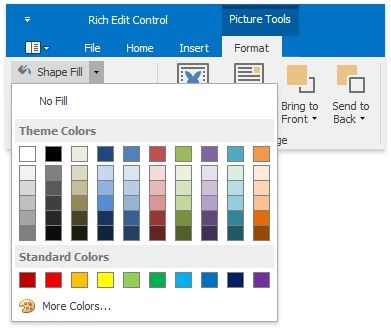
2.On the Picture Tools / Format tab, in the Shape Styles group, click Shape Fill button and select No Fill.