Resize Table Elements
You can resize a table or its cell by dragging the rectangle drawn on its edge or corner.
The following column resizing modes are supported:
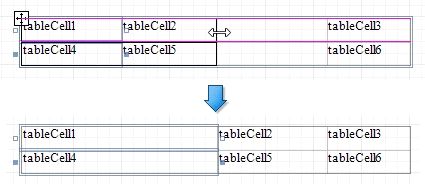
Resizing a column changes the next column's width without affecting the other columns (keeps the table dimensions intact).
Resizing a column while holding the CTRL key changes the next columns' width while maintaining their proportion to the overall table (keeps the table dimensions intact).
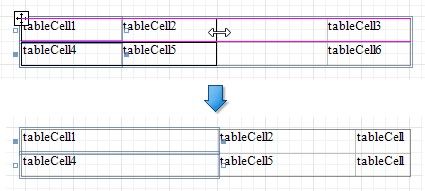
Resizing a column while holding the SHIFT key shifts the next columns without changing their size.
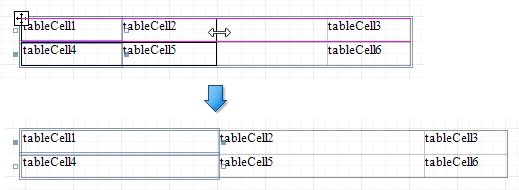
The following row resizing modes are supported:
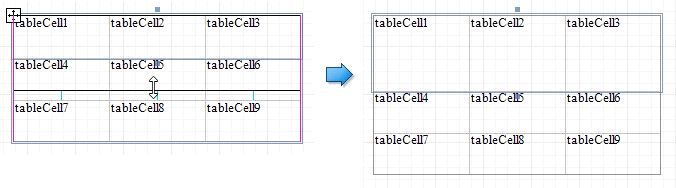
Resizing a row changes the next row's width without affecting the other rows (keeps the table dimensions intact).
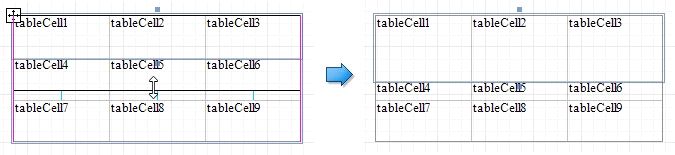
Resizing a row while holding the SHIFT key shifts the next rows without changing their size.
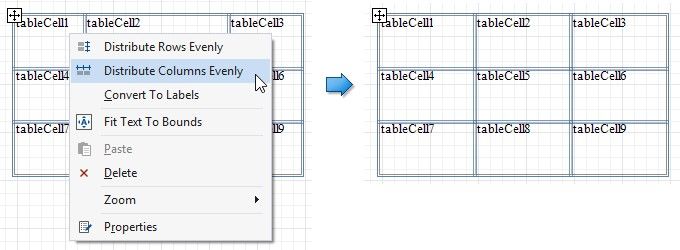
You can set the same size for multiple table columns or rows. Select the required rows or the whole table, right-click the selected area and choose Distribute Rows Evenly.
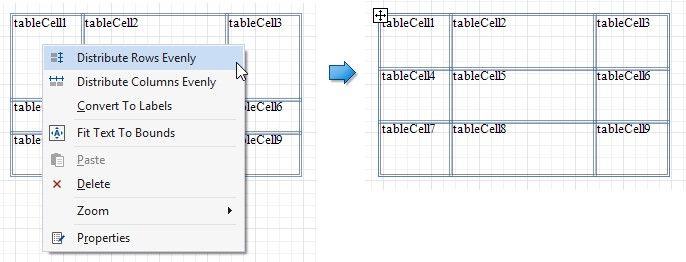
If the cell's content is partially visible in the resulting row, this row automatically increases its height to fit its content and also adjusts the other rows accordingly.
You can resize columns equally in a similar way by selecting the columns or the table itself and choosing Distribute Columns Evenly in the context menu.