Hide and Display Grid Columns, Bands and Card Fields
Hide Columns/Bands in Grid Views
Do one of the following:
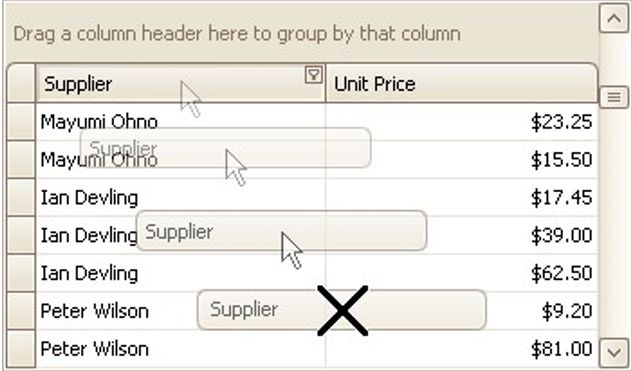
Click a column header/band header and drag it onto the grid control's cell area, until the cursor changes its image to a big 'X'. Then drop the header.
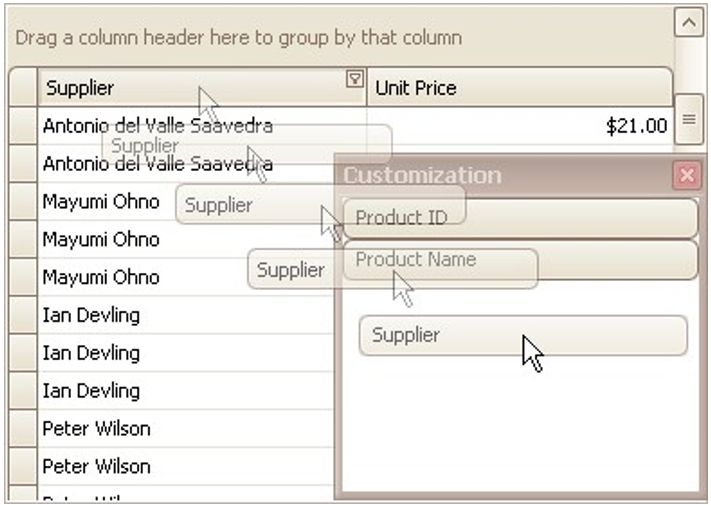
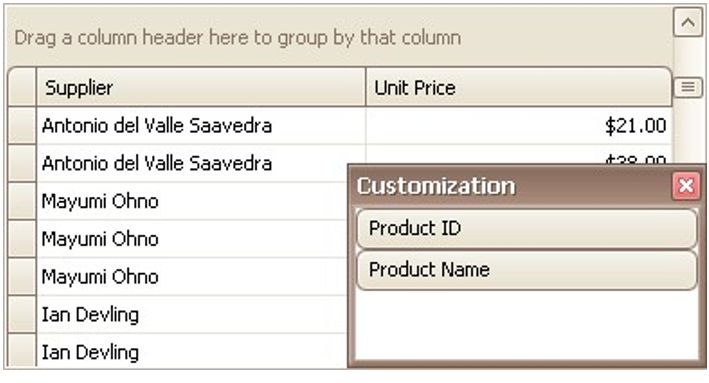
Drag and drop a column/band header onto the Customization Form if it's open:
Hide a Column In a Grid
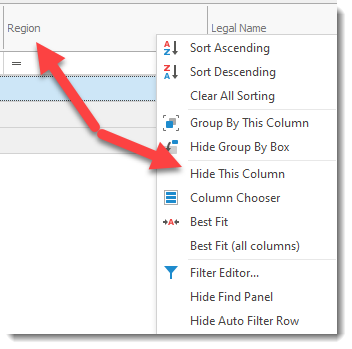
Select the Column and right click your mouse. The menu offers an option to hide the selected column.
Display Hidden Columns/Bands in Grid Views
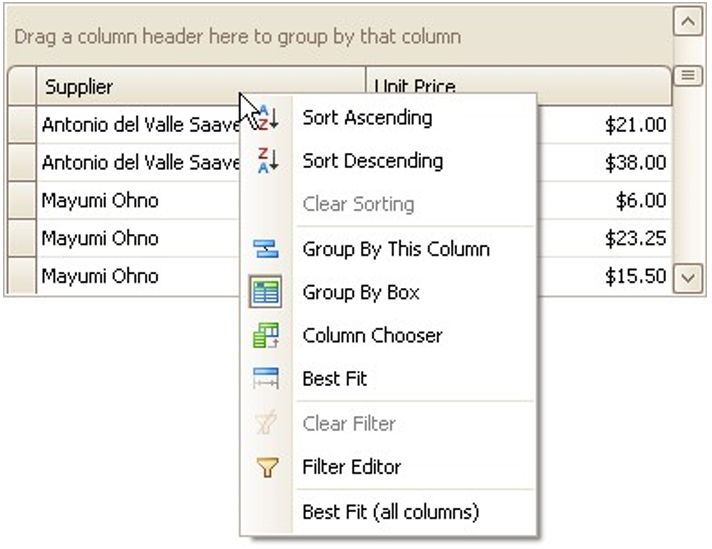
Open the Customization Form by right-clicking a column header and selecting Column Chooser:
The Customization Form will be displayed listing hidden columns and bands (if any):
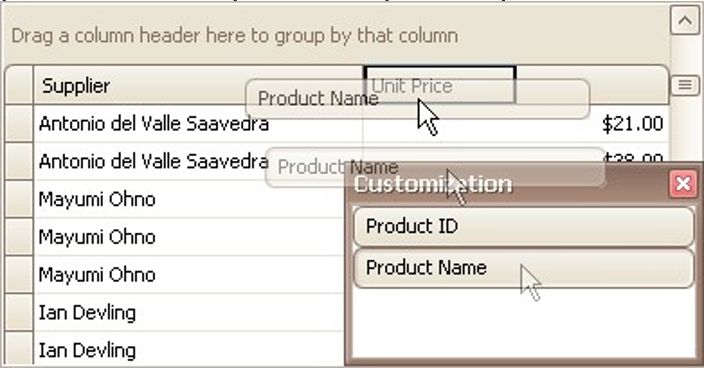
Drag the required column/band from the Customization Form onto the column/band header panel and drop it at a specific position.
Change the Visibility of Fields in Card Views
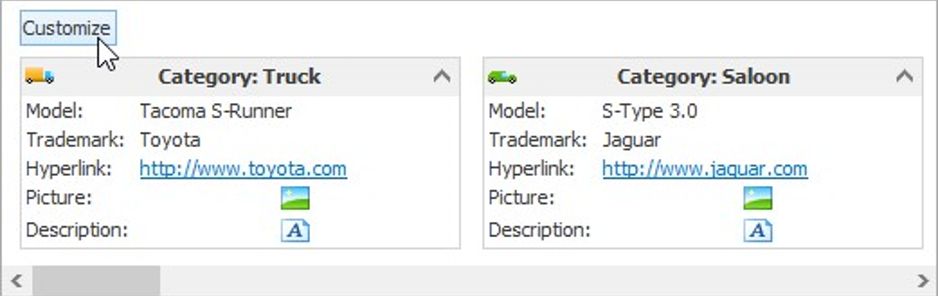
Click the Customize button:
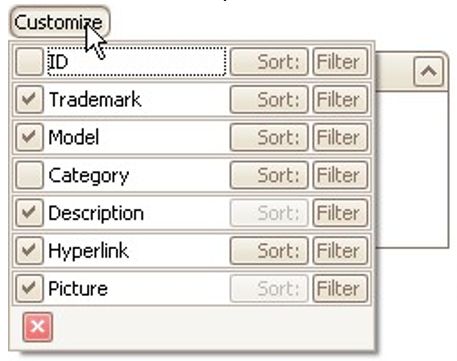
To hide specific fields, clear corresponding check boxes in the opened window. To display hidden items, enable corresponding check boxes:
Change the Visibility of Fields in Layout Views
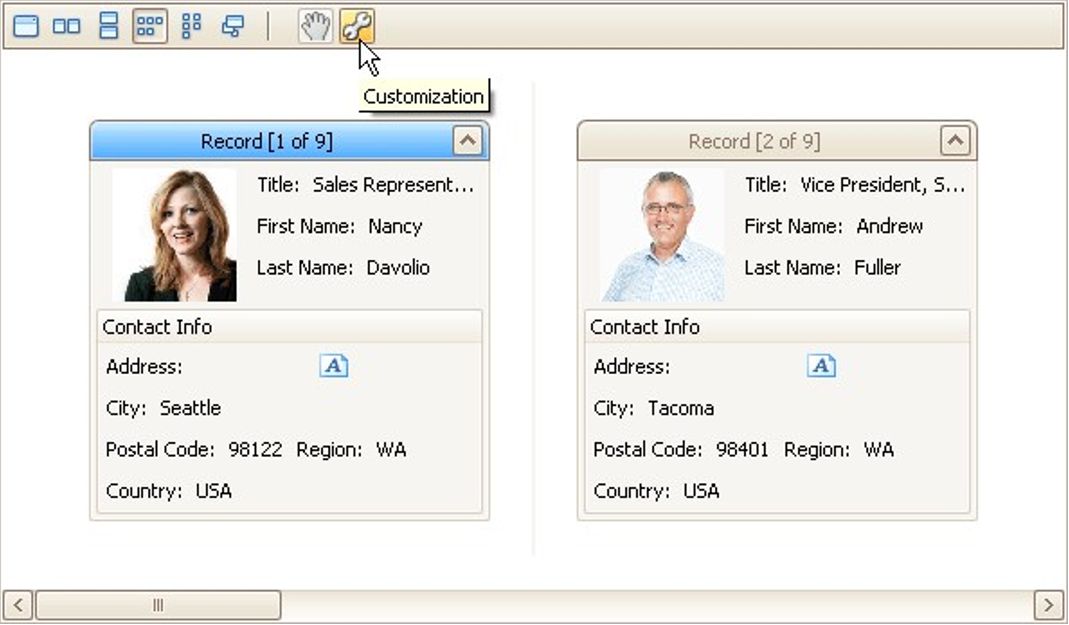
Click the Customization button within the header panel:
To hide a field, in the Layout View Customization Window, drag and drop the field from the Template Card onto the Hidden Items list. To display a hidden field, drag it from the Hidden Items list onto the Template Card at the required position:
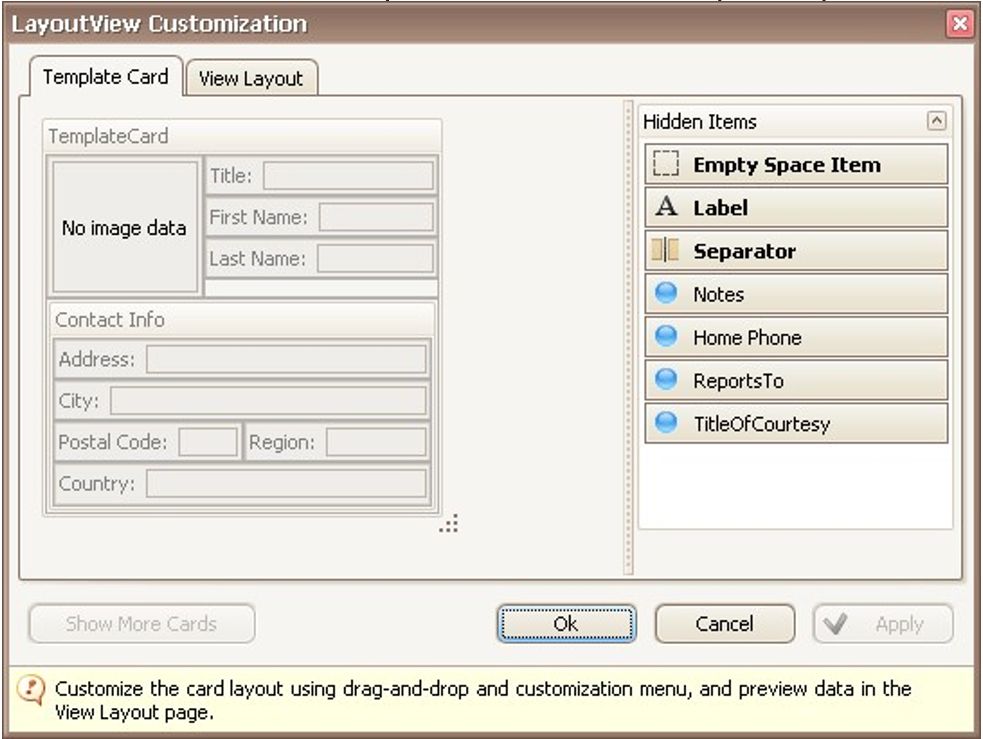
Click OK or Apply.