Filter Grid Data
Invoke the Filter Dropdown List
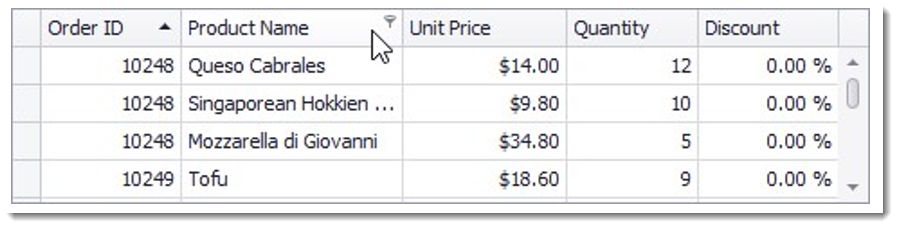
In Grid Views, hover over the column header. Click the filter button ( ) within the column header that appears.
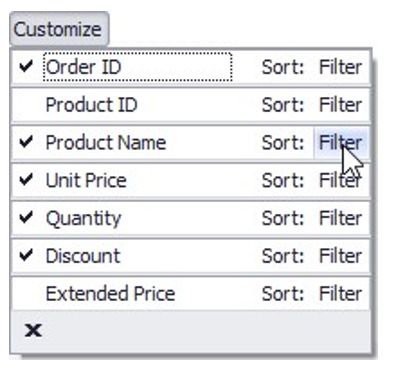
In Card Views, click the Customize button and then click the Filter button corresponding to the target column.
In Layout Views, hover over the target card field within any card. Click the filter button that appears.

Create a Simple Filter Condition
To select records that contain a specific value in a specific column/card field, do the following:
Invoke the filter dropdown list containing available filter values.
By default, if filtering is applied, the filter dropdown will only display the values which match the current filter criteria. If the SHIFT key is pressed while opening the filter dropdown, all values will be listed (not only those that match the current filter criteria).
•Select the required filter value in the filter dropdown list:
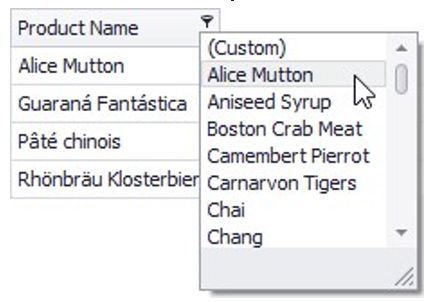
The filter dropdown list will be immediately closed, and the control will display the records which contain the specified value in the specified column/card field.
If the filter dropdown list provides check boxes to the left of filter values, multiple values can be selected (checked) simultaneously:
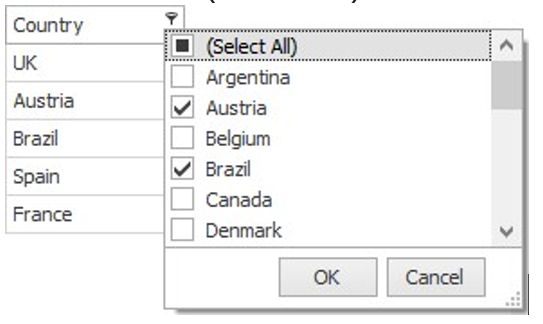
In this mode, click OK to close the filter dropdown list and apply the filter.
You can sequentially filter data against multiple columns using the method described above.
Use Microsoft Excel Style Custom Filter Dialog
To construct filter criteria involving up to two conditions, do the following:
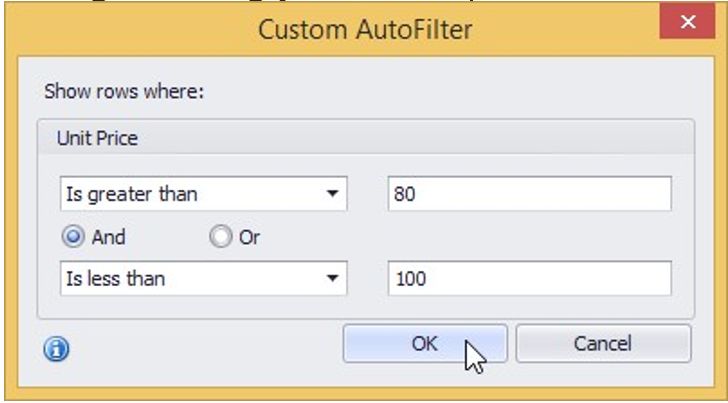
Invoke the filter dropdown list (see above) and click Custom. This will invoke the Custom Filter Dialog, allowing you to compare a column with one or two values:
Use Advanced Filter Editor Dialog
To invoke an advanced Filter Editor dialog, do one of the following:
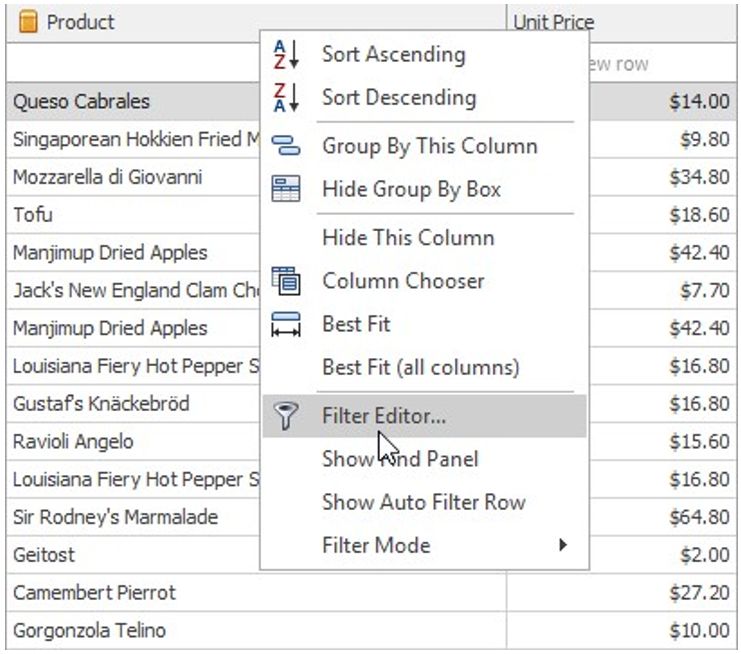
Right-click any column's header and select Filter Editor:
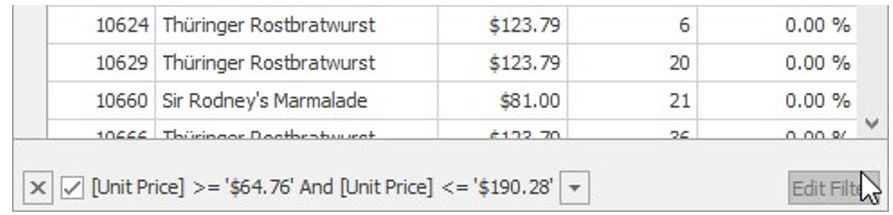
If the filter panel at the bottom of the grid control is visible, click the Edit Filter button
To learn how to work with the Filter Editor, refer to Filter Data via the Filter Editor.
Clear the Filter
To clear the filter applied to a specific column, do one of the following:
Invoke the filter dropdown list (see below) and click (All).
In Grid Views, right-click the column header and select Clear Filter:
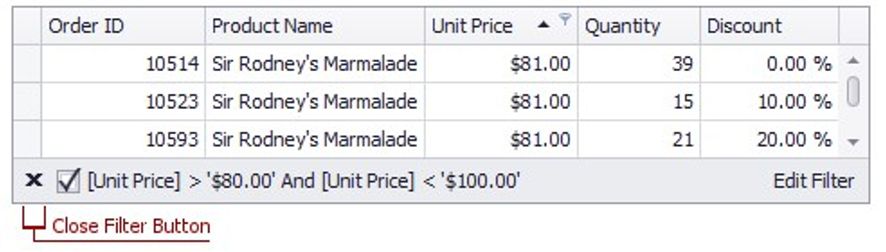
To clear all filter criteria, click the Close Filter button within the Filter Panel:
Disable/Enable the Filter
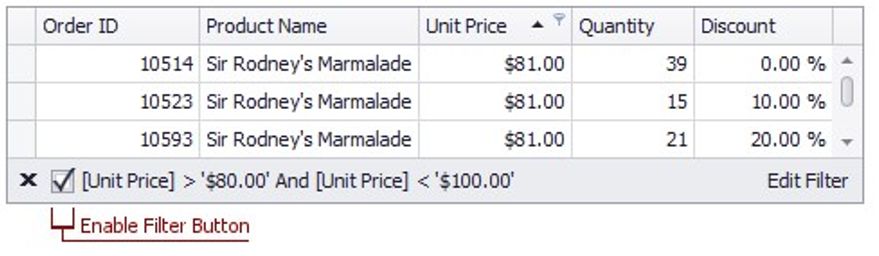
Click the Enable Filter button within the Filter Panel:
Filter Grid Data via Find Panel
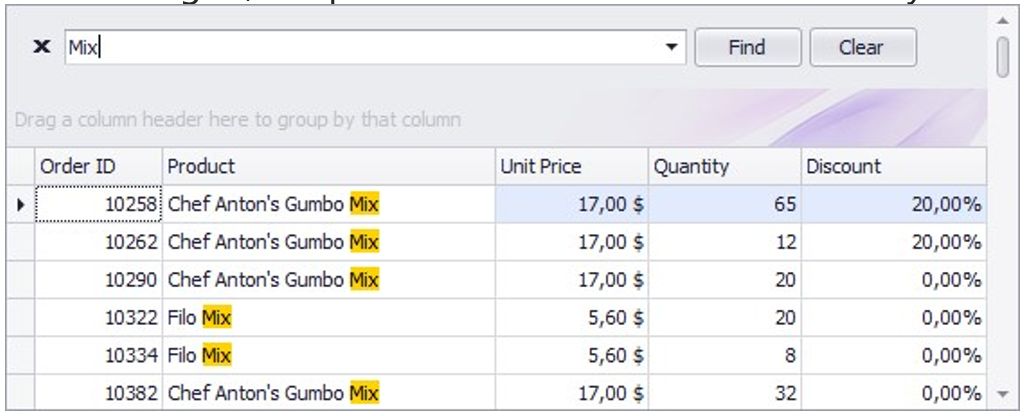
The Find Panel provides an easy way of searching against visible columns/card fields. Displayed above the grid, the panel contains a search box where you can type a search string.
Invoke the Find Panel
Ensure that no cell editor is active and press Ctrl+F.
or
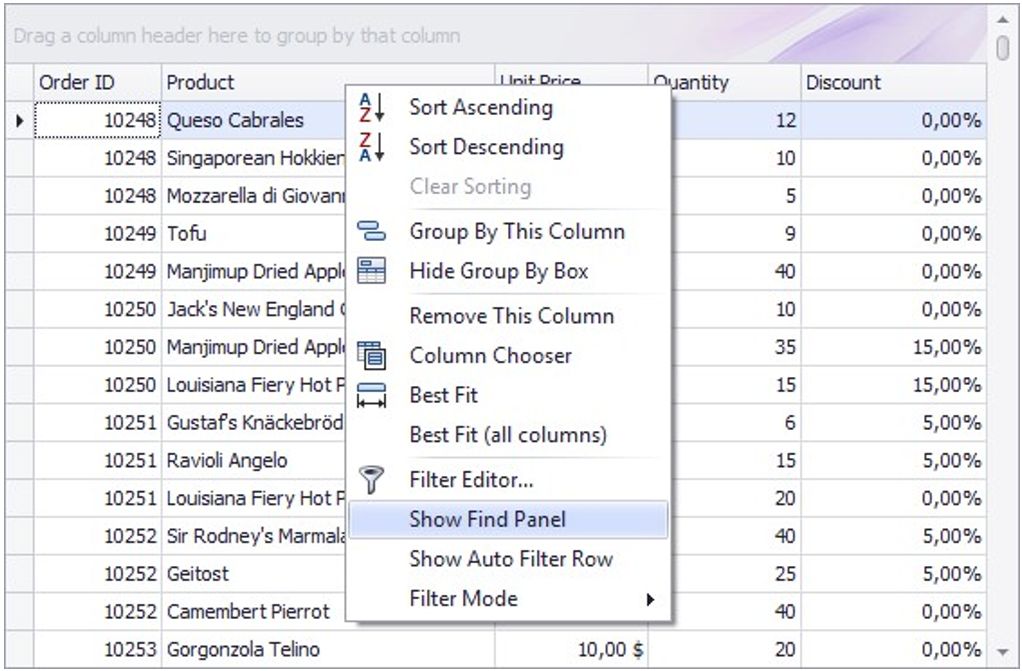
In Grid Views, choose the Show Find Panel command from a column menu.
Search
Enter a search string in the search box. In most cases, rows are filtered automatically after a short while.
In some cases (mostly when the grid is bound to a large amount of data), you need to press the Find button to manually start the search.
The search syntax is described below.
Clear the Search Box
Press ESC or click the Clear button.
Close the Find Panel
Click the 'x' button to the left of the search box or:
If the search box is empty, press ESC (the shortcut is in effect if the search box has focus);
If the search box is not empty, press ESC twice (the shortcut is in effect if the search box has focus).
Search Syntax
In its simplest form, a search criterion consists of a single word. If you want to search for a string containing a space character, specify this string in quotation marks. Without quotation marks, words separated by the space character are treated as individual conditions.
You can search against a specific column by preceding a search string with the column's display name plus a colon character.

Instead of the complete name, it is possible to partially specify the display name, using the initial characters of a column's display name. A search will be performed against the first column whose display name starts with the specified substring. If you want to search against a column whose display caption contains space characters, specify the column's display caption in quotation marks.
If the search string contains multiple conditions separated by space characters, and at least one condition defines a search against a specific column, only records that match all of these conditions are shown (i.e., the conditions are combined by the AND logical operator). If there is no column specification, records that match at least one of these conditions are shown (i.e., the conditions are combined by the OR logical operator).
Precede a condition with "+" to display only records that match this condition. The "+" specifier allows you to implement the logical AND operator. There should be no space character between the "+" sign and the condition.
Precede a condition with "-" to exclude records that match this condition from the result set. There should be no space between the "-" sign and the condition.
Examples
SEARCH CRITERIA |
DESCRIPTION |
|
register |
Selects records that contain the "register" string in any search column. |
|
|
Selects records that contain either "check" OR "register" OR "Dave" strings in any search column. |
|
|
Selects records that contain "check register" in any search column. |
|
|
Selects records that contain both "screen" AND "Richard Fisher" in search columns. |
|
|
Selects records that contain "Tofu" in the column that starts with "Product", AND also contain "Seattle" in any search column. |
|
|
Selects records that contain both "data" AND "entry" in search columns, excluding records that contain "mark". |
|
|
Selects records that contain "menu" OR "mask", excluding records that contain "file". |
|
|
Selects records that contain "Roller" in the column that starts with "From", AND also contain "currency mask" in the column that starts with "Subj". |
|
|
Selects records that contain "import" in any search column, excluding records that contain "Steve" in the column that starts with "From". |
Note Searches performed using a Find Panel are case insensitive. |