Group Grid Rows
Group Data
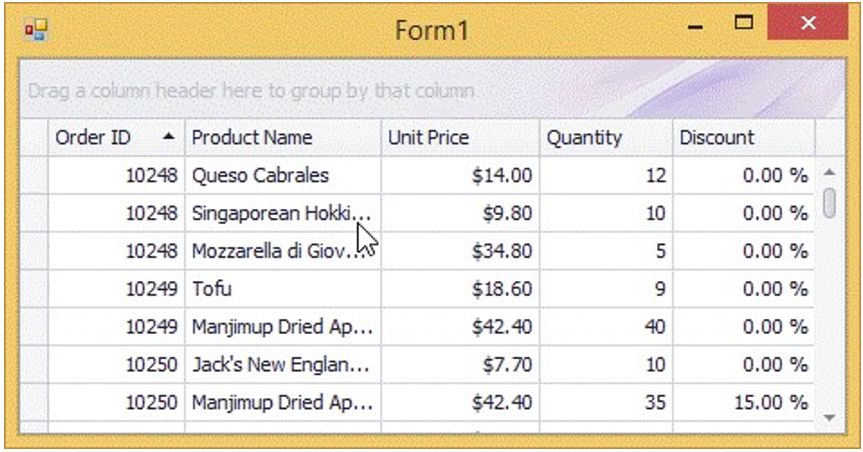
To group by a specific column, do one of the following:
Drag a column header from the column header panel to the group panel:
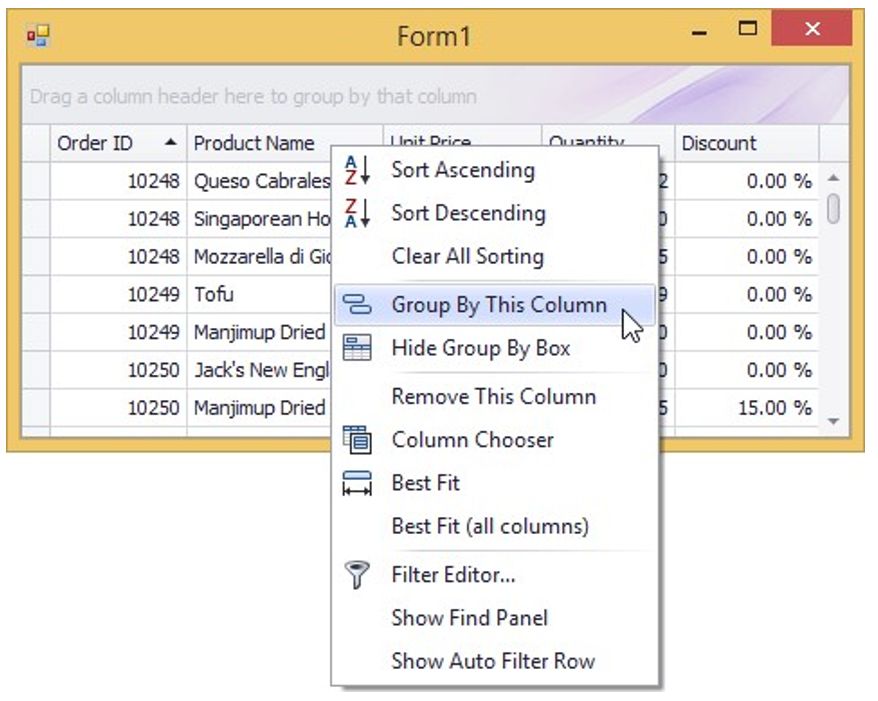
Right-click a column header and select Group By This Column from the context menu:
Ungroup Data
To ungroup data by a grouping column, do one of the following:
Drag a column header from the group panel to the column header
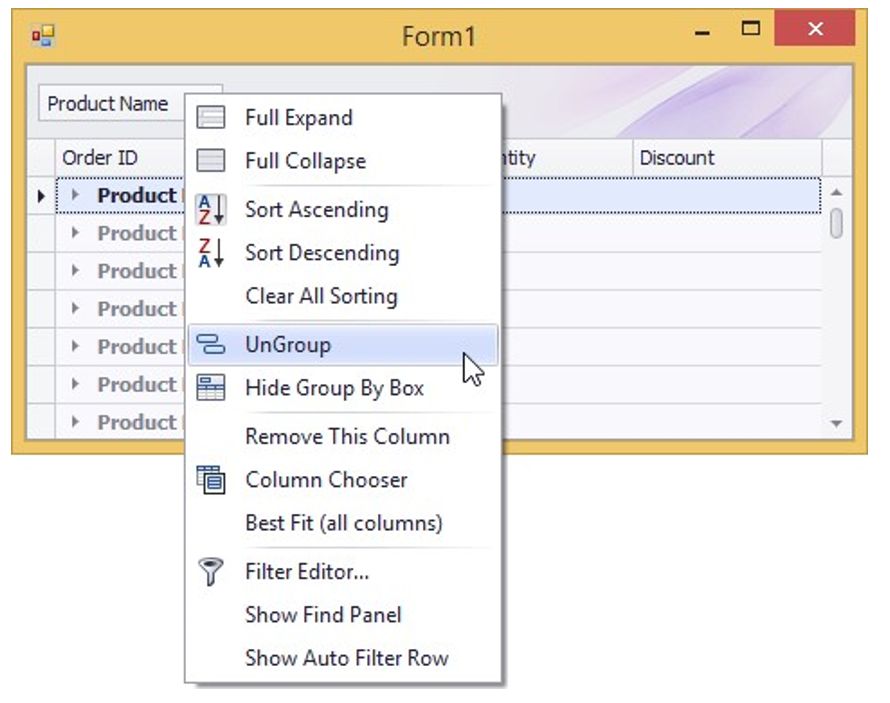
Right-click a grouping column's header and select UnGroup from the context menu:
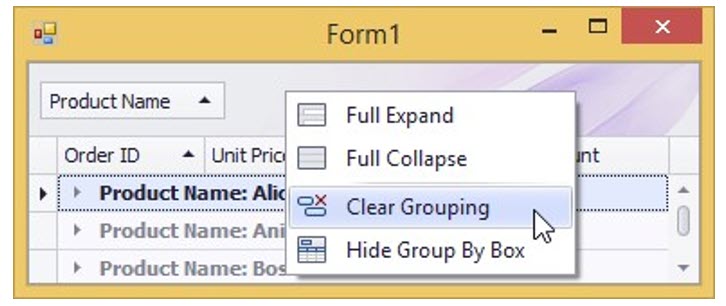
To remove grouping by all columns, right click the group panel and select Clear Grouping from the context menu:
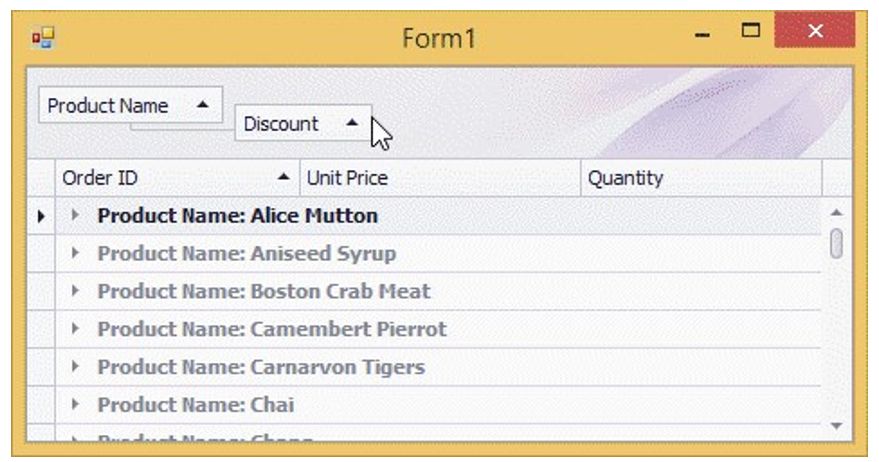
Change Group Order
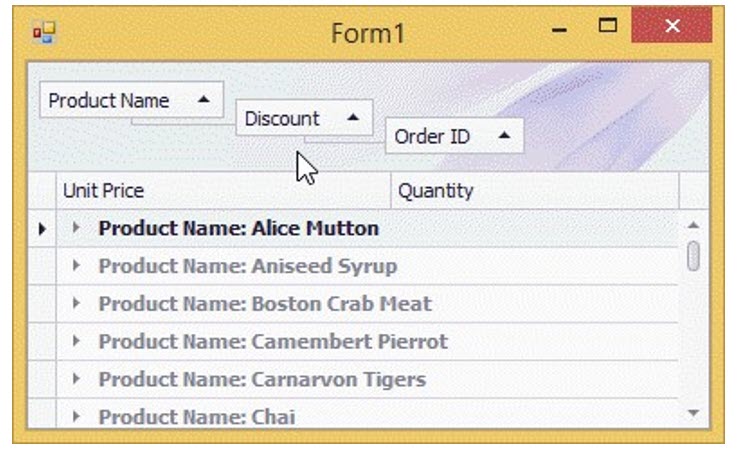
To change group order, move a grouping column header to another position within the group panel:
Change Group Order
To change group order, move a grouping column header to another position within the group panel:
Fix Grid Rows
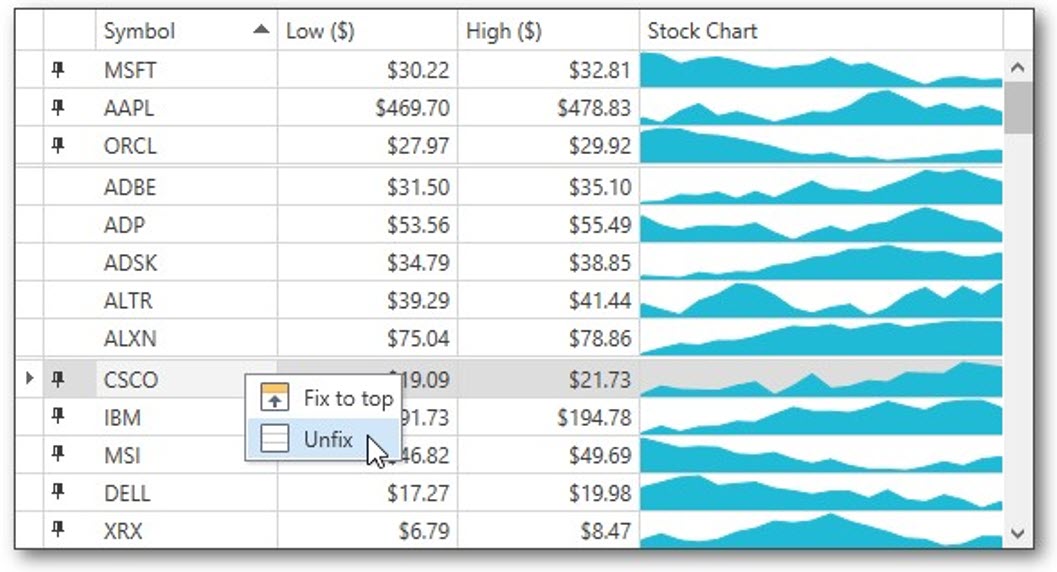
Some applications allow you to fix grid rows at the top or at the bottom of the grid. Fixed rows remain visible while the grid content is scrolled vertically.
Fix a Row
To fix a grid row, do one of the following.

Click the Fix Row  button located at the left side of a grid row.
Change a Fixed Row's Position
To unfix a row or change a fixed row's position, do one of the following.
 Click the Unfix Row
  button located at the left side of a fixed grid row.
From the popup menu, choose the required fixed row position. Select None to unfix a grid row.
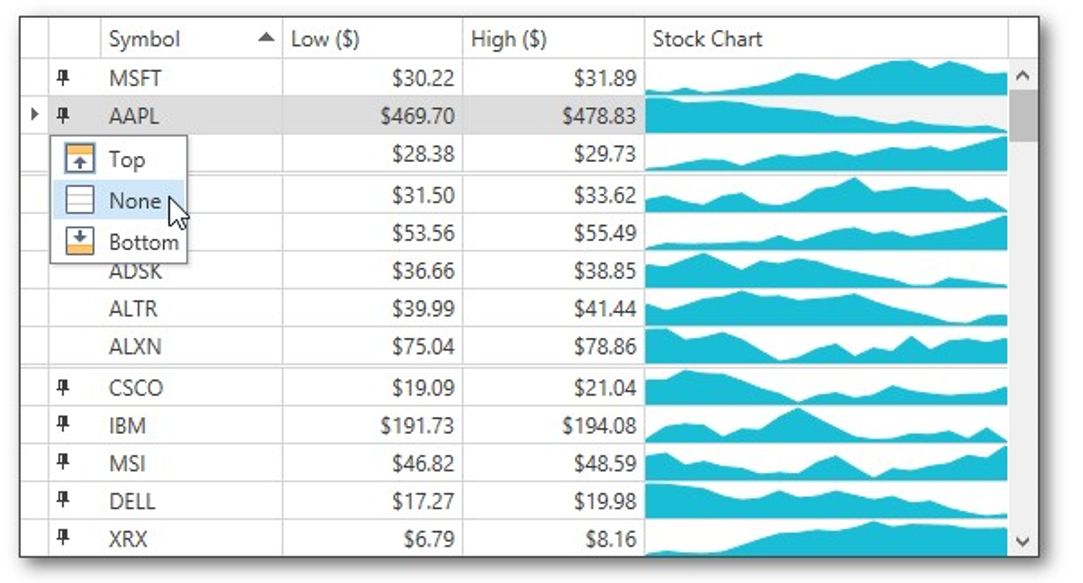
Right-click a fixed grid row.
Choose the required fixed row position from the context menu. Select Unfix to unfix a row.