IMPORTANT
The Audit Trail security feature should not be given to all users. Access to the Audit Trail feature should be restricted to key security personnel only.
|
To give access to a user to the system Audit Trail feature activate the feature for the user by placing a check mark in the user profile.
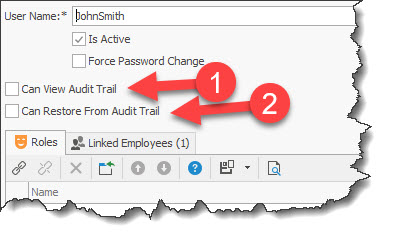
By placing a check mark in the Can View Audit Trail fields gives the user to only view the Audit Trail for audit type purposes.
IMPORTANT
The "Can Restore from Audit Trail" and Restore Data button security feature should not be used in most instances since its impact or consequences with other areas of the RHOP system may be major and it has the possibility to break your system. A better practice is to manually make the change you want to the database to insure that all related fields affected by the changes are also updated. Your RHOP system is a relational database, meaning that all relations between records must be maintained for the system to function properly. Break or change a relationship link and you may break your system. Only use this feature if you are 100% certain that the change will have no effect on your database except the one you are making.
What can impact the reliability of the restore button is the age of the data modification you are trying to reverse, the location within the RHOP system of the data and the relationship of the data within the database being restored.
Always do a full backup of the database before using the "Restore Data" button feature!
|
By placing a check mark in the Can Restore from Audit Trail field a user can restores a changed value to the previous value of the field being viewed. ( if not checked the button is not displayed).
Once a user is activated for the Audit trail feature, special buttons will be displayed and available for use on the tool bar for that specific user.
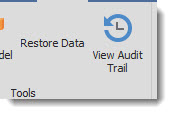
Under the Tools menu the following buttons are available to the authorized security user.
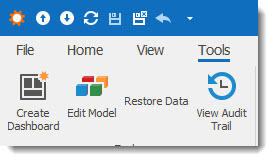
The Restore Data button: used to restore the data to the previous value (Should not be used, unless you are certain of the impact it may have on your database. Always do a full backup of the database before using this option since the impact may be significant. See above WARNING! )
View Audit Trail button allows the security user to view the audit trail for the records under audit.
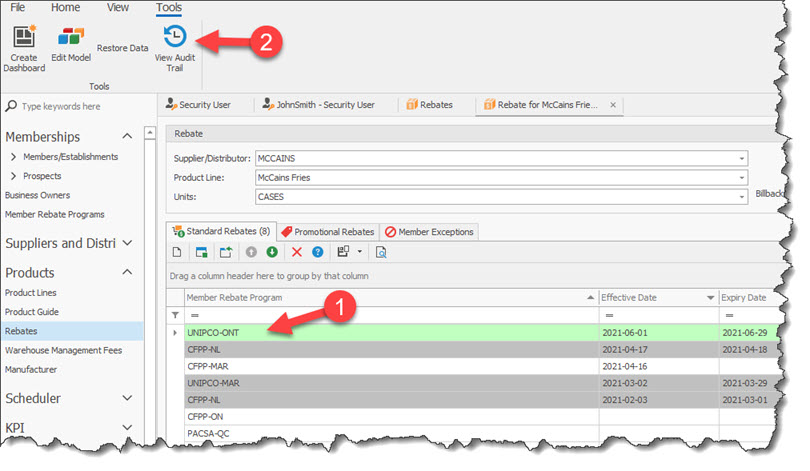
To view the Audit Trail you must first select a record. For example if you are viewing a list of record such as Rebates, you must highlight the rebate record to view (1) the audit trail associated with the highlighted selected record. The you can select the View Audit Trail button(2) to open the Audit trail for the selected record.
The Audit Trail listing will be displayed. The list contains every change made to the selected record.
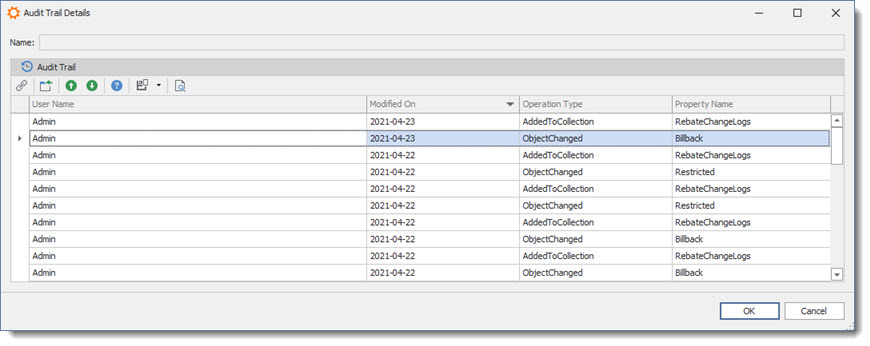
To view the change recorded, click to open the Audit Trail record.
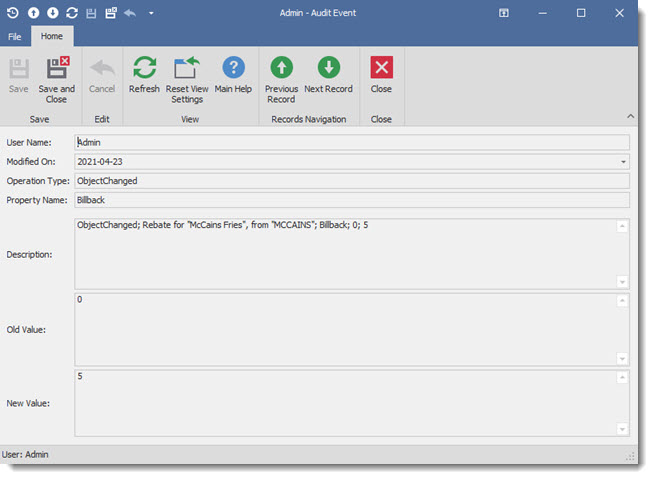
User Name: identifies the person who made the change ( person who login credentials was used).
Modified On: is the date on which the change was made
Operation Type: identifies the type of change recorded by the system
Property Name: Is the name of the program field that was modified
Description: Is a description of the action taken during this change ( In the above example it shows that for the rebates called MacCains the rebate for the MaCains fries for the Billback field was changed from the value of 0 to the value of 5.)
Old Value: previous value before the change was made
New Value: the value that was entered by the user to change the previous value.
IMPORTANT
The Restore Data button security feature should not be used in most instances since its impact or consequences with other areas of the RHOP system may be major and it has the possibility to break your system. A better practice is to manually make the change you want to the database to insure that all related fields affected by the changes are also updated. Your RHOP system is a relational database, meaning that all relations between records must be maintained for the system to function properly. Break or change a relationship link and you may break your system. Only use this feature if you are 100% certain that the change will have no effect on your database except the one you are making.
What can impact the reliability of the restore button is the age of the data modification you are trying to reverse, the location within the RHOP system of the data and the relationship of the data within the database being restored.
Always do a full backup of the database before using the "Restore Data" button feature!
|
If you wish to restore the value to its previous value you can use the RHOP system display/edit screen and manually change the value to the value required. (This is the recommended procedure)
You may also, while you have the audit record open, select the Restore Data button to revert the value to the previous value. See Warning above, before Proceeding with the automated Restore Data option.