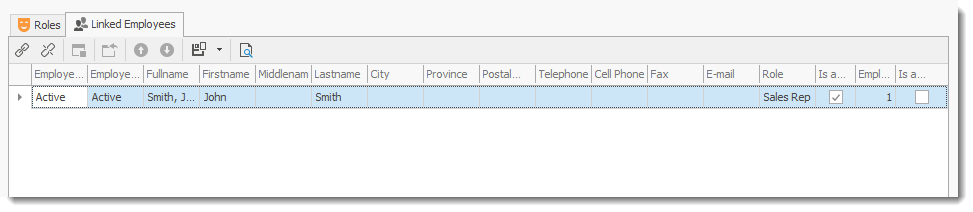
The User option manages the end-user logon account to the system. For best security practice only one unique security user should be linked with one specific employee. Although it is possible to assign a security user to more than one Employee profile this action will not provide the best security for the application. Also if more than one employee shares a security user account they will need to use the same username and password which negates many security features of the system. In some very special situation assigning more than one employee to a security user may be beneficial, but in normal circumstances this should not be done.

IMPORTANT
Use the "Link" and "Unlink"
|
 function. Do Not Use the" X" or "Delete"
  function in this section since it will delete all entries associated/linked to the record(s) you are deleting. For example if you delete a Role, all Users profiles linked to the Role will also be deleted automatically.
Create a Security User
Users who have permission to create Users can do the following.
•Select the User item in the navigation control and click the New button. In the invoked Detail View, specify the User Name and assign one or more Roles.
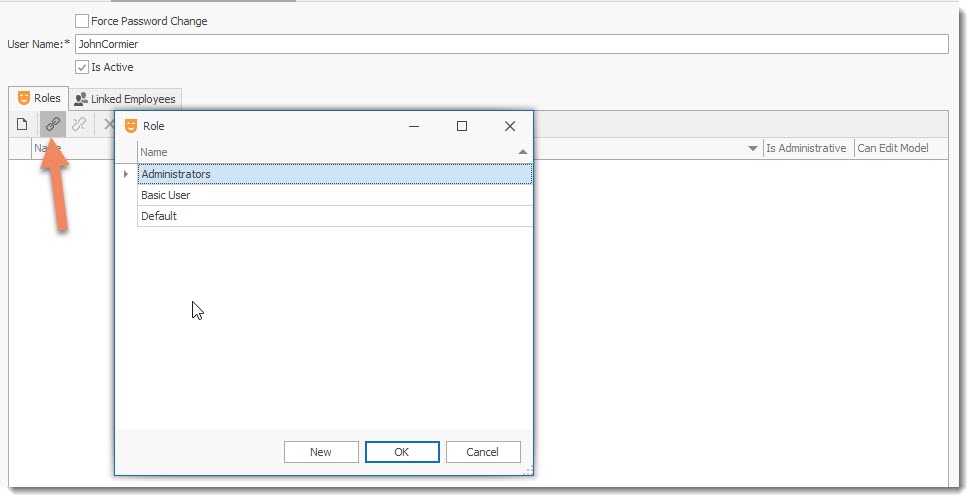
IMPORTANT: Set the Is Active property to false if you need to temporarily prohibit the user from using the application. |
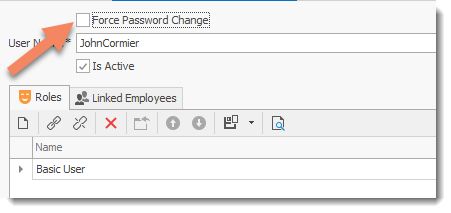
To assign a password to a newly created user, click the Force Password Change checkbox. The assigned password should be passed to the user. A User will be able to change it when logging on for the first time. ( this option is only available based on the security access of the user).
IMPORTANT
The Audit Trail security feature should not be given to all users. Access to the Audit Trail feature should be restricted to key security personnel only.
|
To give access to a user to the system Audit Trail feature activate the feature for the user by placing a check mark in the user profile.
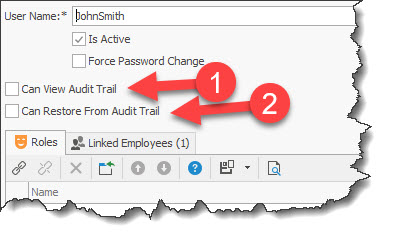
To give access to a user to View the Audit Trail activate the feature for the user by placing a check mark in the user profile Can View Audit Trail (1).
By placing a check mark in the Can Restore from Audit Trail field a user can restores a changed value to the previous value of the field being viewed. (if not checked the Restore Data button is not displayed).
IMPORTANT
The "Can Restore from Audit Trail" and Restore Data button security feature should not be used in most instances since its impact or consequences with other areas of the RHOP system may be major and it has the possibility to break your system. A better practice is to manually make the change you want to the database to insure that all related fields affected by the changes are also updated. Your RHOP system is a relational database, meaning that all relations between records must be maintained for the system to function properly. Break or change a relationship link and you may break your system. Only use this feature if you are 100% certain that the change will have no effect on your database except the one you are making.
What can impact the reliability of the restore button is the age of the data modification you are trying to reverse, the location within the RHOP system of the data and the relationship of the data within the database being restored.
Always do a full backup of the database before using the "Restore Data" button feature!
See the Audit Trail help section to learn more on how to use the Audit Tail features.
|
By placing a check mark in the restore from Audit Trail field a user can restores a changed value to the previous value of the field being viewed.
Linked Employees Tab
The Linked Employee Tab displays the Employee(s) using the selected Security user account.. A user can click on the record to display the Employee profile.