Adjust the Label Size and Content
Static Content
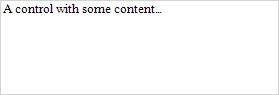
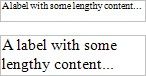
You can change label size at design time to fit its static text. Right-click the label and select the Fit Bounds To Text toolbar button:
 If the Word Wrap option is enabled, the command displays control content on multiple lines. It reduces control height and adjusts its width to fit its content.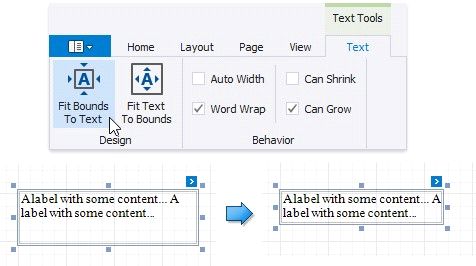
If the Word Wrap option is disabled and the control's content is partially visible, the command adjusts the control size to display this content.
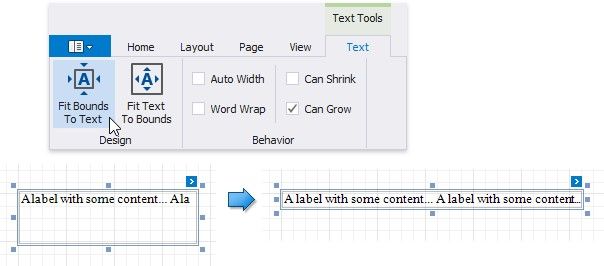
The command's result also depends on the control's Text Alignment and Right To Left settings.
Use the Fit Text To Bounds button to adjust the control's font size to fit its area. The Word Wrap option defines whether the text can occupy multiple lines or should be in a single line.
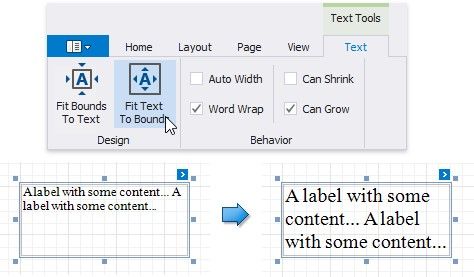
These commands are not available in the following cases:
A label's text is an empty string;
A label's text is bound to data;
A label's Angle property is specified.
Data-Bound Labels
The Can Grow and Can Shrink properties allow you to increase or decrease the control's height according to its content in Print Preview mode.
CAN GROW IS ENABLED |
CAN GROW IS DISABLED |
|
|
CAN SHRINK IS ENABLED |
CANSHRINK IS DISABLED |
|
|
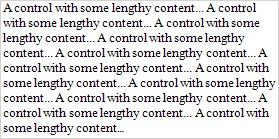


The Auto Width property specifies whether to adjust a data-bound label's width to its content.
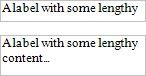
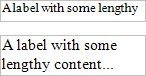
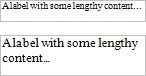
You can also use the opposite Text Fit Mode property to adjust a control's font size to fit its boundaries in Print Preview. This property is not available if the Can Grow, Can Shrink or Auto Width option is enabled.
TEX T FIT MODE = NONE |
TEX T FIT MODE = GROW ONLY |
TEX T FIT MODE = SHRINK ONLY |
TEX T FIT MODE = SHRINK AND GROW |
|
|
|
|
See the Arrange Dynamic Report Content topic for more information.
Convert Labels to Table
You can convert multiple labels to a table to simplify control alignment.
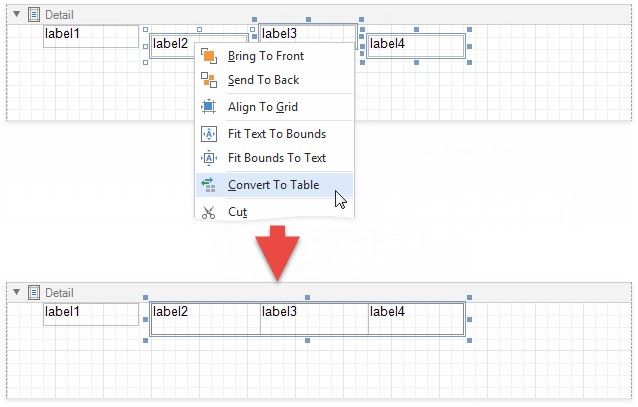
Hold CTRL or SHIFT and click labels to select them. Right-click any of the selected labels and select Convert To Table from the context menu. A table with one row is added to the report instead of the selected labels.
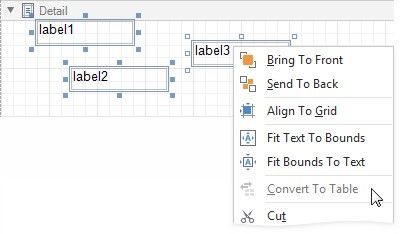
The Convert To Table option is not available if any of the selected labels overlap horizontally.
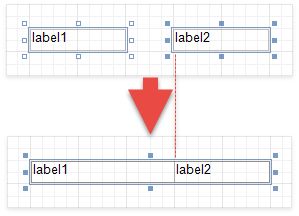
The created table occupies horizontal space from the leftmost label's left edge to the rightmost label's right edge, and vertical space from the topmost label's top edge to the lowest label's bottom edge.
The horizontal gap between labels is included in the left cell.
The table cells copy all property values from the labels.