Bind to Data
Display Field Values
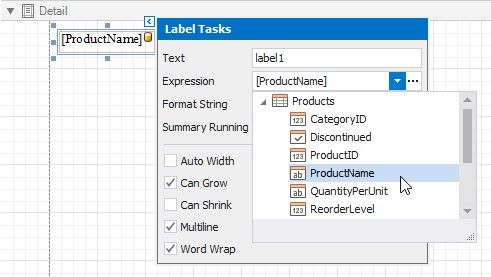
You can bind the label's Text property to a data field obtained from a report's data source. Click the control's smart tag, expand the Expression drop-down list and select the data field.
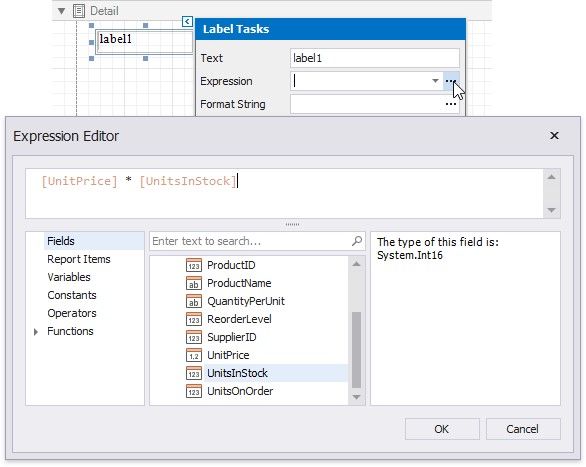
Click the Expression option's ellipsis button to invoke the Expression Editor. You can use this editor to construct a complex binding expression from two or more data fields.
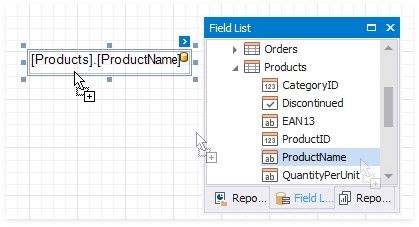
You can also drag and drop a numeric or text field from the Field List to create a new label bound to this field.
See the Bind Controls to Data topic for more information.
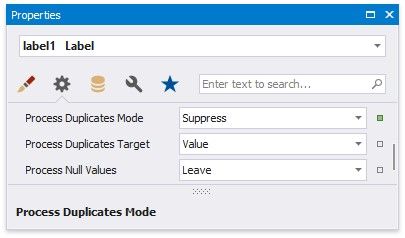
The Process Duplicates Mode, Process Duplicates Target and Process Null Values options enable you to hide a control when a duplicated or null value appears in an assigned data source.
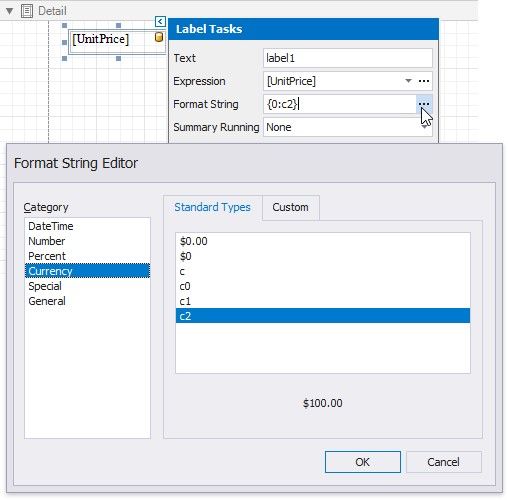
You can also use the Format String property to specify output values' format.
Display Summaries
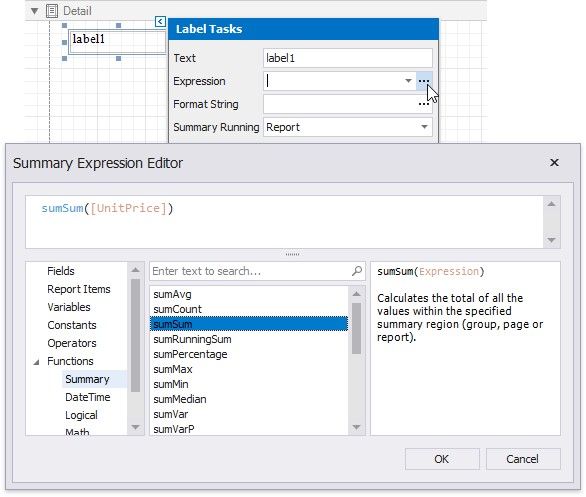
Specify a data range in the Summary Running property and select the summary function in the Summary Expression Editor to make the label display a summary function's result.