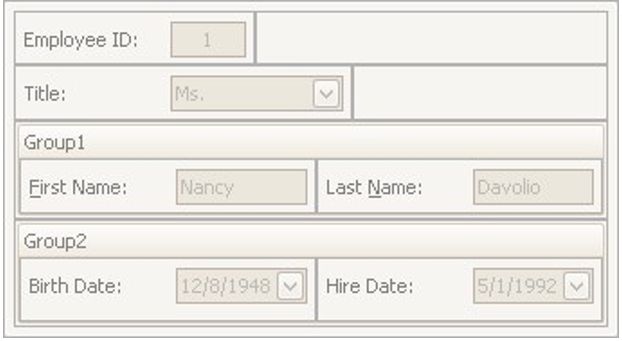
Work with Interface Element Groups
To perform layout customization, first invoke Customization Mode. After customization has been completed, mode.
Combine Layout Items into Groups
1.Select a layout item that is to be added to a new group by clicking it.
You can select multiple items simultaneously by clicking them while holding the SHIFT key down.
2.Right-click any of the selected layout items and select Group from the context menu:
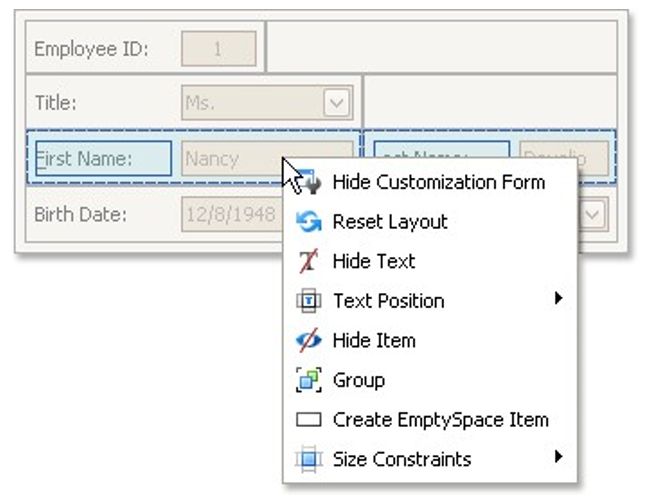
Note that only adjacent selected layout items can be combined into a group, and only if the region occupied by them forms a rectangle. Otherwise, the Group command is not available when right-clicking the selection.
As a result, a new group is created:
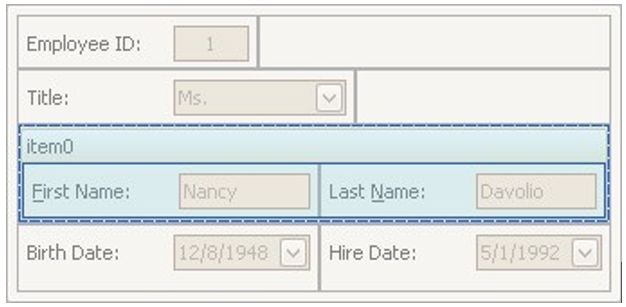
You can subsequently rename the group and customize its contents using drag-and-drop and context menus if required.
Rename Groups
Do the following:
1.Right-click the group's caption and select Rename:
Type a new name and press ENTER.
Change Group Content
To customize the layout of controls within a group, use drag-and-drop.
Ungroup Elements
To ungroup elements, right-click the group's caption and select Ungroup:
Create and Delete Tabbed Groups
To perform layout customization, first invoke Customization Mode. After customization has been completed, exit customization mode.
Combine Layout Items into a Tab Control
1.Select a layout item that is to be added to a tab control by clicking it.
You can select multiple items simultaneously by clicking them while holding the SHIFT key down.
2.Right-click any of the selected layout items and select Group from the context menu:
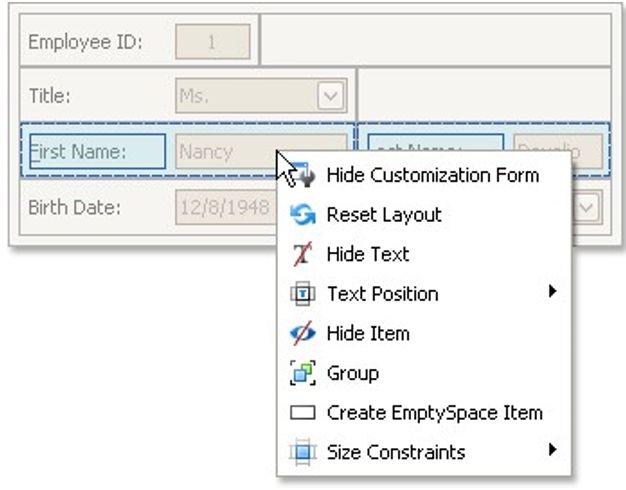
Note that only adjacent selected layout items can be combined into a group, and only if the region occupied by them forms a rectangle. Otherwise, the Group command is not available when right-clicking the selection.
As a result, a new group is created:
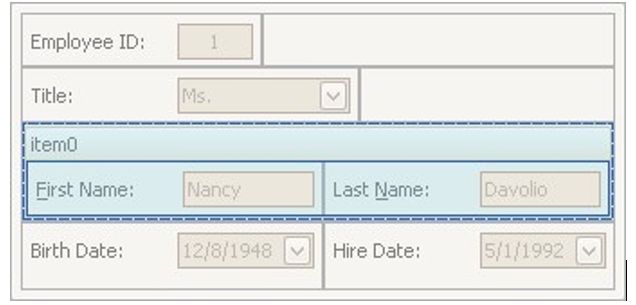
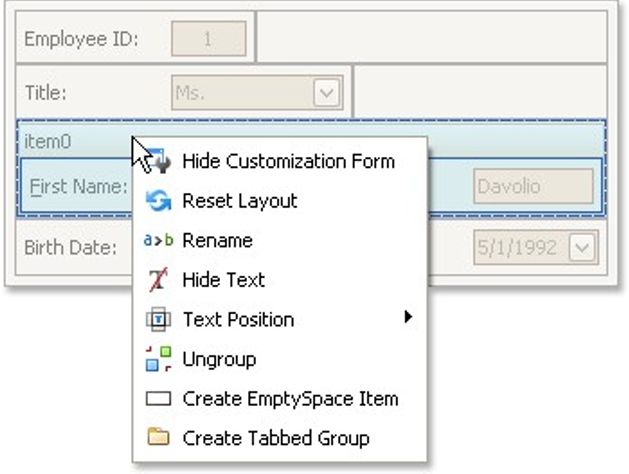
Right-click the group's caption and select Create Tabbed Group.
This creates a tab control with one tab displaying the contents of the original group.
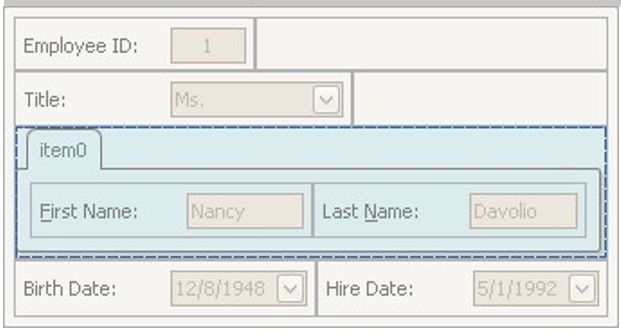
You can subsequently rename the created tab and customize the contents of tab pages using drag-and-drop and context menus, if required.
Combine Groups into a Tab Control
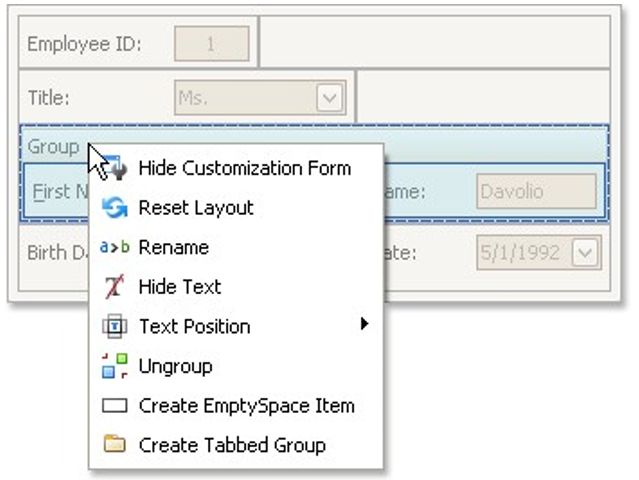
To transform a group into a tab control, right-click the group's caption and select Create Tabbed Group.
To add a group as a tab page to an existing tab control, drag the group's caption onto the tab control's header area.
Rename Tab Pages
Do the following:
1.Right-click a tab header and select Rename:
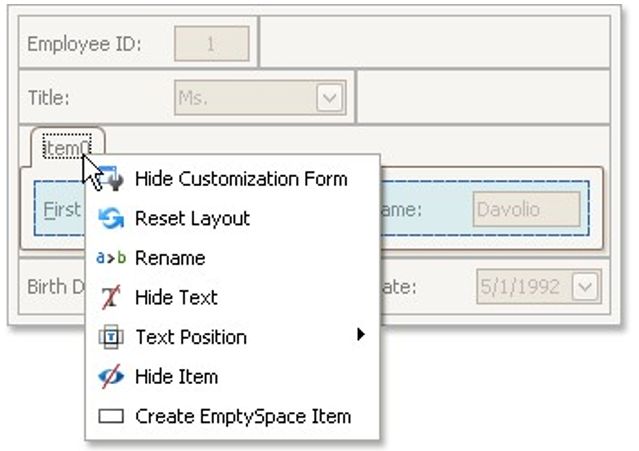
Type a new name and press ENTER.
Customize Tabbed Groups
To customize the layout of controls and the order of tab pages within a tab control , use drag-and-drop.
Ungroup Tabbed Groups
To disassemble a tab control into regular groups, right-click the tab control's header area and select Ungroup Tabbed Group.
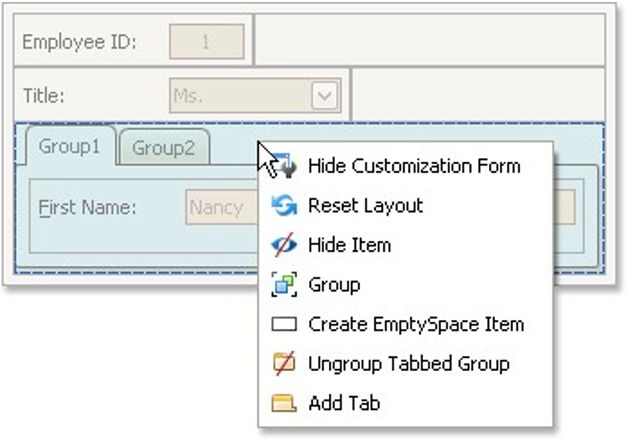
As a result, the tab control will be destroyed and all its tab pages will be displayed as regular groups, one below another.