Validate Data in Cells
The Spreadsheet allows you to use data validation to impose restrictions on cells to prevent other users from entering incorrect values in validated cells. For example, you can create a drop-down list of allowed values, restrict the number of characters entered into a cell, validate data using spreadsheet formulas, display an error message, provide an input message explaining what values can be entered into cells, etc.
Data validation settings are located on the Data tab in the Data Tools group.
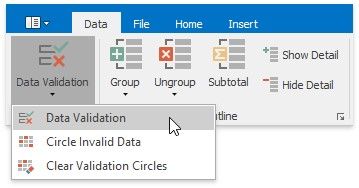
To configure data validation settings, use the Data Validation dialog, which can be invoked by clicking the Data Validation button and selecting the Data Validation item in the drop-down menu.
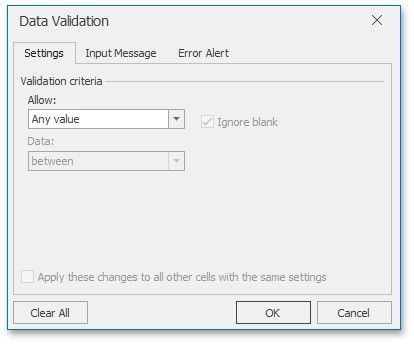
Select the action you wish to perform.
Restrict data entry to predefined items from a drop-down list
Restrict data entry to a whole or decimal number within a specified range
Restrict dates and times to values within a certain time interval
Limit the number of text characters
Validate data based on formulas or values in other cells
Create an input message
Create an error message
Circle invalid data
Remove data validation