Master Tables dealing with the information related to Suppliers and Distributors
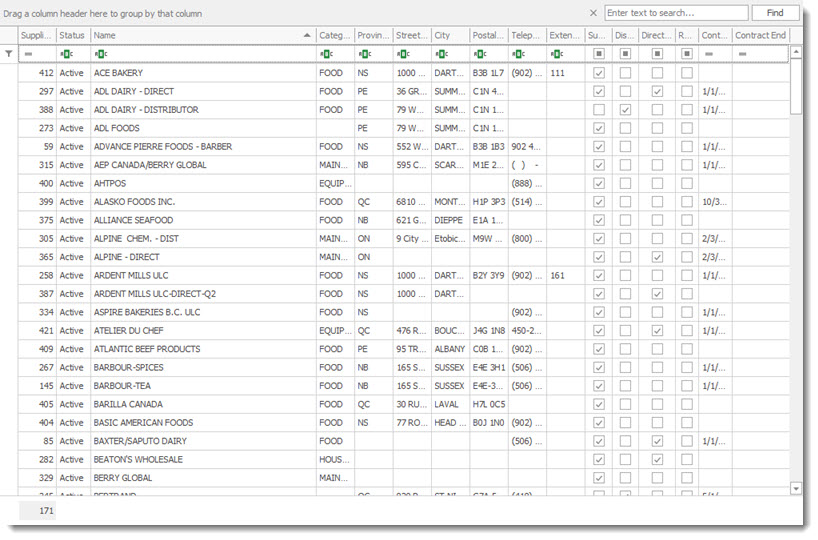
The Supplier Distributor List display all Suppliers and Distributors that exist in the RHOP system.
•To create a new Supplier and Distributor record select on the tool bar the New  button.
•To open a Supplier and Distributor record double click the Supplier and Distributor record and the Supplier and Distributor profile will be displayed. Once the Supplier and Distributor profile is open the user can edit the information it contains.
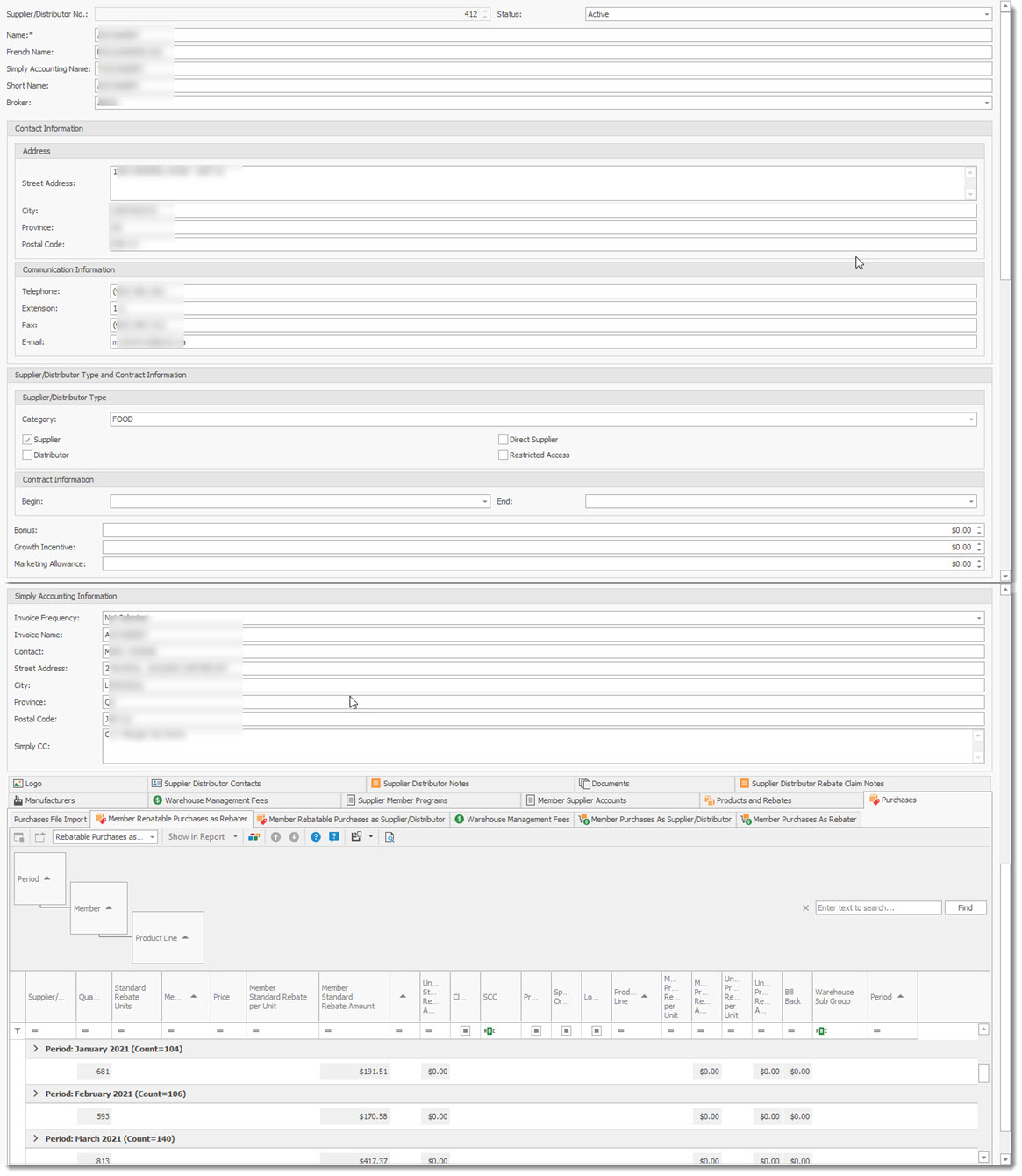
Supplier / Distributor No: Automatically assigned by the system and cannot be changed.
Status: Must be set to Active for the Supplier / Distributor to be used by the system. If set to Non-active the profile is ignored by the system.
Name: of the Supplier / Distributor used in reports.
French Name: of the Supplier / Distributor used in reports.
Simply Accounting Name: The name used to link Simply Accounting and this Supplier / Distributor activities for accounting purposes.
Short Name: a shorten name used buy the Supplier / Distributor.
Address: Address fields associated with the profile.
Communication Information: the various methods to communicate with the Supplier / Distributor.
Type: The type of Supplier / Distributor. Used in reports and for grouping purposes.
Simply Accounting Information: The Information used by Simply Accounting for this Supplier / Distributor profile.
Contract Information: Information of contracts Start and End Date for the Supplier / Distributor.
Bonus: associated with the Supplier / Distributor
Growth Incentive: associated with the Supplier / Distributor
Marketing Allowance: associated with the Supplier / Distributor
Available Tabs:
Logo tab : Logo for the Supplier/Distributor
Supplier/Distributor Contacts: List of contacts
Contains a list of Contacts for the Supplier / Distributor.
•To add a new contact use the New  record button in the tab section.
•To edit a record double click the record.
The Contact Profile dialogue will be displayed, Enter the Contact information.
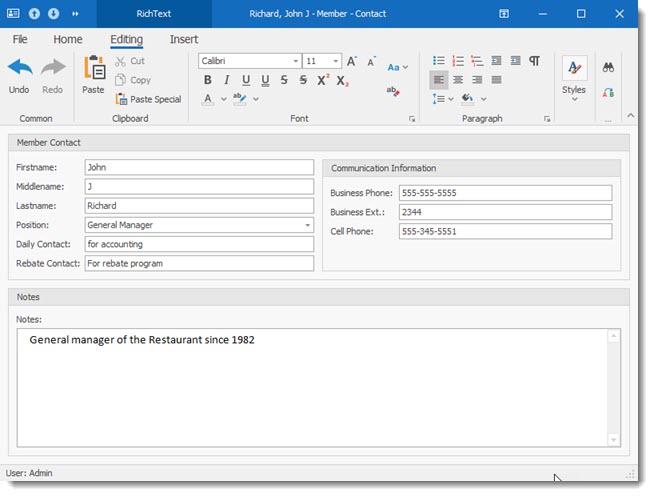
Supplier/Distributor Notes: Notes entered by users. Contains a list of Notes associated to theSupplier / Distributor. Each note contains a date of when it was created. To Add or edit a Supplier / Distributort note follow the same instructions as those for the Contact list
Documents: Documents attached to Supplier/Distributor. Contains a list of Documents associated to the Supplier / Distributor. Each Document contains a document description, document type and date of when it was created.
Supplier Distributor Rebate Claims Notes: Notes attached to profile. Contains a list of Notes associated to theSupplier / Distributor. Each note contains a date of when it was created.
To Add or edit a Supplier / Distributor note follow the same instructions as those for the Contact list
Manufacturer: list of manufacturers attached to Supplier/Distributor
Contains a list of manufactures associated to theSupplier / Distributor.
To Add or edit a Supplier / Distributort note follow the same instructions as those for the Contact list
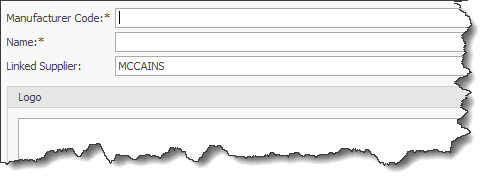
Manufacturer Code: to be used by the System
Name: of the Manufacturer
Linked Supplier: automatically linked by the system to the open record
Warehouse Management Fees: Fees associated with Supplier/Distributor. Contains a list of the Warehouse Management fees associated to the Supplier / Distributor.
To Add or edit a Supplier / Distributor note follow the same instructions as those for the Contact list.
The displayed screen is the Warehouse Management Fees screen. ( see Warehouse Management Fees under products )
Supplier Member Programs: List of programs that the Supplier/Distributor participates
Member Supplier Accounts: Accounts associated with the Supplier/Distributor
Products and Rebates: Listing of products Lines and Rebates associated with the Supplier/Distributor. The displayed screen is the Product Guide screen. ( see Rebates under products
Purchases: Note: that the various sub-tabs in this section can take several minutes to display due to the amount of data to be retrieved. The sub tabs include: Purchase File Import, Member Rebatable Purchases as Rebater, Member Rebatable Purchases as Supplier/Distributor, Purchase Admin fees, Member Distributor purchases as Supplier Distributor and Member Distributor Purchases as Rebater.
Rebate Exceptions
Users can enter rebate exception using the Supplier / Products and Rebates (1) / Member Rebate Exceptions (2) tab. A List of exceptions is displayed in the grid.
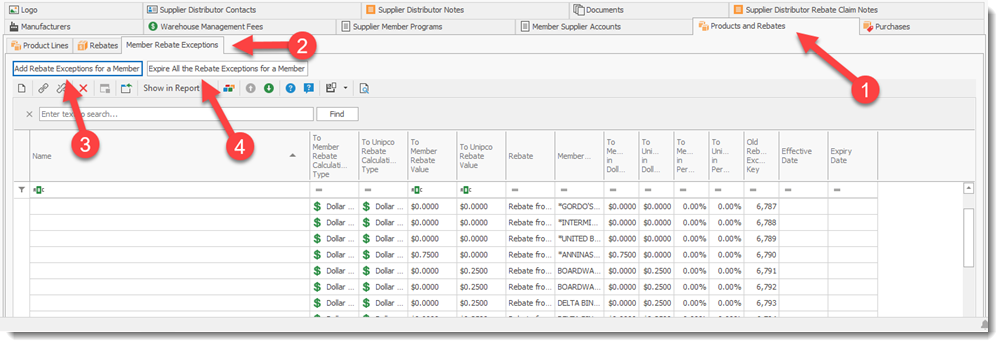
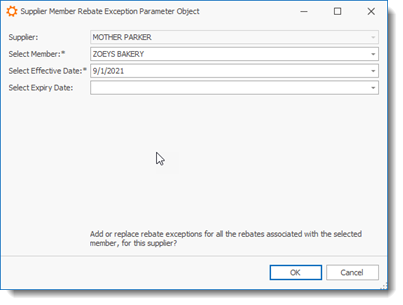
Select the Add Rebate Exception for a Member (3) button to add an exception. Complete the required field to record your exception.
Select the Expire all Rebate Exceptions for a Member (4) button to remove all Rebates exceptions linked to the selected supplier.