The Rebates screen is the repository of all Rebates contained in the RHOP system. By default, the screen is a drill down screen that regroups the rebates offered by the Supplier/Distributor.
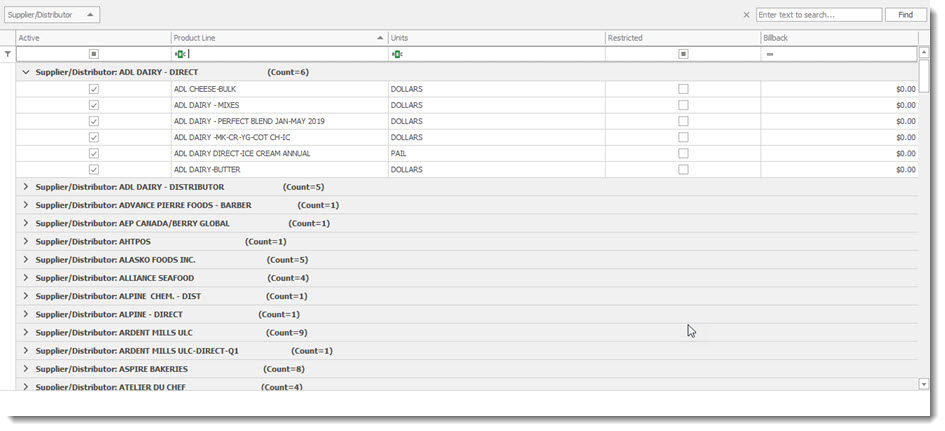
By opening a listed rebate product within the list of the displayed Supplier/Distributor rebates shown in the grid, the list displayed will show all Member(Standard), Promotional,and Member Exceptions program(s) using the selected Supplier/Distributor rebate for the selected product. The Linked Product Guides items list all items linked to the Rebater.
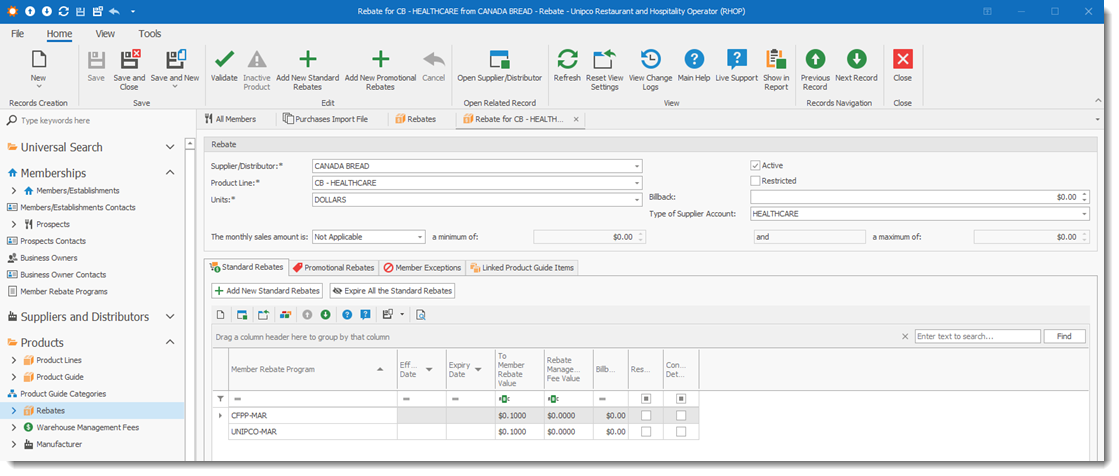
By using the drill down function in the listed Member Rebate program you can view the actual rebate that will be applied.
How to Create a New Rebate
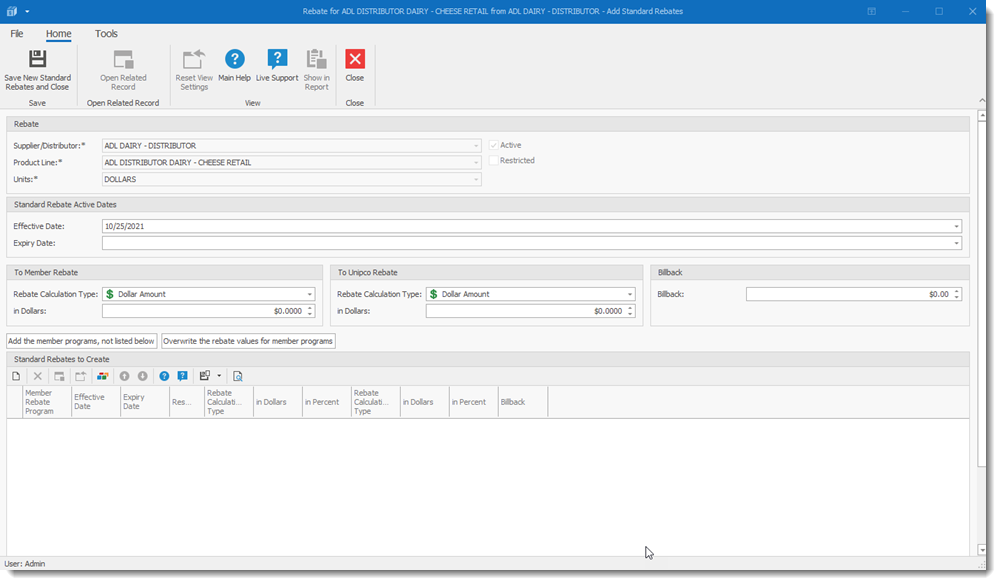
•To create a new Rebate record select on the tool bar the Add New Standard Rebates  button.
This will open a blank (New) rebate record.
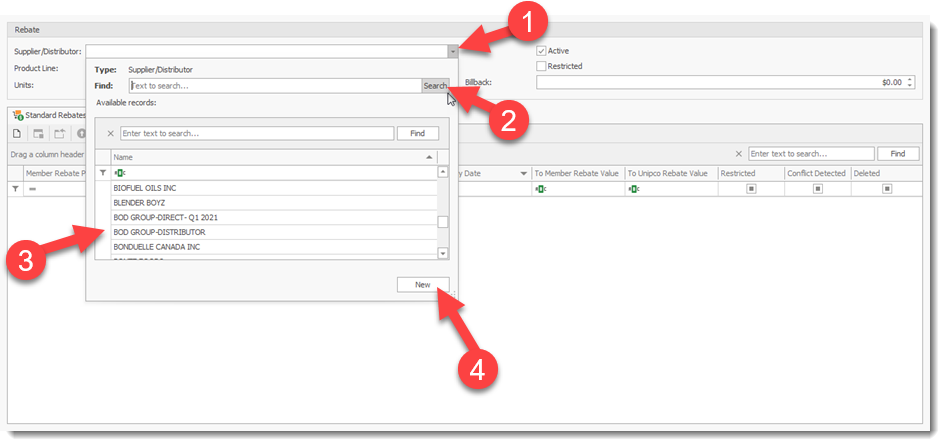
1) You must enter the Supplier/Distributor (1) for which this rebate record is applicable. The (1) drop down permits users to search or locate existing suppliers/distributors. By entering (case sensitive) name of the supplier or by leaving the field blank and selecting the search (2) button will display either matching entries or a list of all Suppliers and Distributors in the system The user can then select (3) from the list the appropriate Supplier/Distributor for the Supplier/Distributor entry field.
If it is a new Supplier/Distributor that is not contained in the list, the user can select the New (4) button to create a new Supplier/Distributor.
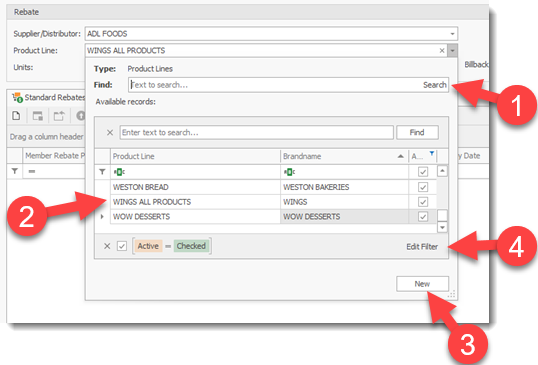
A similar screen is available for the selection of the Product Line.
•The Search(1) button allows a user to search for existing Product Lines.
•The List of displayed Product Lines (2) permits a user to select the appropriate entry.
•In the case where a New Product Line needs to be create the New (3) button can be used to create a New Product Line.
•The Edit Filter (4) permits the user to configure the filtering of the Product Line data displayed (2) to locate the product line desired.
The Units field permits the user to select (1) from the pre-defined list of Units or define a New (2) Unit to use for the selected Rebate.
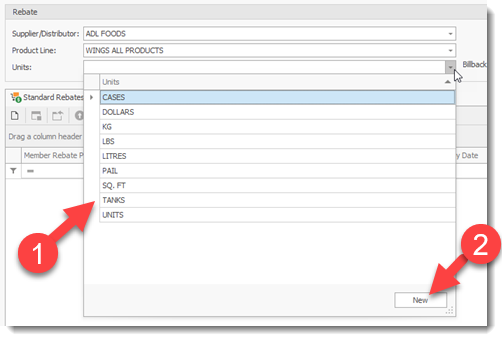
The New (2) button permits a user to create a new Unit measurement for the defined rebate.
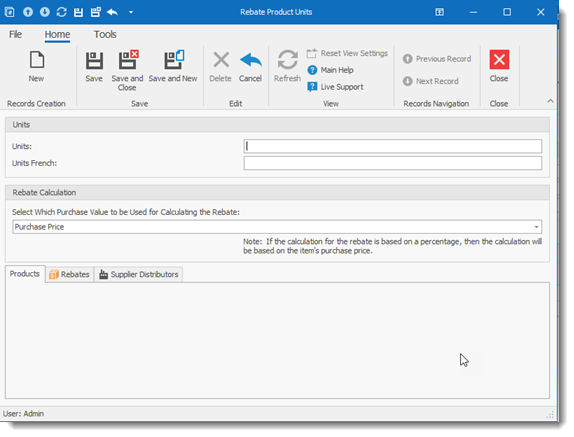
Other Important fields:
Active: If checked the rebate will be used in calculating available rebates. If not checked the rebate profile will be ignored. This field is used in conjunction with the Effective Date and Expiry Date fields located in the Rebate Information screen.
Restricted: If checked the rebate will be considered as restricted rebate:

Effective Date: Start date for this rebate to be considered for RHOP
Expiry Date: the date RHOP will stop considering this rebate.
To Member Rebate section: records the type and amount of the rebate. The Type defines the calculation to be used for calculating the rebate.
To Unipco Rebate section: records the type and amount of the rebate. The Type defines the calculation to be used for calculating the rebate.
Billback: the amount of the bill back
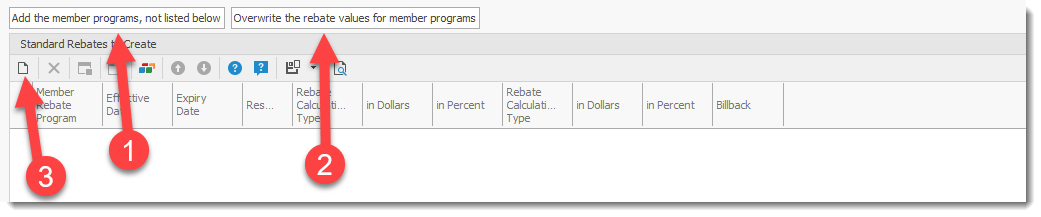
Once you have created the Rebate record, you can link the various Member Rebate programs to the rebate. Select the Add the member programs, not listed below (1) button to add all programs or the Overwrite the rebate values for member programs (2) to assign the rebate value to all plans. You can also add one program at a time by using the New icon (3) in the grid.
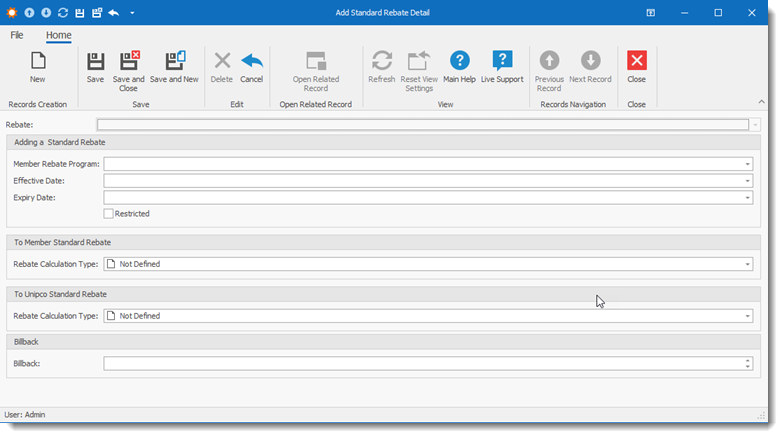
When using the new Icon to record a rebate -Select and complete the required fields in the Add Standard Rebate Detail screen.
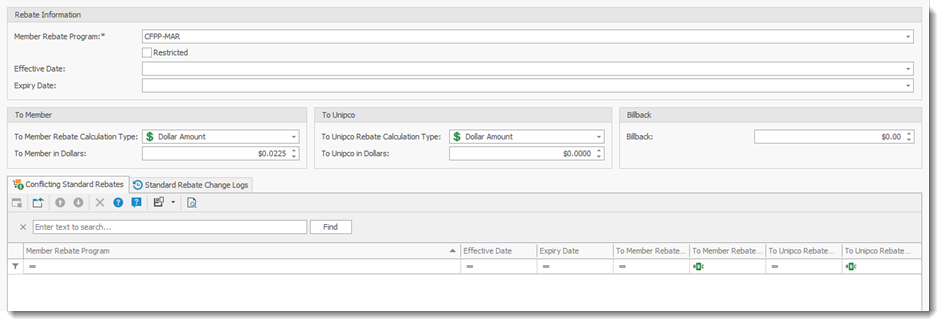
If a rebate conflict is found by the RHOP system it will be displayed in the Conflicting Standard Rebates Tab. The conflicts will typically be a possible overlap of begin or end date for the rebate or that another rebate already exist for this Member Rebate program.
The Standard Rebate Change Log is a listing of all changes made to this rebate record.
IMPORTANT:
For RHOP to function optimally, it is important to complete every applicable field in every screen. Blank fields may have negative effects on the application. In particular the Effective and Expiry date are crutial as they indicate to the RHOP system if the rebate record is to used or not.
|
How to View/Change an Existing Rebate
•To open a Rebate record double click the Rebate record and the Rebate profile will be displayed. Once the Rebate profile is open the user can edit the information it contains.
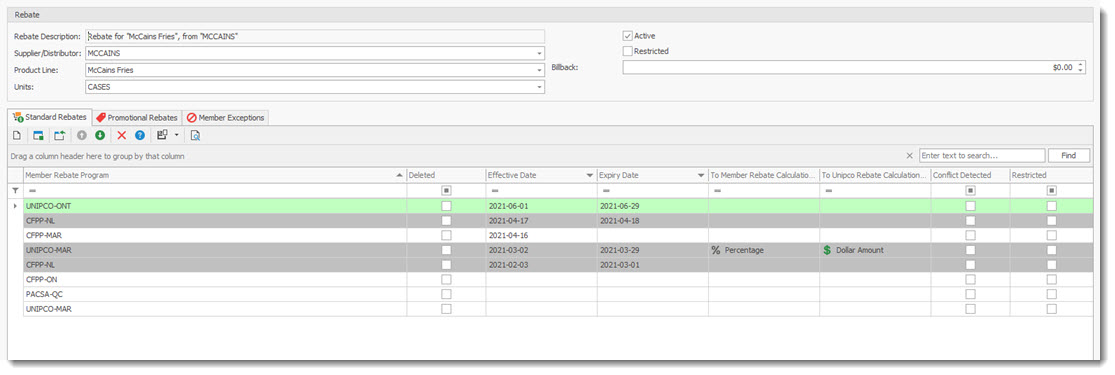
Supplier / Distributor: Rebates is applicable for the selected Supplier Distributor from the drop down list. if the Supplier / Distributor is not listed you must create it before you can use it.
Product Line: Select the Product Line associated with the Rebate. If the product Line does not appear in the drop down you must first create it.
Units: Select the Units used to calculate the rebate.
Active: If checked the rebate will be used in calculating available rebates. If not checked the rebate profile will be ignored.
Restricted: If checked the rebate will be considered as restricted rebate:
Billback: the amount of the bill back
Standard Rebate Tab
The standard rebate tab displays the Member (Standard) Rebates programs using this rebate profile.
The promotional Rebates Tab displays the Promotional Rebates programs using this rebate.
The Member Exception tab displays the Exceptions by member for this Rebate.
This grid is color coded to easily determine the status of the rebate.
•White entries represent programs where this rebate is not active
•GREEN entries represent programs where this rebate is currently active
•RED entries represent programs where this rebate is in conflict with another program or with effective dates that overlap. (rebates programs cannot overlap with another rebate program).
•Grey entries represent programs where this rebate is no longer active (expired).
•To add a new Rebate program to a Rebate record use the New  record button in the tab section.
•To edit a record double click the record.
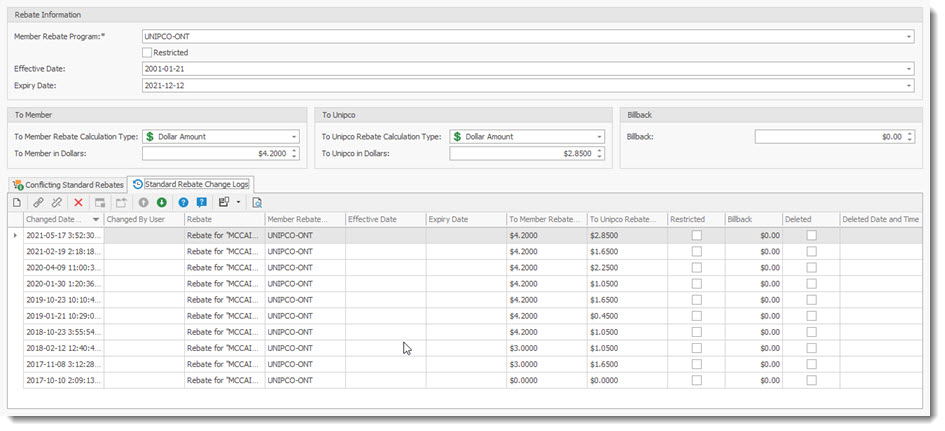
Member Rebate Program: Select from one of the available Rebate programs.
Restricted: If checked the Rebate will be considered restricted.
Effective date: The start date when to apply this rebate. The RHOP system will start using this rebate program on the selected date. If no date is entered the rebate will never be considered by RHOP.
Expiry date: The end date when this rebate program will end. The RHOP system will ignore this rebate program after the selected date
To Members: section describes the rebate calculation to be used to credit members.
Rebate calculation type: The calculation to use for calculating the rebate.
To Member Dollars: The amount to be rebated
To UNIPCO: section describes the rebate calculation to be used to credit UNIPCO.
Rebate calculation type: The calculation to use for calculating the rebate.
To Unipco in Dollars: The amount to be rebated.
Billback: the amount of the Billback for this rebate.
Conflicting Standard Rebates Tab
List rebates programs that are conflicting with this rebate. This could be due to the active time period of the rebate or that this rebate is applicable to more than one program.
IMPORTANT
All conflicts must be resolved before the rebate program can be applied/use by the RHOP system.
|
Standard Rebate Change Log: is a listing of every change made to the selected Rebate.
How to view Products items included in a Rebate
When selecting a rebate, the user can view the product items affected by the selected rebate item.
1) select the Rebate program you wish to view.
2) once the Rebate profile is open select the View product related to this rebate button to view the list of product items.
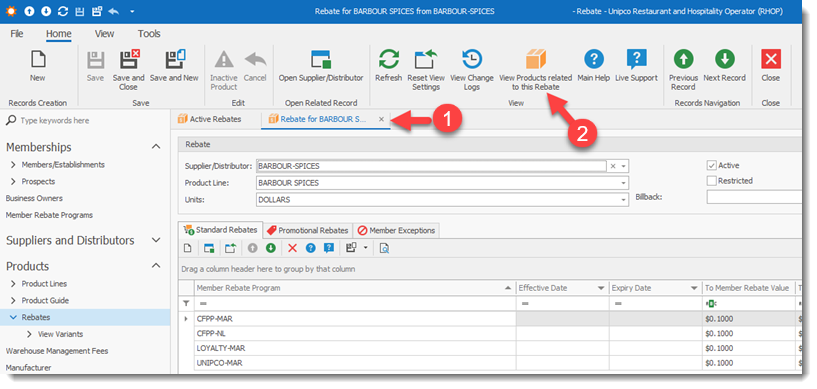
The Product List will be displayed. To view a specific product item, double click on the product item to view the Product item screen.
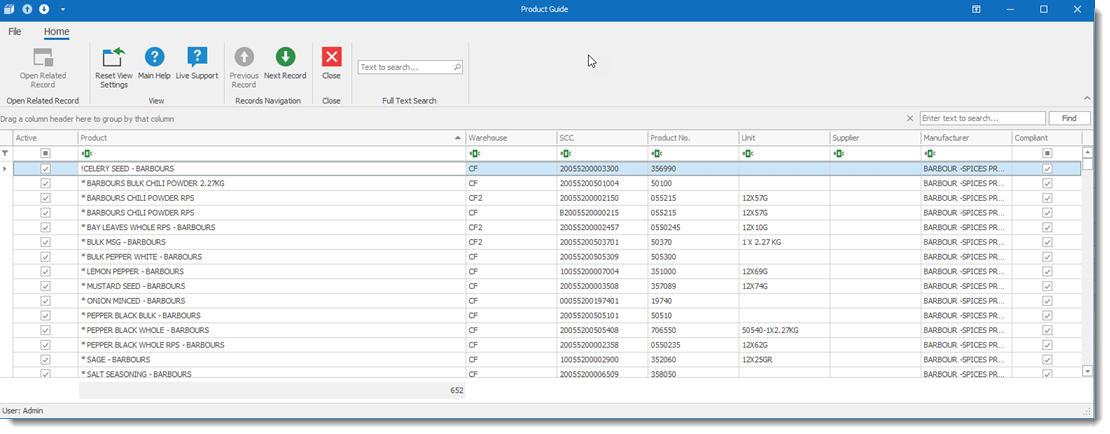
Double click a product item to display the Product Item Screen:
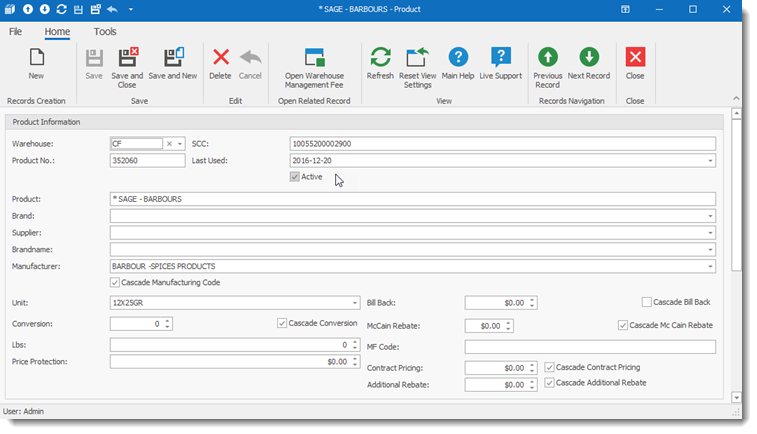
How to Create Promotional Rebates
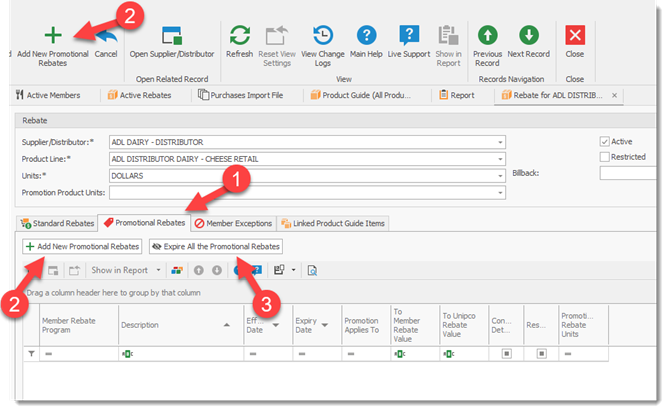
Select the Promotional Rebates Tab (1) and select the Add New Promotional Rebate button (2). To expire all promotional rebates listed use the Expire all the Promotional Rebate button (3).
When creating a New promotional rebate complete all pertinent fields.
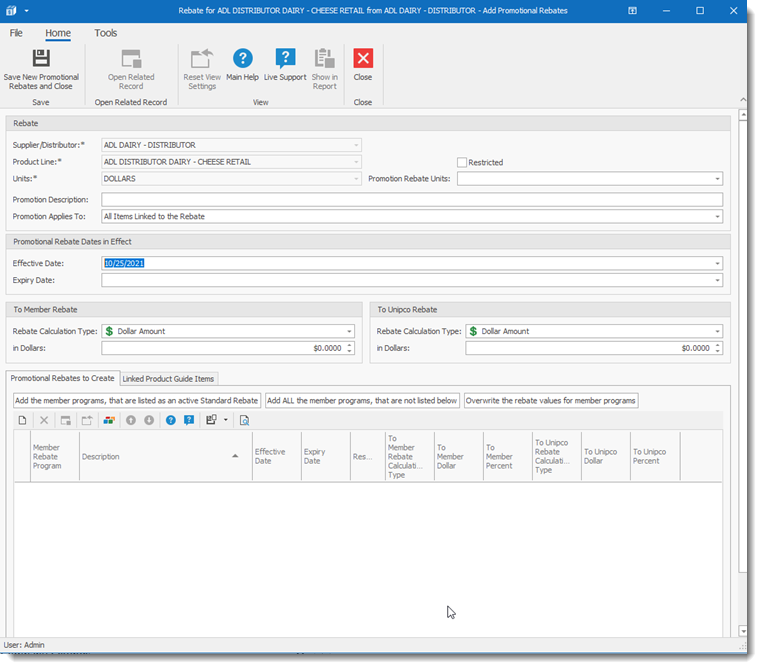
Promotional Description: name and description of the promotion
Promotions Applies To: Permits user to define how the promotion is applied.

Effective date: The date the promotional rebates takes effect. If no date is entered the rebate will never be considered by RHOP.
Expiry date: The date the promotional rebates end. The rebate will not be considered by RHOP after this date.
To Members: section describes the rebate calculation to be used to credit members.
Rebate calculation type: The calculation to use for calculating the rebate.
In Dollars: The amount to be rebated
To UNIPCO: section describes the rebate calculation to be used to credit UNIPCO.
Rebate calculation type: The calculation to use for calculating the rebate.
In Dollars: The amount to be rebated.
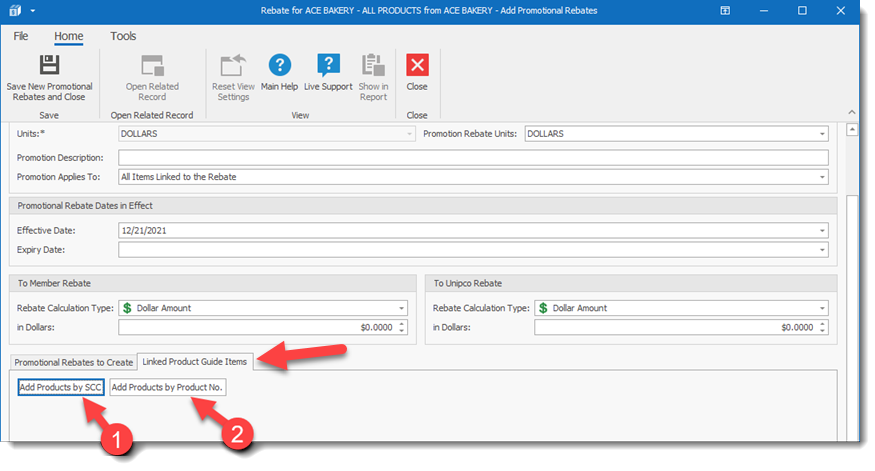
The Linked Products Guide Items tab permits users to add products to the Promotion record. Users can use the SCC (1) button to enter a valid SCC to add to the promotion or the Product No. (2) button to add a products using the Product No.
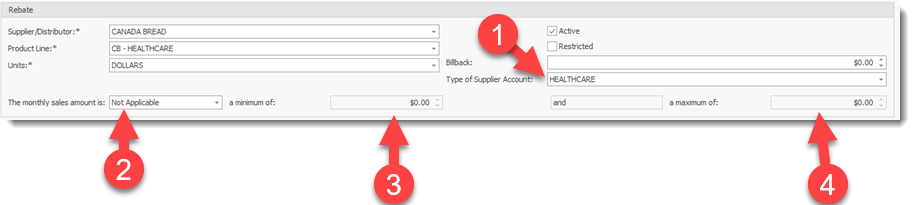
Canada Bread Rebate / Import Profile
For Canada Bread Direct Imports special fields are displayed for managing the rebate formula to use for rebates.
To activate the Canada Bread rebate a user must define, if applicable, the various fields associated with the Canada Bread rebate calculations. Select the Type of Supplier Account (1) and then define if a volume range is applicable for the monthly rebate (2) calculation. The Volume amounts can be entered in the fields identified as 3 and 4.