The Member Rebate Programs grid displays all Rebate programs contained in the database.
The Grid listing can be grouped by various grid headers. ( see Grid for more information)

•To create a new Rebate Program record select on the tool bar the New  button.
•To open a Rebate Program record double click the Rebate Program record and the Rebate Program profile will be displayed. Once the Rebate Program profile is open the user can edit the information it contains.
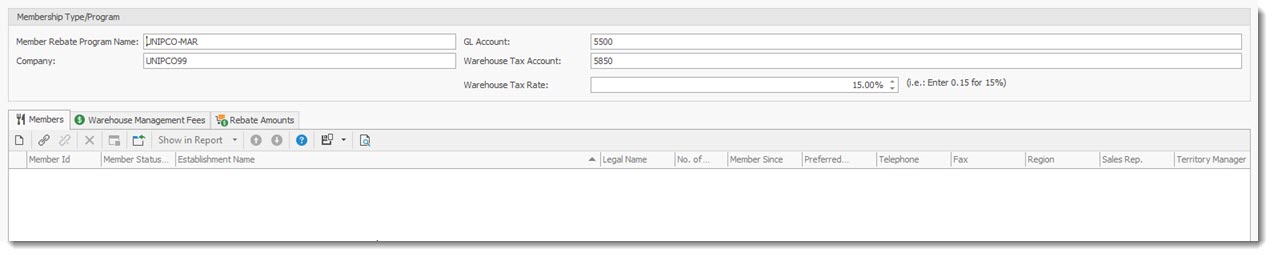
Member Rebate Program Name: Name of the rebate program (must be unique)
Company: Simply Accounting Company associated with the rebate program
GL Account: Number of the Simply Accounting GL account to register the rebate amounts
Warehouse Tax Account: The Simply Accounting Tax account to use for the Warehouse Tax for this rebate program.
Warehouse Tax rate: the tax rate ( percentage) used to calculate the amount of tax associated with the rebate warehouse items.
Members tab:
Contains a list of member associated to this Rebate program.
•To add a new member use the New  record button in the tab section.
•To link an existing member to the rebate program select the Link  button.
•To Unlink (remove) a member from the rebate program, select the unlink button.
•To edit a member record double click the record.
The Members Profile will be displayed.
Warehouse Management Fees tab:
Contains a list of the Warehouse Management Fees associated to this Rebate program.
•To add a new Warehouse Management Fees use the New record button in the tab section.
•To link an existing Warehouse Management Fees to the rebate program select the Link button.
•To Unlink (remove) a Warehouse Management Fees from the rebate program, select the unlink button.
•To edit a Warehouse Management Fees record double click the record.
The Warehouse Management Fees Profile will be displayed.

Rebates Amount tab:
Contains a list of the Rebates Amounts associated to this Rebate program.

•To add a new Rebates Amounts use the New record button in the tab section.
•To edit a Rebates Amounts record double click the record.
The Rebates Amounts Profile will be displayed.

Members Rebate program: name of program
Restricted: if the program is restricted
Effective date: When the rebate starts
Expiry date when the rebate expires
To Members: the rebate to members
To Unipco: rebate to Unipco
Bill Back: the amount of the Bill back for the rebate program.
IMPORTANT:
When selecting the Percentage option for a rebate enter the percentage amount as a decimal. Example: 6% - 0.06
|