Shape Data
The Query Builder displays the column list under the data source editor, which provides various shaping options:
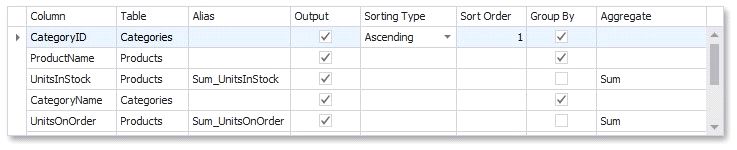
Specifies the selected column.
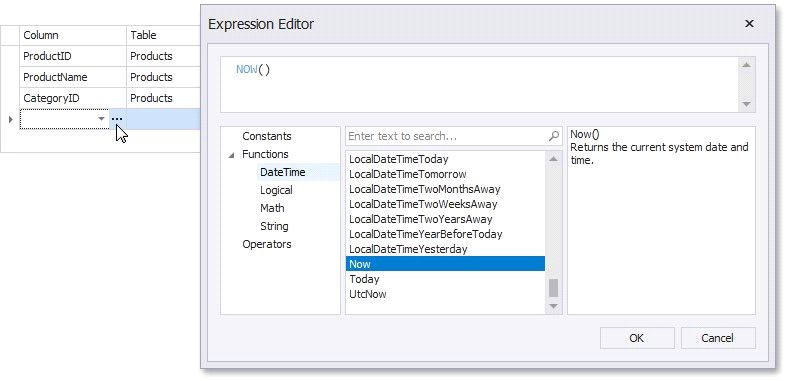
You can choose a column from the drop-down list or create a column expression by clicking the corresponding column's ellipsis button.
Specifies the table containing the selected column.
This option indicates (All Tables) if you created an expression for the corresponding column.
 Alias
Alias
Specifies a custom column name (alias).
This option is available only for columns that you included in a query.
 Output
Specifies whether to include the column in the query's resulting set.
 Sorting Type
Specifies whether to preserve the original data record order within the column or sort them (ascending or descending).
This option becomes available after applying sorting to the data column records.
It defines the priority in which sorting is applied to multiple columns (a lower number has a higher priority).
For example, if column A has the sort order set to 1 and column B has it set to 2, the query is first sorted by column A and then by the column B.
Changing this setting for one column automatically updates other columns’ sorting order to avoid conflicting priorities.
 Group By
Specifies whether to group the query's resulting set by this column.
 Aggregate
Specifies whether to aggregate the column's data records.
The following aggregate functions are supported:
Count
Max
Min
Avg
Sum
CountDistinct
AvgDistinct
SumDistinct
Applying any of these functions to a column discards individual data records from the query result set, which only includes the aggregate function result.