Print a Document
Preview a Document Before Printing
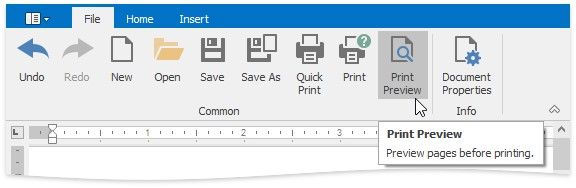
To display the document as it will look when printed, on the File tab, in the Common group, click the Print Preview button.
Print a Document
1.On the File tab, in the Common group, click the Print button...
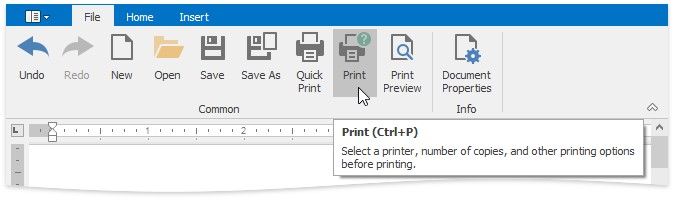
...or press CTRL+P.
The Print dialog will be invoked.
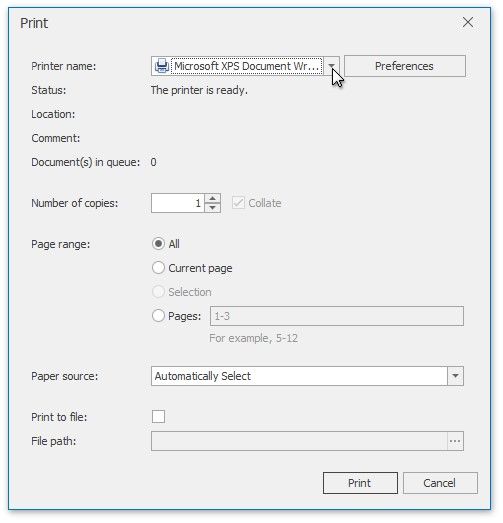
2.In the Print dialog, specify all required settings and click Print.
Print a Document Using Default Settings
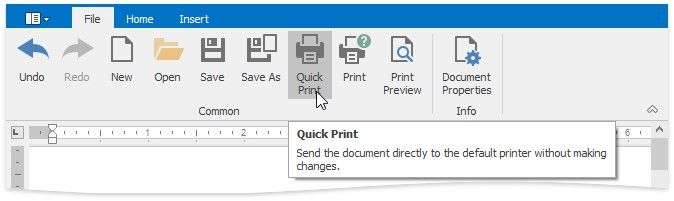
To send a document directly to the default printer without customizing print settings, on the File tab, in the Common group, click the Quick Print button.