Navigate in Print Preview Using Thumbnails
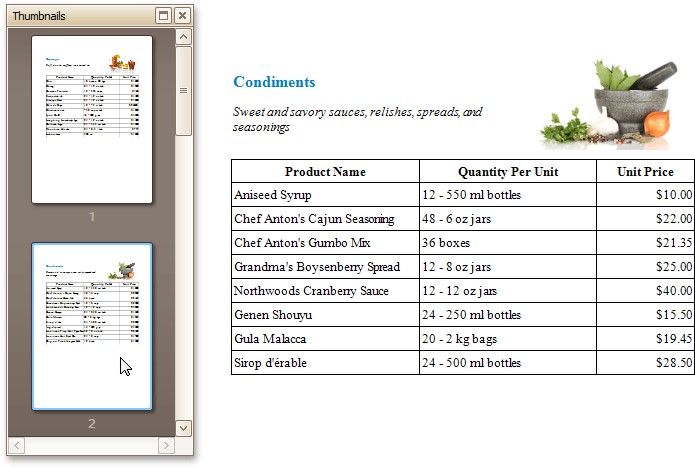
You can use thumbnails to quickly navigate between document pages.
To show report thumbnails, click the Thumbnails button on the toolbar.

Click a thumbnail to navigate to the corresponding document page.
Search for a Specific Text in Print Preview
To search for a specific text throughout a document, click the Search  button on the toolbar, or press CTRL+F. This invokes the Search panel.

To start searching for the terms, click Next or press ENTER. To find the next occurrence of the terms, do the same. To find the previous occurrence of the terms, click Previous.
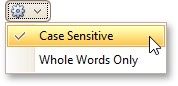
The Search panel also provides the settings button, which invokes the dedicated submenu allowing you to specify whether or not to use a case-sensitive search and whether or not you need to match the whole word during the search.