Navigate Between Views
To change the page view, use one of the following.
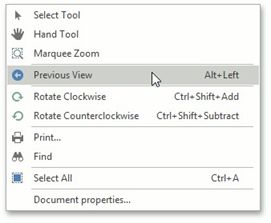
Right-click this document and select the Previous View  or Next View
  item in the invoked context menu. press Alt+Left or Alt+Right.
Move a page with the Hand tool.
The Hand tool enables you to scroll content by dragging the document instead of using scrollbars.
To activate the Hand tool, right-click the viewing document and select the Hand Tool  item in the context menu.
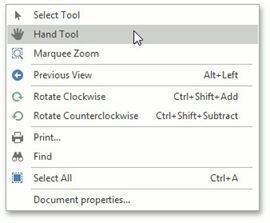
Then, after you click the document's page, the mouse pointer is changed from  to
to 
 Drag the mouse pointer to scroll the document.
 Use zoom toolbars to change page magnification. For more details, see the Adjust the Document View topic.