Navigate Between Pages
To navigate between pages, use one of the following.
The scrollbars.
Previous and Next navigation buttons.
These buttons allow you to switch to the previous or next page of a document.

The Pager that is used to show the current page number and the total number of pages in a document.
To change the page number in the Pager, type a new page number and press ENTER.
The Bookmarks panel located on the Navigation pane.
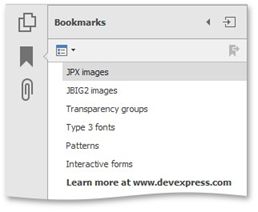
To jump to a topic, click a bookmark.
The Page Thumbnails panel located on the Navigation pane.
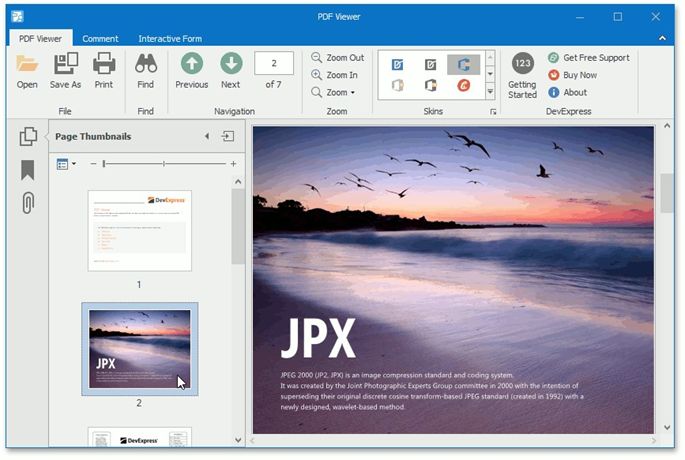
To jump to the page in a document, click a page thumbnail in the Page Thumbnails panel.