Search for a Specific Text
To search for a specific text within a document, click the Find button on the toolbar.

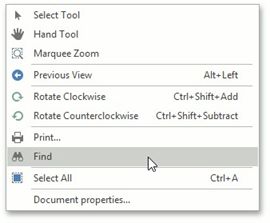
To invoke the Find dialog using the context menu, right-click the document and select the Find  item in the context menu.
In the Find dialog, type the text you want to search for and specify the following settings (if required):
The Case Sensitive option specifies whether to ignore the letter case when searching text.
The Whole Words Only option only considers whole words when searching text. For example, it does not find the word types when you search for type.
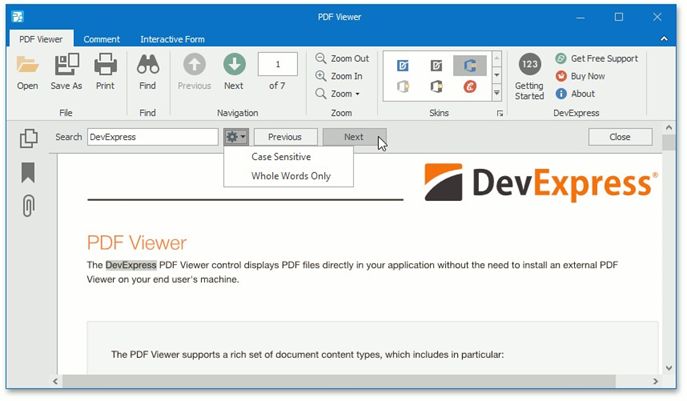
To start searching, click the Next button in the Find dialog, or press the ENTER key when the PDF Viewer shows the Find dialog
The PDF Viewer stops searching when it finds the first occurrence of the search text, highlights the occurrence and navigates to the highlighted text.
To search for the next match, click the Next button in the Find dialog, or press the ENTER key again when the PDF Viewer shows the Find dialog.
To go to the previous match, click the Previous button.
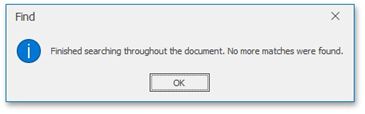
The PDF Viewer shows the following message when it finds the final occurrence of the search text or there were no results that match the search text.