Multilevel Lists
Create a Multilevel List as You Type
1.Point to the position within a document from which you want to begin your list.
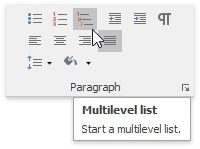
2.On the Home tab, in the Paragraph group, click the Multilevel list  button.
3.Type the text.
4.To change levels of the list, press TAB and SHIFT+TAB, or, on the Home tab, in the Paragraph group click the Increase
Indent  and Decrease Indent
  buttons. Press ENTER to create the next item on the current level.
5.To finish the list, press ENTER twice.
Make a Multilevel List from the Selected Text
You can make multilevel list from existing lines of text in two ways. The first one is to use the Paragraph toolbar:
1.Select the text lines that you want to transform into a list.
2.On the Home tab, in the Paragraph group, click the  Multilevel list
3.Use TAB and SHIFT+TAB, or the Increase Indent Use TAB and SHIFT+TAB, or the Increase Indent
  and Decrease Indent buttons to change levels.
Another way to do the same thing is to use the context menu:
1.Select the text to be transformed into a list.
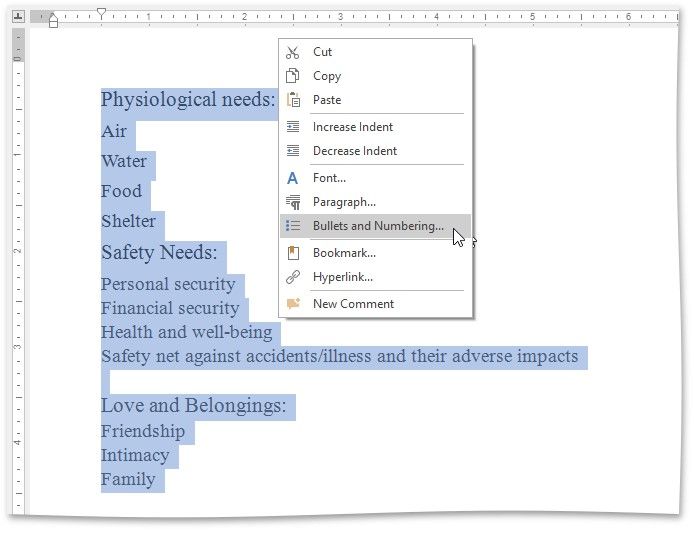
2.Right-click within the document and select the Bullets and Numbering item from the invoked context menu.
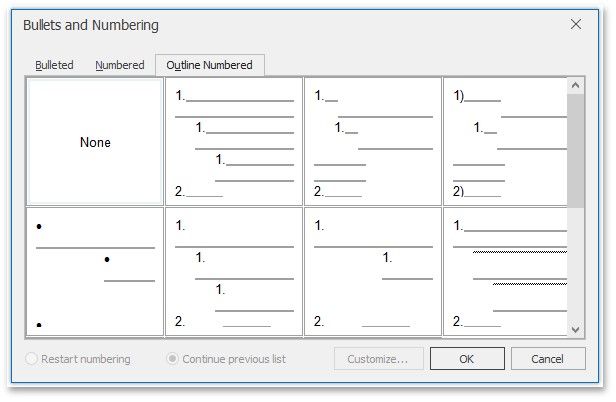
3.In the invoked Bullets and Numbering dialog, click the Outline Numbered tab and choose the list style that you want to apply.
4.Use TAB and SHIFT+TAB, or the Increase Indent  and Decrease Indent
  buttons of the Paragraph toolbar to change levels.
Create Your Own List Style
You can create your own style for a multilevel list on the basis of one of the existing list styles, by changing different list parameters.
1.Select the multilevel list (or text to be transformed into the multilevel list) to which you want to apply your own style.
2.Right-click within the document and select the Bullets and Numbering item from the resulting context menu. The Bullets
2.Right-click within the document and select the Bullets and Numbering item from the resulting context menu. The Bullets and Numbering dialog will be displayed.
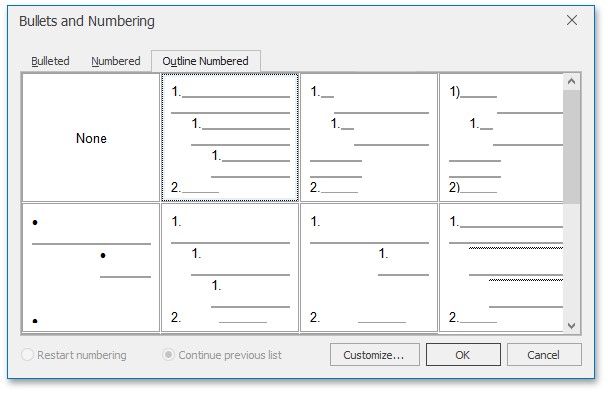
3.Click the Outline Numbered tab, choose one of the existing styles and click Customize.... The Customize Outline Numbered List dialog will be invoked.
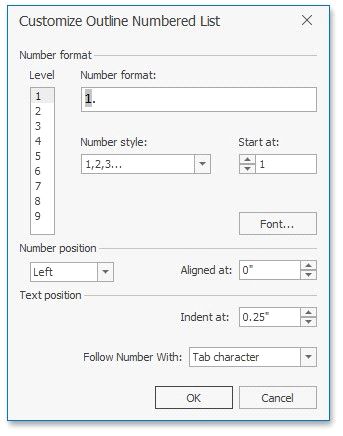
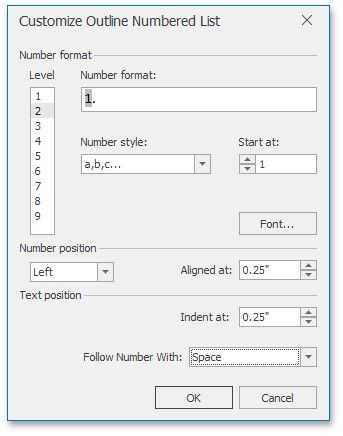
4.In this dialog, change different list parameters to create your own list style.
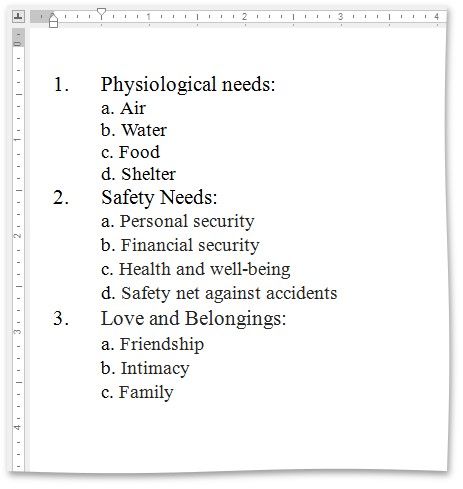
For instance, if you specify list parameters in the following way,...
...you will get the list style as illustrated below.
5.Use TAB and SHIFT+TAB, or the Increase Indent  and Decrease Indent
  buttons of the Paragraph toolbar, to change levels.