Multi-Value Report Parameters
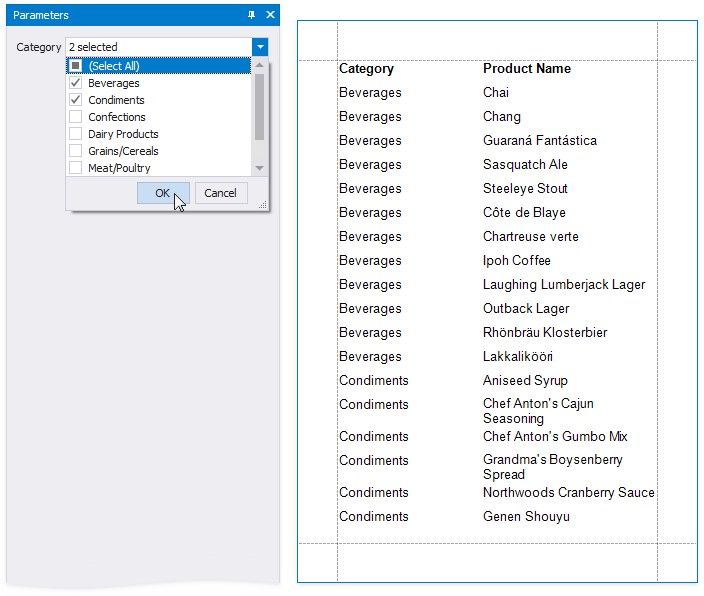
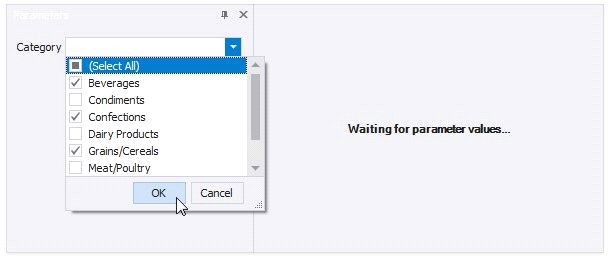
This document describes how to create a multi-value parameter and filter report data by the specified parameter values.
Create a Multi-Value Parameter
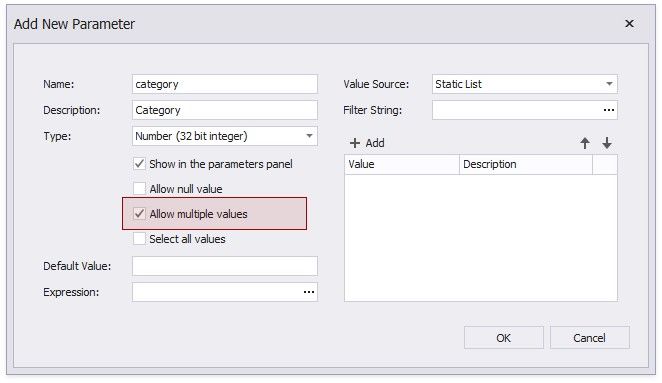
1.Create a report parameter and enable the Allow multiple values option.
2.Specify a list of predefined values for the parameter. See the following topics for more information:
 Report Parameters with Predefined Static Values - to directly specify the list of values.
 Report Parameters with Predefined Dynamic Values - to specify the storage that contains the list of values.
Filter a Report by a Multi-Value Parameter
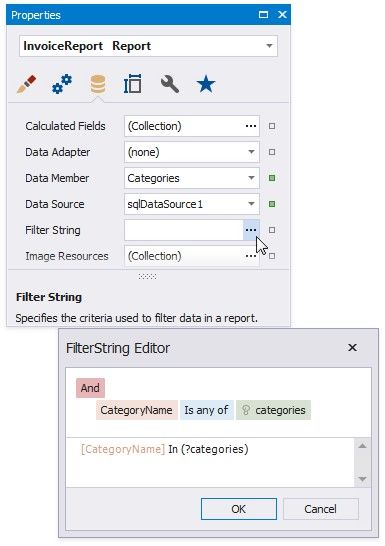
Use the Is any of operator in the report’s filter string:
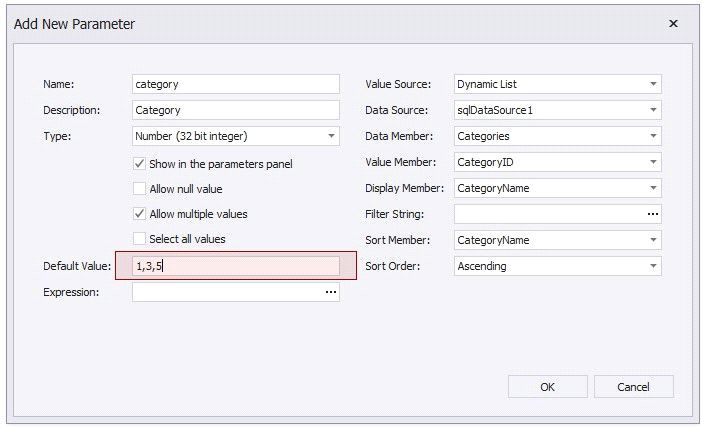
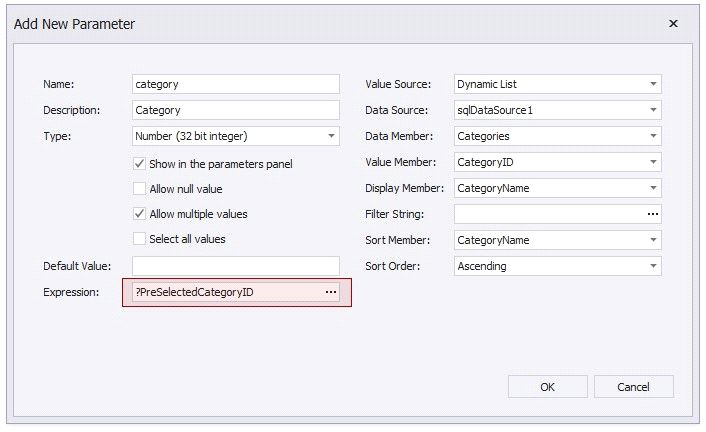
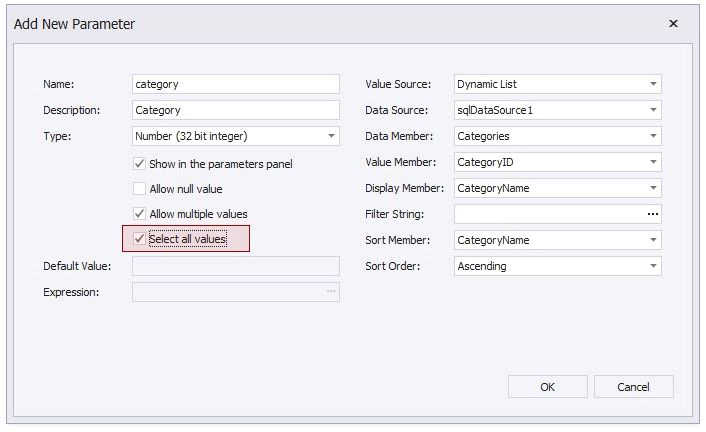
Pre-Select Parameter Values
Use one of the following methods to pre-select multiple parameter values when a report is first rendered.
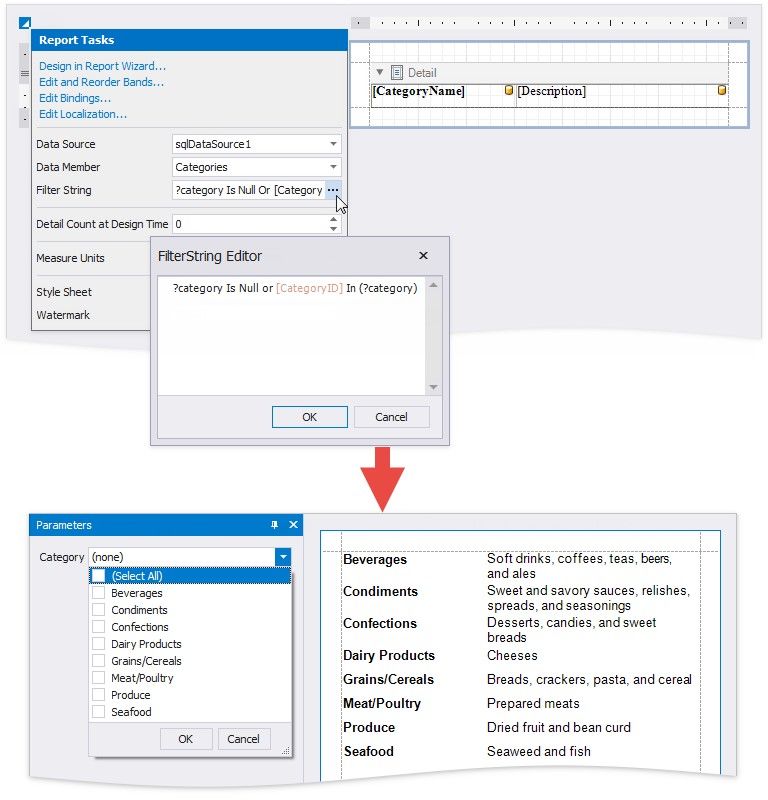
Optional Multi-Value Parameter
You can leave the parameter unspecified and display all report data, or choose parameter values to filter the report.
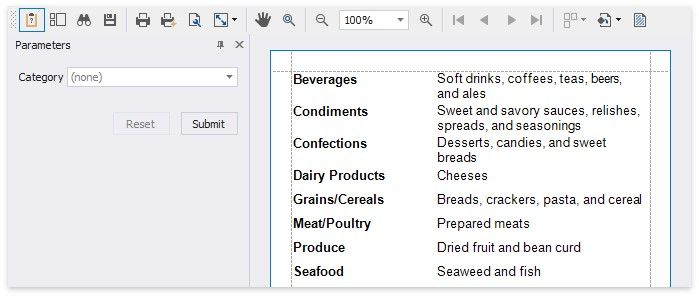
Do the following to make a multi-value parameter optional.
1.Configure the parameter:
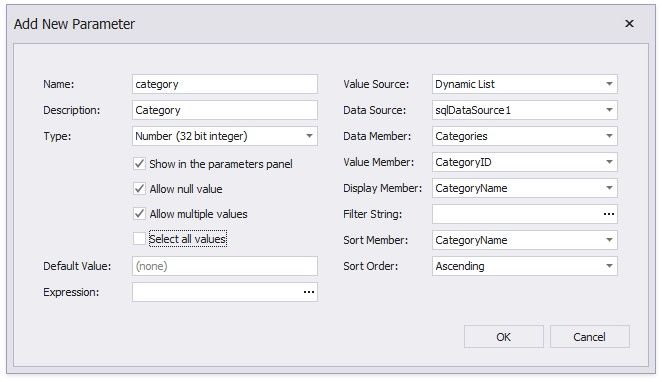
PROPERT Y |
VALUE |
Allow null value |
Checked |
Default Value |
Not specified |
Expression |
Not specified |
Select all values |
Unchecked |
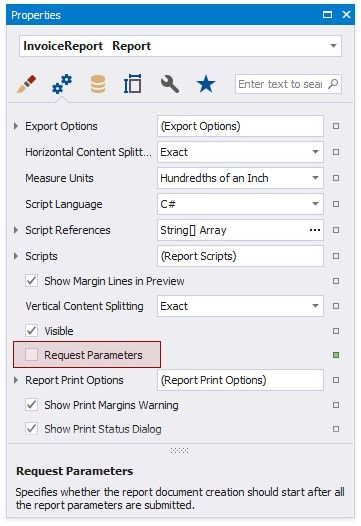
2.Disable the report's Request Parameters property.
3.Use the following report filter string:
?category Is Null or [CategoryID] In (?category)