The "Live Support" option will permit one of our technicians to see and remotely control your PC. Assistance, training and other task can be accomplished using this RHOP built-in Internet remote access tool.
IMPORTANT
You must get approval beforehand from your corporate office before service can be provided. You must also provide a telephone number from which the technician can communicate with you.
Some anti-malware software may identify the web site as being dangerous. You will need to permit access to the web site before you can download the connection software.
|
To activate the connection please call the Help line at 1-506-858-0441 ext 2 and the technician will assist you.
To start a session select one of the Live Support links or button illustrated above. By default the latest version of the remote Support program will be downloaded, installed and run on your device.
You may also manually download the remote support program by going to the web site: https://remotehelp.accra.ca or http://remotehelp.accra.ca
The web site that will permit you to download the Support program required. By default the web site will select the appropriate Remote Support program for your device. Click the Download Remote Support button to download the program.
You may also manually choose the download program to use by selecting the All Downloads option which will display the available remote Support program by Operating System and 32 or 64 Bit versions.
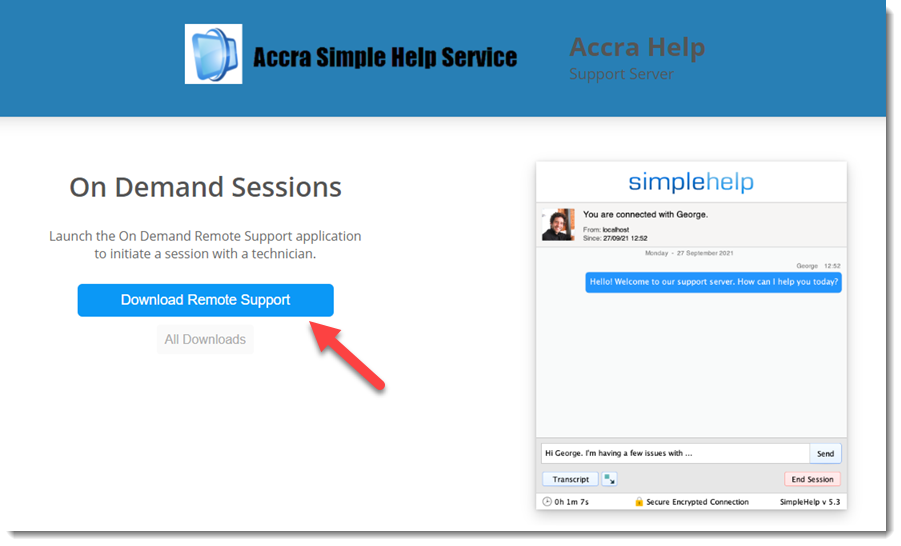
Once the program is downloaded (depending on your browser) select the run option to install the support program.

The remote support program will install. Depending on your security settings you may need to allow the program to be installed on your device.
IMPORTANT
If you do not have the authority to install software on your PC you will require your system administrator to permit the installation of the remote software.
Note: The Support software will be updated and require it to be download with each connection initiated.
|
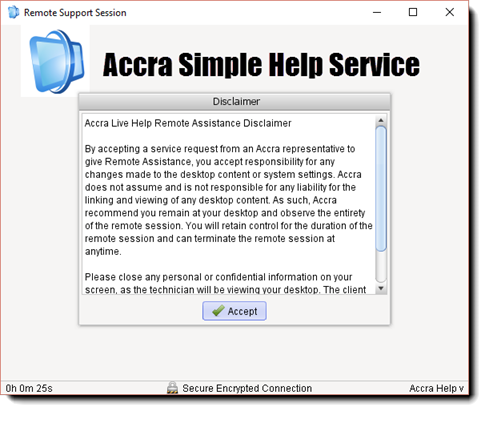
If you are connecting manually you must accept the Disclaimer before proceeding.
Disclaimer :
Accra Live Help Remote Assistance Disclaimer
By accepting a service request from an Accra Solutions Inc. representative to give Remote Assistance, you accept responsibility for any changes made to the desktop content or system settings. Accra Solutions Inc. does not assume and is not responsible for any liability for the linking and viewing of any desktop content. As such, Accra Solutions Inc. recommend you remain at your desktop and observe the entirety of the remote session. You will retain control for the duration of the remote session and can terminate the remote session at anytime.
Please close any personal or confidential information on your screen, as the technician will be viewing your desktop. The client understands that some problems may not be able to be rectified via the remote session. It is your responsibility to backup all applications and data prior to the remote session.
|
Once the connection program must be approved by you to allow us to connect. Once you allow the technician to connect you will be requested to enter your Name and your company name.
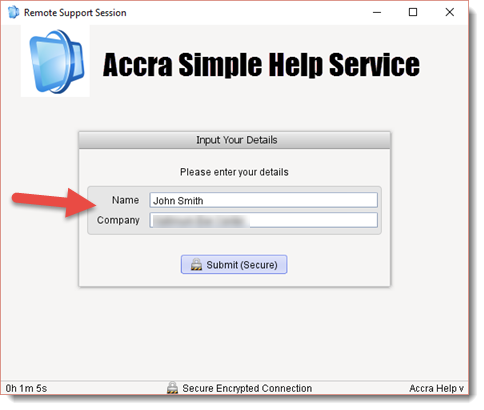
Once connected to our servers you will be placed in a service queue from which a Technician will initiate a connection to your device. Once the technician is connected you will be presented with the support dialogue.
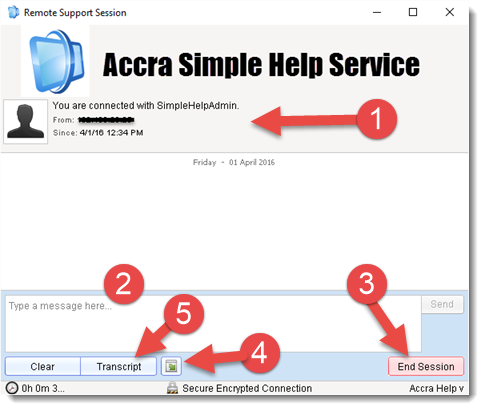
Key Elements of the Support Screen
1) Displays Support Connection Information
2) Chat Area permits you to chat with the technician
3) End Session button closes the session and disconnects the technician.
4) Minimizes the Remote Session dialogue and places it in the bottom right of the screen.
5) Allows the user to save a copy of the chat transcript. |
|