Image Size Modes
Use the Sizing property to specify an image's position in the Picture Box.
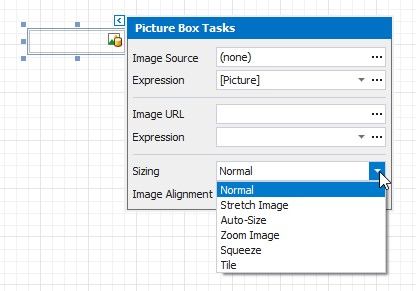
This control supports the following image size modes:
 Normal
The image is displayed at the top left corner with its original dimensions. The image is clipped if it does not fit the control's boundaries.

The image is stretched or shrunk to fill the control's width and height.

The control's dimensions are adjusted to the image's size.

The image is resized proportionally without clipping it to fit the control dimensions.

The image is centered and shown full-size if the control dimensions exceed the image size. Otherwise, the image is resized to fit the control's boundaries.

 Tile
Tile
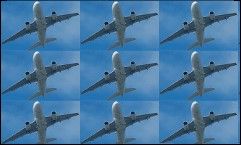
The original image is replicated within the control starting from the top left corner. The replicated image is clipped if it does not fit the control's boundaries.
You can also use the Image Alignment property in the Normal, Squeeze and Zoom Image modes to specify the alignment in relation to the control's boundaries.