Hide and Display Worksheets
The Spreadsheet provides the capability to hide worksheets in a workbook. It can be useful if you want to remove a worksheet from the Sheet tab bar without deleting it. By default, all worksheets are displayed on the Sheet tab bar.
Hide Worksheets
1.Switch to a worksheet you want to hide. To hide multiple worksheets, hold down CTRL and then click the sheet tabs of the worksheets you wish to hide on the Sheet tab bar.
2.Do one of the following:
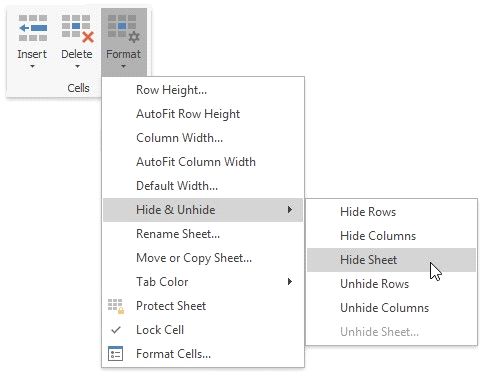
 On the Home tab, in the Cells group, click the Format button and select Hide & Unhide | Hide Sheet. Note that this command is disabled when a workbook includes only one worksheet.
Display Hidden Worksheets
1.Do one of the following:
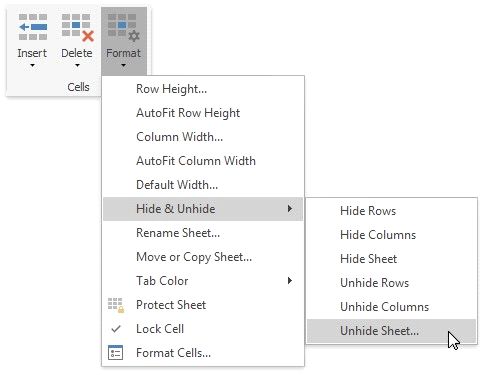
 On the Home tab, in the Cells group, click the Format button and select Hide & Unhide | Unhide Sheet...;
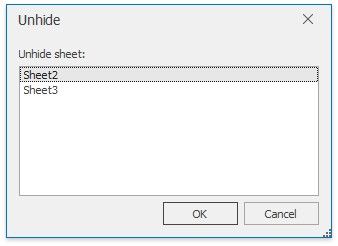
2.In the Unhide dialog box that is invoked, select the name of the worksheet you want to display and click OK. Note that you can hide multiple worksheets at once, but you can display only one worksheet at a time.