Create a Report Parameter
This topic describes how to create a basic report parameter and specify its value.
Create a Parameter
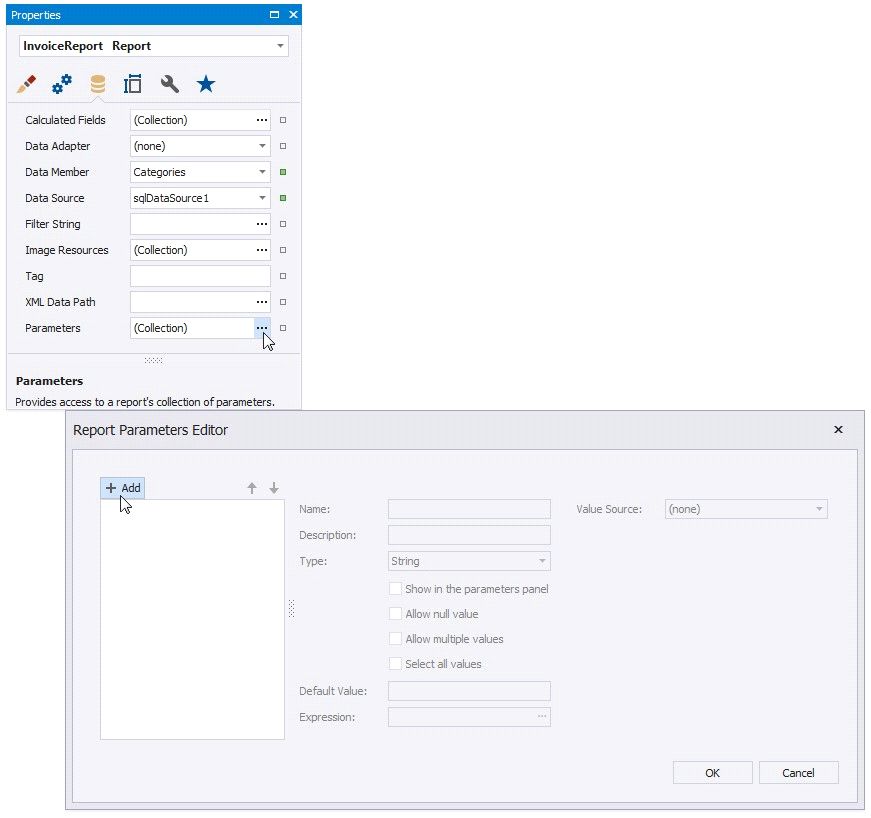
The Report Designer offers multiple ways to create a parameter:
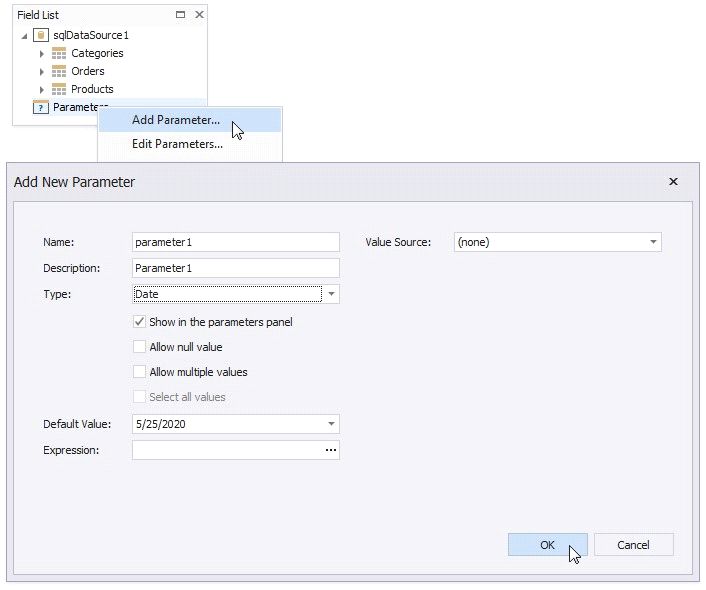
Right-click Parameters in the the Field List and select Add Parameter from the context menu.
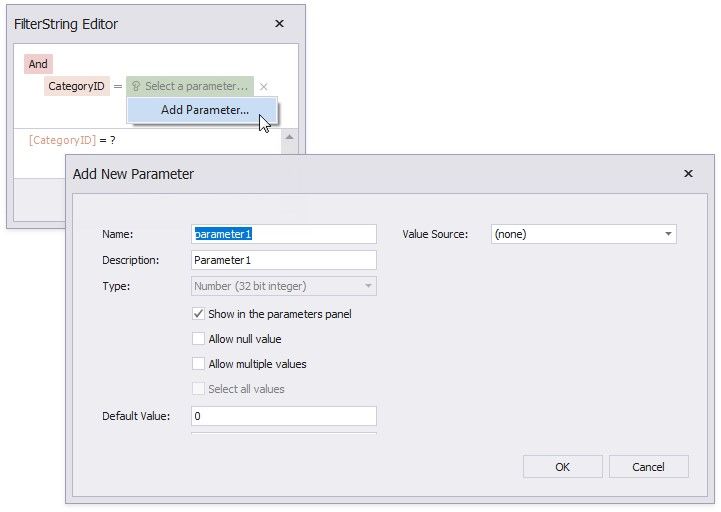
CCreate a parameter in-place in dialogs and wizards. The image below shows how to create a parameter in a FilterString Editor. Select Add Parameter from the context menu when you construct a condition.
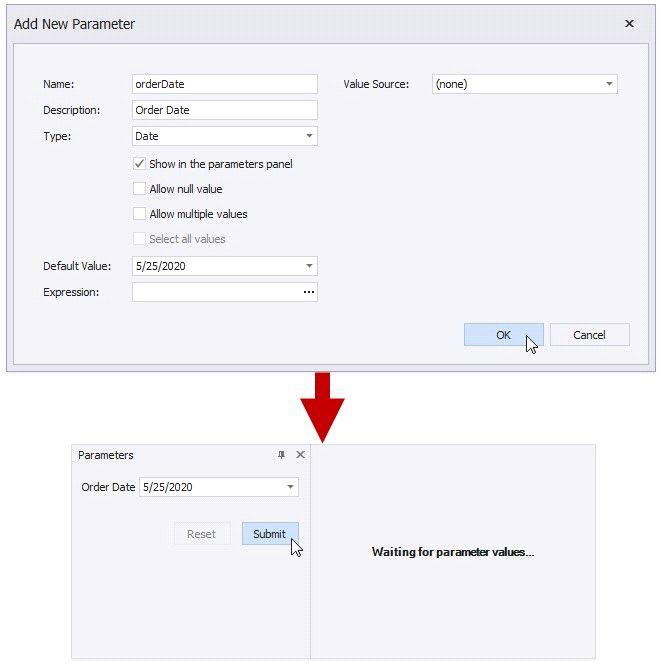
Specify the following basic options:
OPTION |
DESCRIPTION |
Name |
A parameter should have a unique name. You can use this name to refer to this parameter in expressions and filter strings. |
Type |
Specifies which values a parameter can accept. |
Default Value or Expression |
Specifies a parameter's value. Expressions can include data source fields or other parameters. When evaluated, expressions are parsed and processed to obtain a value. |
Use the Parameters Panel to Ask for User Input
Enable the Show in the parameters panel option to make your report interactive. The Preview displays the Parameters panel that shows editors for report parameters marked as visible. This allows you to specify a value before the report is rendered.
Specify the parameter's Description to display the editor's caption in the Parameters panel.
Enable the Allow null value property if the parameter's value can be unspecified.
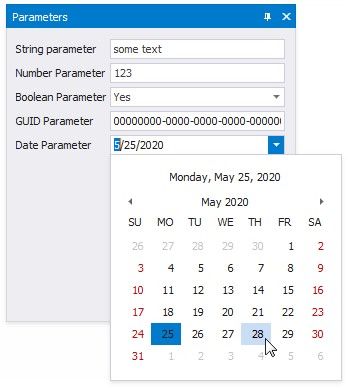
The following image shows editors for different parameter types.