Change a Report's Measurement Units
Most metrics of report elements (i.e., element locations, dimensions and margins) can be expressed in units that correspond to one of the following systems of measurement.
 Imperial system (in hundredths of an inch)
This is the default system that is assigned to each new report.
Metric system (in tenths of a millimeter)
Screen coordinates (in pixels)
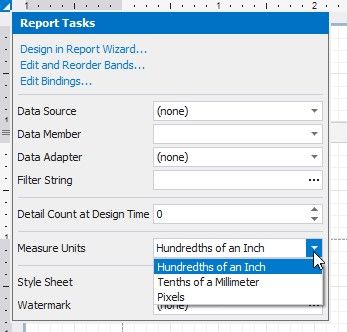
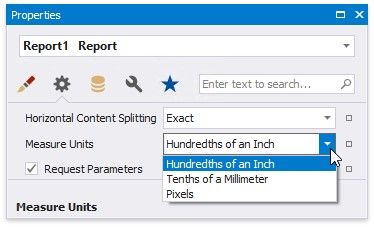
To assign a system of measurements to a report, use its Measure Units property. You can specify this property either in the report's smart tag...
... or in the Property Grid's Behavior tab.
Changing the system of measurement results in converting the corresponding property values and updating the layout of all report elements in the Report Designer. Notably, the system of measurement determines the minimum increment with which an element's location and size can be changed.