Bind to Data
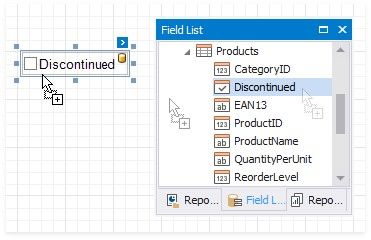
Drag a Boolean field from the Field List onto your report. This adds a new checkbox to your report and binds its Check State property to the dragged field.
If you add a checkbox from the Toolbox, click the control's smart tag, expand the CheckState property's Expression drop-down list and select a data field. This binds your control's CheckState property to a data source field.
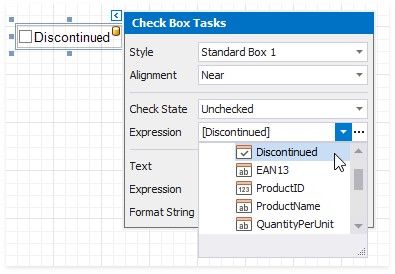
The data field value specifies the checkbox's state:
True or 1 - activates the Checked state;
False or 0 - activates the Unchecked state;
Any other value - activates the Indeterminate state.
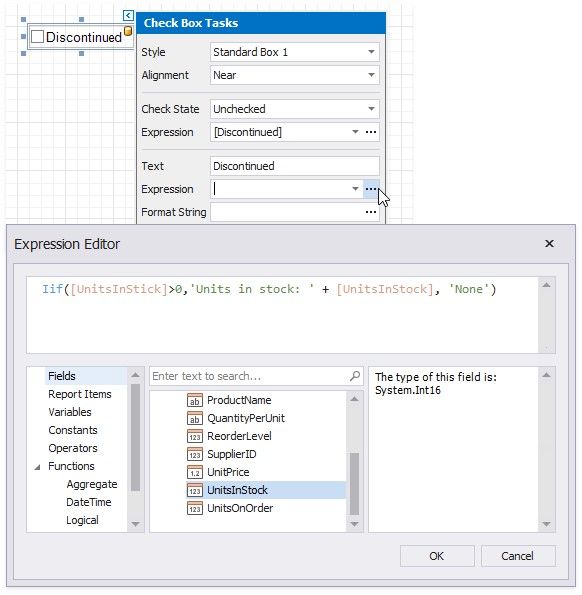
You can bind your control's CheckState the checkbox caption to a data source field. Click the control's smart tag, expand the Expression drop-down list and select the data field.
The Expression option's ellipsis button invokes the Expression Editor. This Editor allows you to construct a complex binding expression with two or more fields.
Refer to the Bind Controls to Data topic for more information about the available data binding modes and how to create dataaware controls.