Bind a Picture Box to Data
Use one of the following techniques to add the Picture Box control that obtains an image from a data source.
 Click the control's smart tag. In the invoked menu, expand the Expression drop-down list for the Image Source property and select a data field.
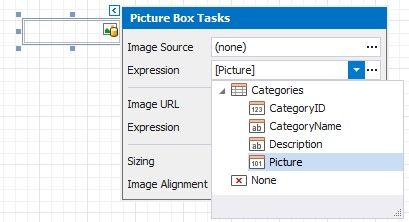
You can bind the Image Url property to data in a similar way. In this instance, the URL that specifies the image location is obtained from the data source.
Click the Expression option's ellipsis button to invoke the Expression Editor. Use this editor to construct a binding expression that can include two or more data fields.
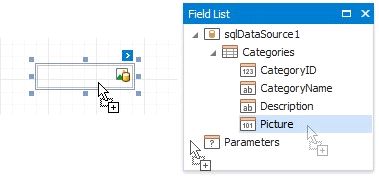
Drag an image data field from the report's Field List and drop it onto a report band.
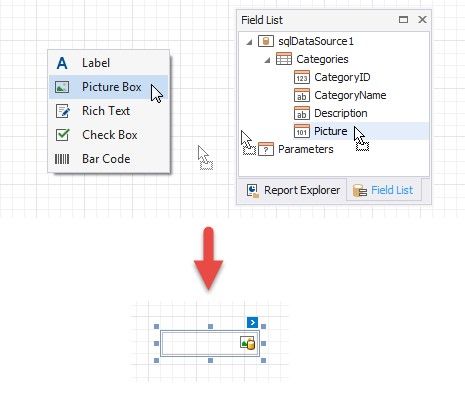
Right-click a data field in the Field List and drop it onto a report band. Select the item in the invoked context menu.
See the Bind Report Controls to Data topic for more information about how to create data-aware controls.