Zoom Print Preview to Show Whole Pages or Fit Content
Zoom Documents to Fit Page Content
To zoom to the page or text width, click the Zooming box. The following list will be invoked.
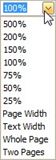
To zoom to the page width, click Page Width
To zoom to the text width, click Text Width
Zoom Documents to Display Whole Pages
First, invoke the zooming dropdown (see above).
To display one whole page at a time, click Whole Page. To fit two pages into the current view, click Two Pages.
If you want to preview more pages simultaneously, refer to the Show Two or More Pages in Print Preview topic.