Using Marquee Zoom Tool
The Marquee Zoom tool allows end users to zoom in a particular part of the page.
To activate the Marquee Zoom tool:
oright-click the viewing document;
oselect the Marquee Zoom in the context menu.
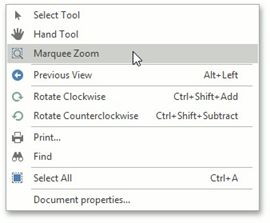
You can perform the following actions
•zoom in on a portion of a page by dragging a rectangle around
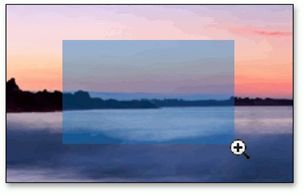
•increase the zoom level by clicking;
•decrease the zoom level by clicking while pressing the Ctrl key.
Use a Specific Zoom Factor
To zoom to a specific zoom factor, click the Zoom dropdown list button. The following list will be invoked.
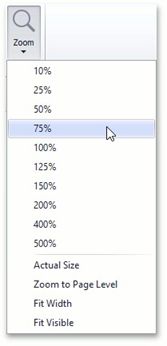
Choose the percentage value of the zoom factor or one of the following zoom factor presets.
Actual Size
Sets the document zoom factor value to 100%.
 Zoom to Page Level
Sets the document zoom factor value to fit to the widest or highest page in a document.
 Fit to Width
Sets the document zoom factor value to fit to the width of the widest page in a document.
 Fit to Visible
The document zoom factor is calculated to fit to the width of the visible content of a page. The region of the visible page content is defined by the bleed box. If the bleed box is not defined, the Fit to Visible mode operates the same as Fit to Width mode.