\The Edit Rules Dialog
The Edit Rules dialog contains format rules applied to the dashboard item:
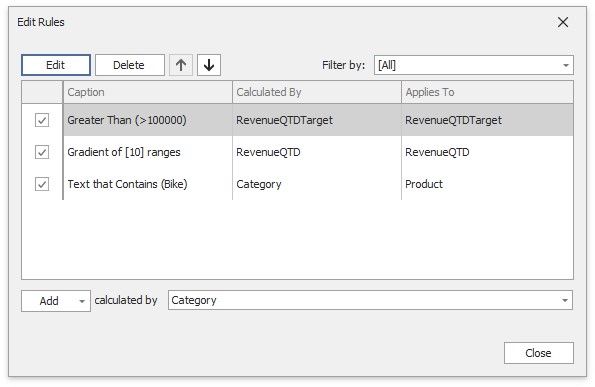
You can manage format rules in the dialog in the following ways:
ACTION |
DESCRIPTION |
Edit the selected rule |
Use the Edit button or double-click the rule. |
Delete the selected rule |
Use the Delete button. |
Reorder format rules |
Use the Up and Down buttons ( |
Enable/disable a rule |
Use the corresponding check box in the left column. |
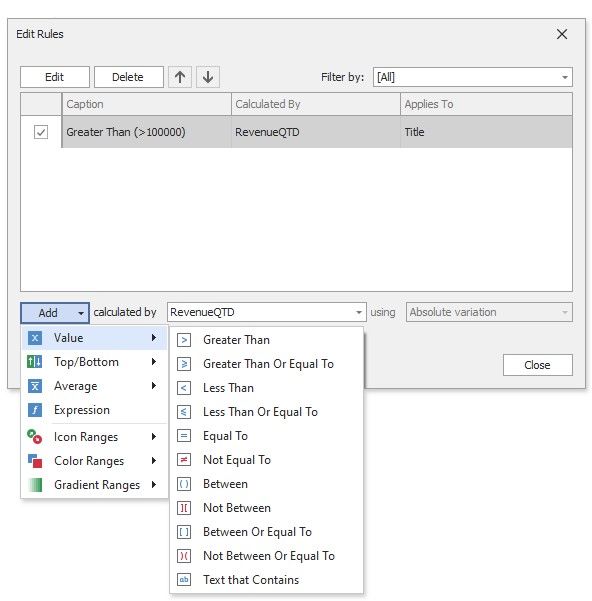
Create a new rule |
Click the Add button and select the format condition. The calculated by combo box allows you to select the measure/dimension that is used to calculate the format rule. For Card, when you create a rule for delta, specify the delta type whose values are used to calculate a condition in the using combo box. |
Filter format rules by the specified data item |
Use the Filter by combo box. |


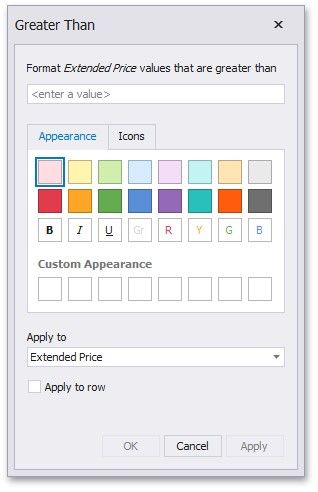
The Add button invokes a pop-up menu where you can specify appearance settings and set the condition's value for the format rule. Available settings depend on the selected format rule.
The image below displays the Greater Than dialog, which corresponds to the Value format condition for a Grid dashboard item. The format condition applies to the ExtendedPrice data item in the Apply to drop-down list.