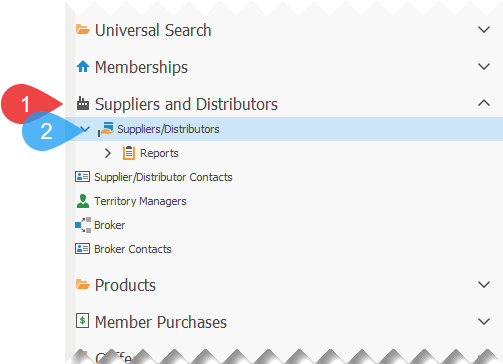
1.Click on Suppliers and Distributors, to expand the section, if not already expanded.
2.Click on Suppliers/Distributors, to open the list of suppliers and distributors.
3.Double-click on the supplier that you wish to add additional rebates for the invoice.
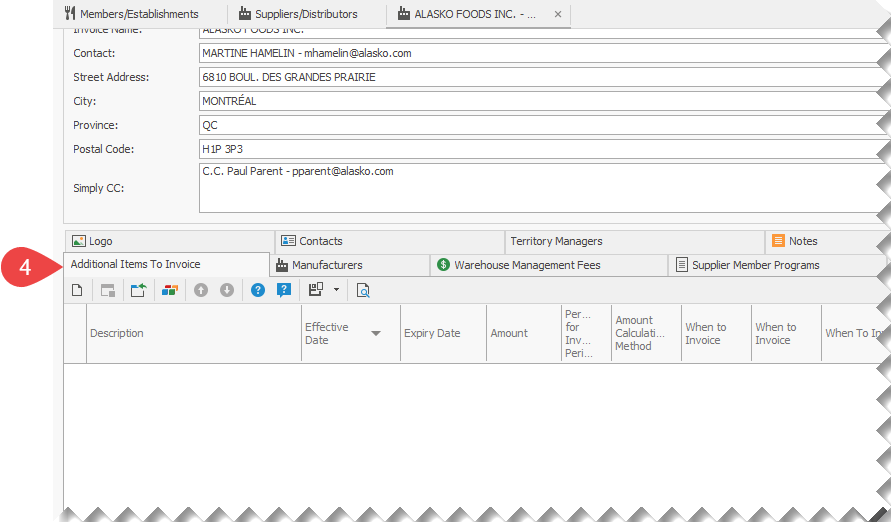
4.Select the tab Additional Items To Invoice.
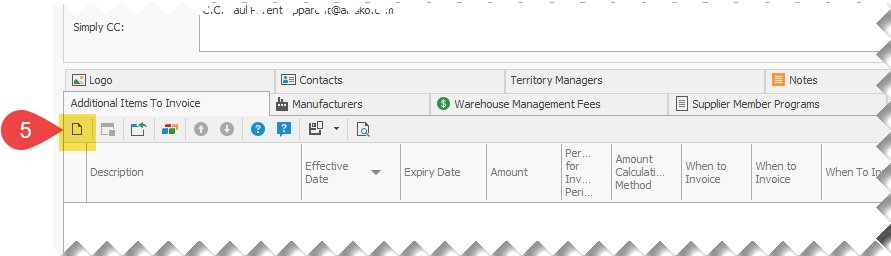
5.Click on the New button  .
.
6.Enter the information for the additional item to invoice.
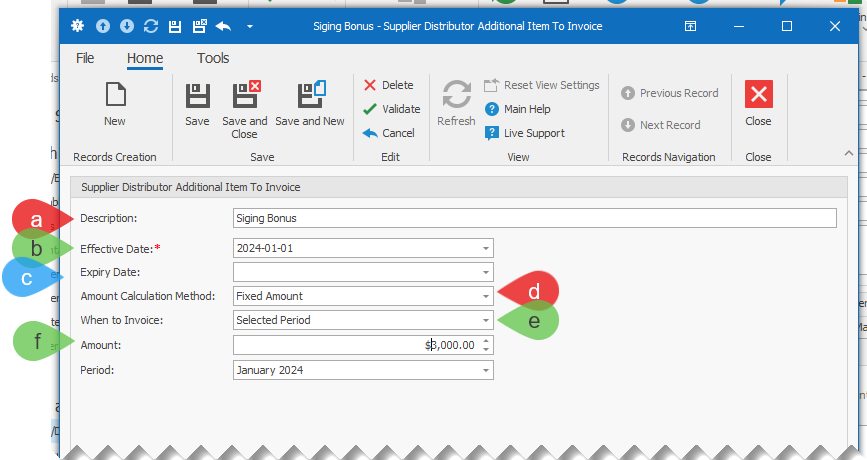
a.Enter the Description that will appear on the supplier's invoice.
b.Enter the Effective Date.
c.(Optional) Enter the Expiry Date.
d.Select the Amount Calculation Method:
i.Fixed Amount: Add to the invoice the specified amount, regardless of the amount of member purchases.
ii.Percent: This will add to the invoice an amount calculated as a percentage of the amount of member purchases.
e.Select When to Invoice:
i.Do Not Invoice: The record is for information purposes and is not to be used.
ii.Every Invoice: This item is to added and calculated to every invoice. In example: If the supplier's invoice frequency is quarterly and the amount calculation method is percent, then the amount will represent a percentage of the members' purchases for the quarter.
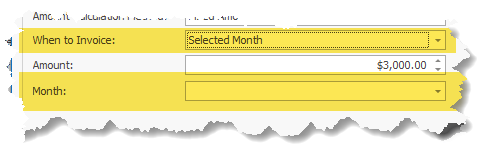
iii.Selected Month: Select which month of the year (view image below), as per contract, that the entered amount is to be added to the invoice that will includes the selected period, based on the supplier's invoice frequency. In example: If the selected month is January, but the invoice frequency is quarterly, then the amount will appear on the invoice for the first quarter, but will not appear on the invoice for the second quarter.
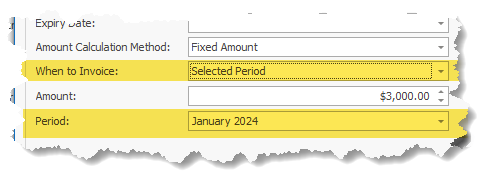
iv.Selected Period: Select for which specific period (view image below) that the item should be added to the invoice that will includes the selected period, based on the supplier's invoice frequency. In example: If the selected period is January 2024, and the supplier's invoice frequency is quarterly, then the amount will appear on the invoice for the first quarter of 2024, but will not appear on the invoice for the first quarter of 2025.
7.Click on Save to save the information.
Note: Don't forget to save the supplier information when prompted.