Shortcuts
The Spreadsheet provides the capability to perform common commands quickly using keyboard shortcuts.
All supported shortcuts are divided into the following groups:
File Operations
Navigation inside Worksheets
Work with Selections
Copy, Paste and Edit the Cell Content
Cell Formatting
Work with Columns and Rows
Sort and Filter
Work with Formulas
File Operations
The key combinations used to perform file operations are listed in the table below.
SHORTCUT |
DESCRIPTION |
CTRL+N |
Creates a blank workbook. |
CTRL+O |
Invokes the Open dialog box to open a new file. |
CTRL+S |
Saves changes in the current workbook. |
F12 |
Invokes the Save as dialog box to save a workbook in the specified file format to a new location. |
SHIFT+F11 |
Inserts a new worksheet in front of the existing worksheet within the current workbook. |
CTRL+P |
Invokes the Print dialog box. |
Navigation inside Worksheets
The key combinations that allow you to navigate through a worksheet are listed in the table below.
SHORTCUT |
DESCRIPTION |
LEFT ARROW KEY |
Moves the active cell one cell to the left in a worksheet. |
RIGHT ARROW KEY |
Moves the active cell one cell to the right in a worksheet. |
UP ARROW KEY |
Moves the active cell one cell up in a worksheet. |
DOWN ARROW KEY |
Moves the active cell one cell down in a worksheet. |
ENTER |
Moves the active cell one cell down in a worksheet. |
SHIFT+ENTER |
Moves the active cell one cell up in a worksheet. |
TAB |
Moves the active cell one cell to the right in a worksheet. |
SHIFT+TAB |
Moves the active cell one cell to the left in a worksheet. |
CTRL+ARROW KEYS |
Move the active cell to the edge of the current data region in a worksheet. |
HOME |
Moves the active cell to the beginning of a row in a worksheet. |
CTRL+HOME |
Moves the active cell to the beginning of a worksheet. |
CTRL+END |
Moves the active cell to the last cell in a worksheet (the last edited row of the rightmost edited column). |
PAGE DOWN |
Moves the active cell one screen down in a worksheet. |
PAGE UP |
Moves the active cell one screen up in a worksheet. |
CTRL+F |
Invokes the Find and Replace dialog (with the Find tab activated). |
CTRL+H |
Invokes the Find and Replace dialog (with the Replace tab activated). |
CTRL+PAGE DOWN |
Moves to the next worksheet in the current workbook. |
CTRL+PAGE UP |
Moves to the previous worksheet in the current workbook. |
Work with Selections
The key combinations that allow you to work with selections are listed in the table below.
SHORTCUT |
DESCRIPTION |
ENTER |
Moves the active cell one cell down in the selection. |
SHIFT+ENTER |
Moves the active cell one cell up in the selection. |
TAB |
Moves the active cell one cell to the right in the selection. |
SHIFT+TAB |
Moves the active cell one cell to the left in the selection. |
CTRL+PERIOD (.) |
Moves the active cell clockwise to the next corner of the selection. |
CTRL+ALT+LEFT/RIGHT ARROW KEY |
Switches between multiple selected ranges of cells. |
SHIFT+BACKSPACE |
Selects only the active cell in the selected cell range. |
CTRL+SPACEBAR |
Selects an entire column in a worksheet. |
SHIFT+SPACEBAR |
Selects an entire row in a worksheet. |
CTRL+A |
Selects the entire worksheet or the data region to which the active cell belongs. |
CTRL+SHIFT+SPACEBAR |
Selects the entire worksheet or the data region to which the active cell belongs. |
SHIFT+ARROW KEYS |
Extend the selection by one cell. |
CTRL+SHIFT+ARROW KEYS |
Extend the selection to the last nonblank cell in a row or column. |
SHIFT+HOME |
Extends the selection to the first column. |
CTRL+SHIFT+HOME |
Extends the selection to the beginning of the document. |
CTRL+SHIFT+END |
Extends the selection to the previously used cell in a worksheet. |
SHIFT+PAGE DOWN |
Extends the selection one screen down in a worksheet. |
SHIFT+PAGE UP |
Extends the selection one screen up in a worksheet. |
Copy, Paste and Edit the Cell Content
The key combinations used to work with cell content are listed below.
SHORTCUT |
DESCRIPTION |
F2 |
Turns on the edit mode for the active cell and positions the cursor at the end of the cell content. |
SHIFT+LEFT ARROW KEY |
In the cell edit mode, selects or deselects one character to the left. |
SHIFT+RIGHT ARROW KEY |
In the cell edit mode, selects or deselects one character to the right. |
CTRL+SHIFT+LEFT ARROW KEY |
In the cell edit mode, selects or deselects one word to the left. |
CTRL+SHIFT+RIGHT ARROW KEY |
In the cell edit mode, selects or deselects one word to the right. |
SHIFT+HOME |
In the cell edit mode, selects from the cursor current position to the beginning of the cell. |
SHIFT+END |
In the cell edit mode, selects from the cursor current position to the end of the cell. |
ALT+ENTER |
Starts a new line in the same cell. |
CTRL+ENTER |
Completes a cell entry and stays in the same cell. |
ENTER |
Completes a cell entry and selects the cell below. |
SHIFT+ENTER |
Completes a cell entry and selects the cell above. |
TAB |
Completes a cell entry and selects the cell to the right. |
SHIFT+TAB |
Completes a cell entry and selects the cell to the left. |
ESC |
Cancels an entry in a cell or Formula Bar. |
BACKSPACE |
In the cell edit mode, deletes a character to the left of the cursor. |
DELETE |
Removes the cell content without affecting the cell formatting. |
CTRL+DELETE |
In the cell edit mode, deletes all characters from the cursor current position to the end of the line. |
CTRL+Z or ALT+BACKSPACE |
Performs the Undo command to reverse the last action or to delete the last entry you typed. |
CTRL+Y or ALT+SHIFT+BACKSPACE |
Repeats the last action. |
CTRL+C or CTRL+INSERT |
Copies the selected cell in the clipboard. |
CTRL+V or SHIFT+INSERT |
Inserts the contents of the clipboard in the specified cell and replaces any selection. |
CTRL+ALT+V |
Invokes the Paste Special dialog box to specify the paste options. |
CTRL+X or SHIFT+DELETE |
Cuts the selected cells. |
|
|
SHORTCUT |
DESCRIPTION |
CTRL+D |
Performs the Fill Down command to copy the contents of the topmost cell to the cells below. |
CTRL+R |
Performs the Fill Right command to copy the contents of the leftmost cell to the cell to the right. |
CTRL+K |
Invokes the Insert Hyperlink dialog box to create a new hyperlink. |
SHIFT+F2 |
Adds a comment to the active cell. |
Cell Formatting
The key combinations that allow you to apply formatting options quickly are listed in the following table.
SHORTCUT |
DESCRIPTION |
CTRL+SHIFT+F |
Invokes the Format Cells dialog (with the Font tab activated). |
CTRL+B or CTRL+2 |
Applies or removes bold formatting. |
CTRL+I or CTRL+3 |
Applies or removes italic formatting. |
CTRL+U or CTRL+4 |
Applies or removes underlining. |
CTRL+5 |
Applies or removes strikethrough. |
CTRL+SHIFT+7 |
Applies the outline border to the selected cell or cell range. |
CTRL+SHIFT+MINUS (-) |
Removes the outline border from the selected cell or cell range. |
CTRL+SHIFT+1 |
Applies the Number format with two decimal places. |
CTRL+SHIFT+2 |
Applies the Time format. |
CTRL+SHIFT+3 |
Applies the Date format. |
CTRL+SHIFT+4 |
Applies the Currency format. |
CTRL+SHIFT+5 |
Applies the Percentage format. |
CTRL+SHIFT+6 |
Applies the Scientific number format. |
Work with Columns and Rows
The key combinations that allow you to display, hide or group columns and rows in a worksheet are listed in the following table.
SHORTCUT |
DESCRIPTION |
CTRL+9 |
Hides the selected rows. |
CTRL+SHIFT+9 |
Displays the hidden rows. |
CTRL+0 |
Hides the selected columns. |
CTRL+SHIFT+0 |
Displays the hidden columns. |
ALT+SHIFT+RIGHT ARROW KEY |
Groups the selected rows or columns. |
ALT+SHIFT+LEFT ARROW KEY |
Unroups the selected rows or columns. |
Sort and Filter
The key combinations that allow you to activate the filtering functionality for a worksheet range or table are listed in the table below.
SHORTCUT |
DESCRIPTION |
CTRL+SHIFT+L |
Toggles between enabling and disabling the AutoFilter functionality. |
CTRL+ALT+L |
Reapplies a filter. |
Work with Formulas
The key combinations used to create formulas quickly are listed in the table below.
SHORTCUT |
DESCRIPTION |
CTRL+SHIFT+ENTER |
Creates an array formula. |
CTRL+ENTER |
Creates a shared formula. |
ALT+PLUS (+) |
Inserts the SUM function in the active cell. |
SHIFT+F3 |
Invokes the Insert Function dialog. |
CTRL+ ` |
Toggles between displaying cell values and formulas on a worksheet. |
CTRL+SHIFT+U |
Toggles between expanding and collapsing the Formula Bar. |
F4 |
Cycles through all the various types of cell references, when a cell reference is selected or edited directly in the cell or Formula Bar. |
F9 |
Calculates the entire workbook. |
SHIFT+F9 |
Calculates the active worksheet. |
CTRL+ALT+F9 |
Calculates the entire workbook, regardless of whether its data has changed since the last calculation. |
CTRL+ALT+SHIFT+F9 |
Calculates the entire workbook, regardless of whether its data has changed since the last calculation, and rebuilds the dependencies. |
CTRL+F3 |
Invokes the Name Manager dialog to define a name. |
CTRL+SHIFT+F3 |
Creates names from row and column labels. |
Toolbars and Menus
This section describes the capabilities provided by toolbars and menus.
Layout Customization
Open Toolbar Customization Window
Finish Toolbar Customization
Hide and Display Toolbars
Hide and Display Bar Commands
Rearrange Toolbars and Menus
Rearrange Bar Commands
Restore the Default Layout of Bar Commands
Navigation
 Keyboard Navigation in Menus and Toolbars
Select Commands
 Invoke Toolbar and Menu Commands
Open Toolbar Customization Window
Opening the Customization window activates the customization mode where you can:
Rearrange, hide and display bar commands.
Change display options of bar commands. Hide bars, etc
To open the Customization window, do one of the following:
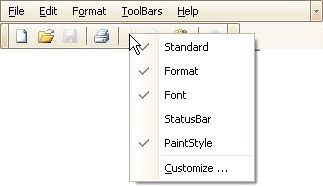
Customize...
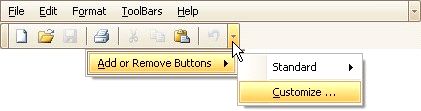
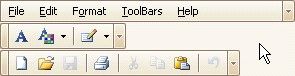
The Customization window will be opened, containing three tabs:
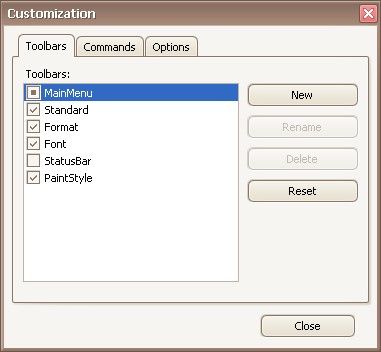
The Toolbars tab allows you to hide specific bars and display hidden ones.
The Commands tab allows you to access bar commands and add them to bars.
The Options tab allows you to control options affecting the display of menus and bar commands.
Finish Toolbar Customization
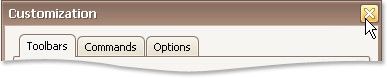
To finish customization, click the Customization window's Close button: