Specify Signature Options
Expand the control's smart tag and enable check boxes for the signature fields that you want to display. 
•Image Display Mode
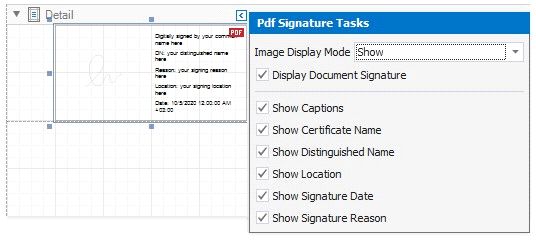
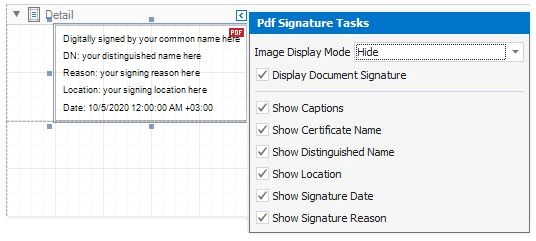
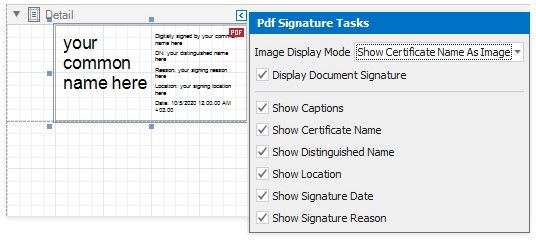
Specifies whether the control shows the signature image. The following property values are available:
• Show
Show
The control shows a sample signature image. If an exported document is signed, the converted PDF form field shows the actual signature image.
The control shows a sample certificate name in place of a signature image. When an exported document is signed, the converted PDF form field shows the actual certificate name.
• Display Document Signature
Specifies whether the control displays the document signature information. For more information, refer to the following section: Report with Multiple Signatures.
The signature control shows the certificate name, distinguished name, location, signature date, and signature reason.
Disable the corresponding options in the control's smart tag to hide these fields.
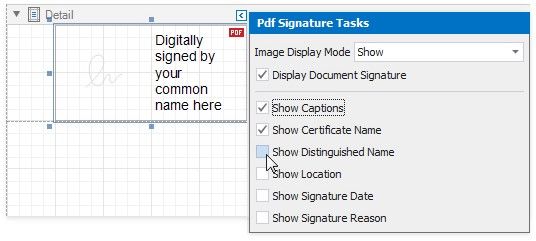
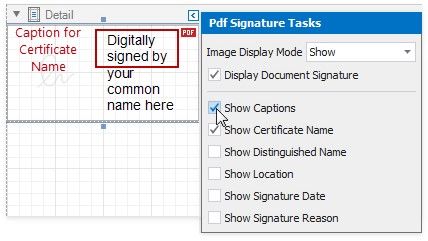
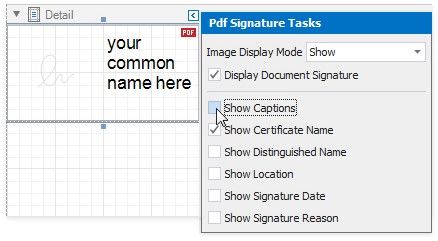
Disable the Show Captions property to exclude captions from the fields listed above.
SHOW CAPTIONS ENABLED |
SHOW CAPTIONS DISABLED |
|
|
Limitations
The PDF Signature control is not exported to non-PDF formats. A placeholder is added to exported documents instead.