Sort Data
The Spreadsheet provides the capability to sort data by text (A to Z or Z to A), numbers (smallest to largest or largest to smallest), dates and times (oldest to newest or newest to oldest) in one column.
To perform sorting, do the following.
1.Select a range in the column you wish to sort.

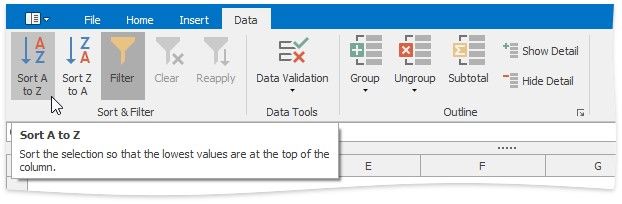
2.On the Data tab, in the Sort & Filter group, click Sort A to Z to select ascending order, or click Sort Z to A for descending order.
Sort a Table
To sort data in a table, follow the steps below.
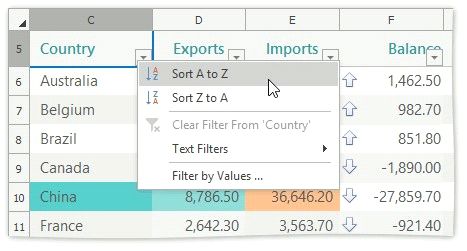
1.Click the arrow  in the header of the column by which data will be sorted.
2.In the drop-down menu, select the Sort A to Z item to select ascending order, or select the Sort Z to A item to select descending order.
Once filtering is activated, a drop-down arrow  appears on the right side of each column header in the range. Depending on the data in the column you wish to filter, you can apply one of the following filters: Filter by Values, Text Filter, Number Filter or Date Filter.