Users can view Rebate Change logs by:
1.Open the Rebates Screen
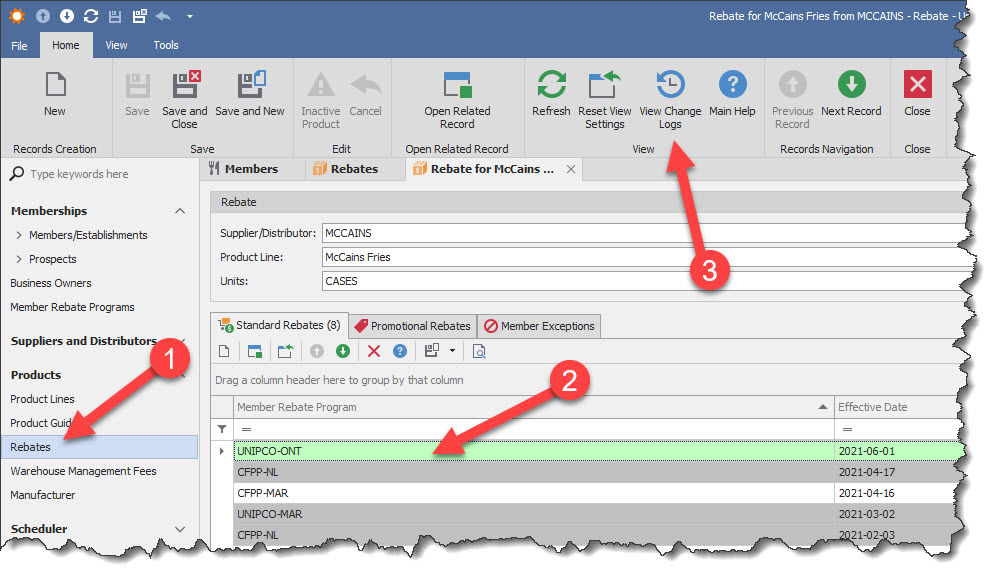
2.Select the Rebate record for which you want to see the change log.
3.Once the Rebate record is highlighted, locate and click on the tool bar the View Change Log button.
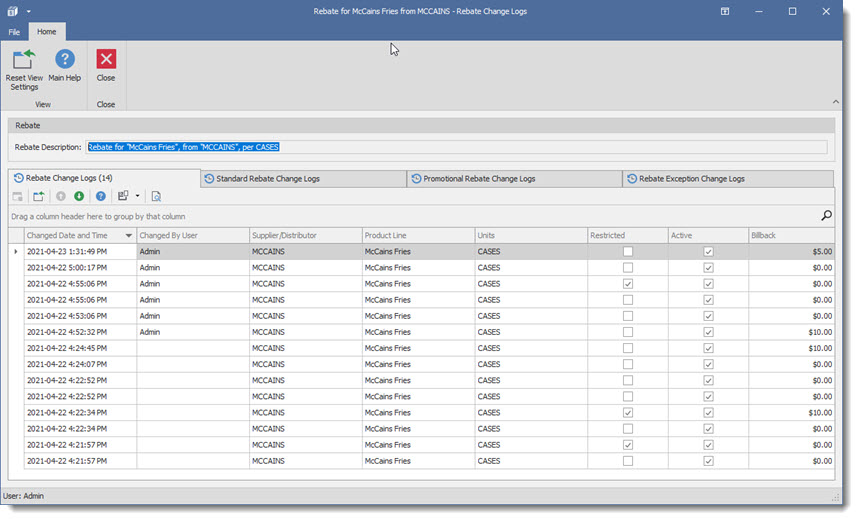
The Change log screen is displayed. It is divided into different tab listing the various logs available for the master detail relationship of the rebate record:
•Rebate Change Log tab displays the master (main) log associated with the selected rebate record.
•Standard Rebate Change Log displays for the selected rebate record all changes made to the standard rebate(s)
•Promotional Rebate Change Log displays for the selected rebate record all changes made to the Promotional rebate(s)
•Rebate Exception Change Log displays for the selected rebate record all changes made to the rebate exception(s)
Important:
The Log screen allows for users to group sort and view key information. In addition it can give direct access to related objects/records, for example: by selecting a key field such as the Supplier/Distributor field (1) activates the database related record function which means the Open related record screen ( 2) button will open the Supplier/ Distributor edit screen for the selected field. For fields that do not have related record the Open related record button will be grayed out meaning you cannot open a related screen for the selected field.
|
