Printing and Exporting
The Dashboard Designer provides the capability to print or export an entire dashboard and individual items.
Printing and Exporting Dashboards
Printing and Exporting Dashboard Items
Printing and Exporting Dashboards
To print or export the entire dashboard, click the 
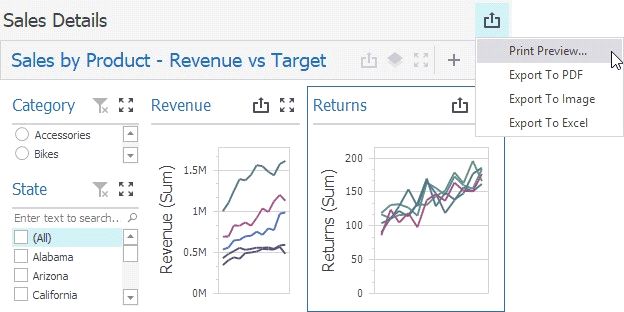
button in the dashboard title area and choose the required action.
Print Preview...
Allows you to customize the document before printing/exporting. For instance, the following settings can be changed: the orientation and size of the printed page, page margins, etc.
Export to PDF
Invokes a corresponding dialog that allows you to export a dashboard to a PDF file with specific options. The following options are available.
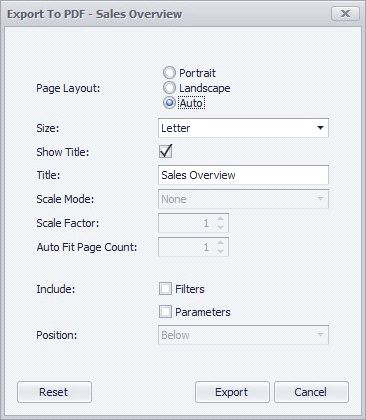
Page Layout - Specifies the page orientation used to export a dashboard. You can select between Portrait, Landscape, and
Auto. Note that in the Auto mode, page orientation is selected automatically depending on the horizontal and vertical sizes
Export to Image
Invokes a corresponding dialog that allows you to export a dashboard to an image in the specified format. The following options are available.
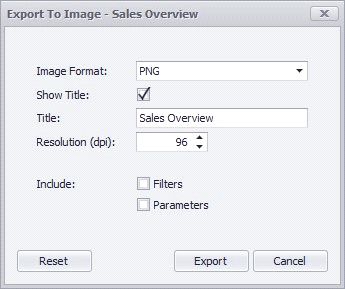
Image Format - Specifies the image format in which the dashboard is exported. The following formats are available: PNG,
Show Title - Specifies whether or not to apply the dashboard title to the exported document title.
Title - Specifies the title of the exported document.
Resolution (dpi) - Specifies the resolution (in dpi) used to export a dashboard.
Include | Filters - Allows you to include master filter values to the exported document.
Include | Parameters - Allows you to include parameter values to the exported document.
Export to Excel
Invokes a corresponding dialog that allows you to export dashboard's data to the Excel file. The following options are available:
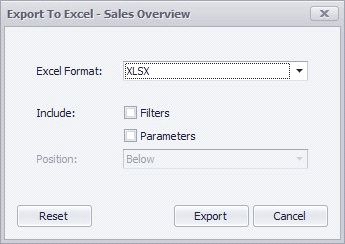
Excel Format - Specifies the Excel workbook format in which the dashboard's data is exported. You can select between
Include | Filters - Allows you to include master filter values to the exported document.
Include | Parameters - Allows you to include parameter values to the exported document.
Position - Specifies the position of the master filter and parameter values in the exported document. You can select between Below and Separate Sheet.
Specify the required options in the invoked dialog and click the Export button to export the dashboard. To reset changes to the default values, click the Reset button.
Printing and Exporting Dashboard Items
To print or export a dashboard item, click the button in its caption and choose the required action.
Print Preview... - Allows you to customize the document before printing/exporting.
Export to PDF - Invokes a corresponding dialog that allows you to export a dashboard to a PDF file with specific options.

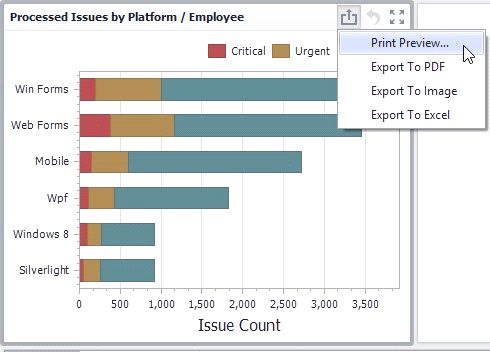
Export to Image - Invokes a corresponding dialog that allows you to export a dashboard to image in the specified format. Export to Excel - Invokes a corresponding dialog that allows you to export a dashboard item's data to the Excel workbook or CSV file.
To learn more about printing/exporting specifics of different dashboard items, see the Printing and Exporting topic for the required dashboard item.