Modify a Pivot Table
The following topic describes how to modify the existing pivot table. Select the task you wish to perform.
Rearrange the PivotTable Fields
Change the PivotTable Data Source
Move the Pivot Table
Rearrange the PivotTable Fields
To reorganize the pivot table structure, use the Field List pane. It invokes automatically when you select any cell in the report.
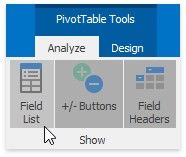
If you closed the pane, you can re-invoke it from the ribbon menu. To do that, on the PivotTable Tools | Analyze tab, in the Show group, click the Field List button.
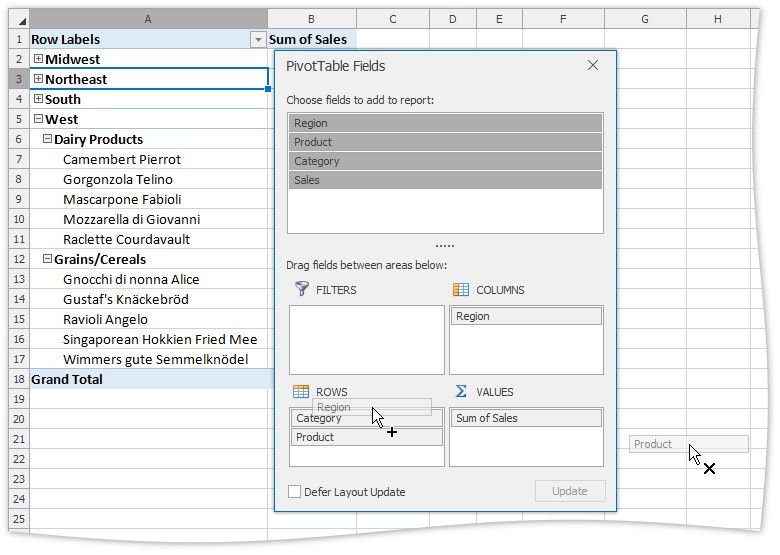
In the Field List pane, you can rearrange fields within the report by dragging them between the area sections at the bottom of the pane. To remove the field from the report, drag it outside the pane. All changes will be applied immediately.
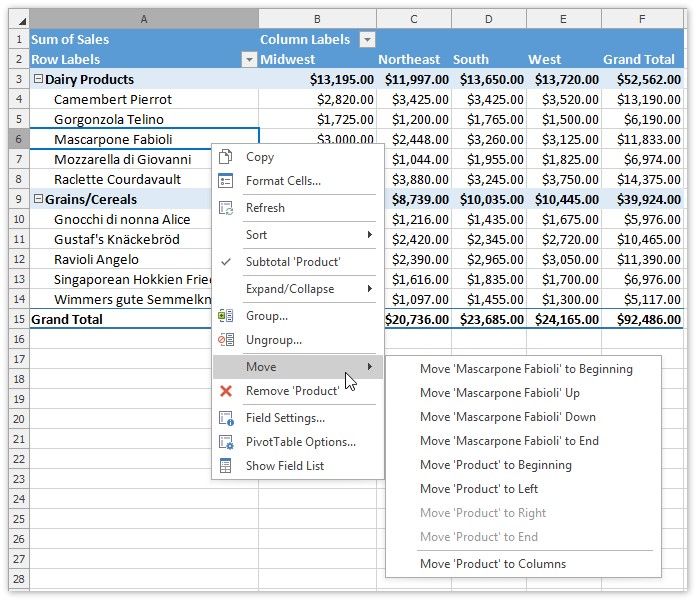
Additionally, you can reorder fields or specific field items within the area. To do that, right-click the required cell in the report and select the appropriate Move command from the context menu.
Change the PivotTable Data Source
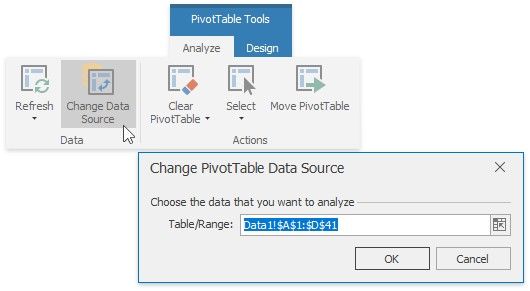
To change the data source of the pivot table report, on the PivotTable Tools | Analyze tab, in the Data group, click the Change Data Source button.
The invoked dialog allows you to select the new source range for the pivot table.
Move the PivotTable
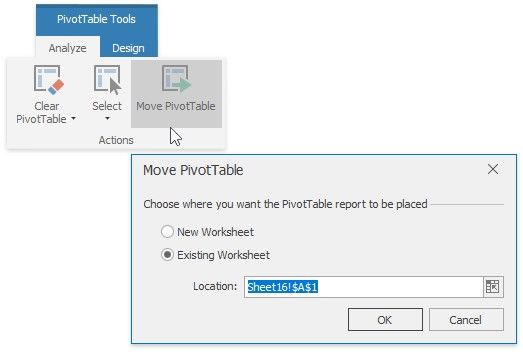
To move the entire report, on the PivotTable Tools | Analyze tab, in the Actions group, click the Move PivotTable button. The invoked dialog allows you to move the report to another cell range within the existing worksheet or to a new worksheet.