The Member / Establishment grid displays all members contained in the database.
The Grid listing can be grouped by various grid headers. ( see Grid for more information)
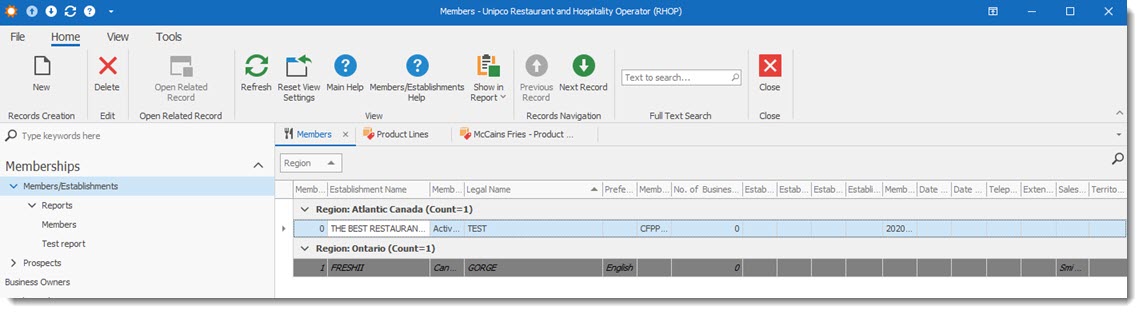
•To create a new Member record select on the tool bar the New  button.
•To open a Members record double click the member record and the member profile will be displayed. Once the member profile is open the user can edit the information it contains.
IMPORTANT
Depending on the information you are displaying (example: All Purchases) it may take some time to display all requested records due to the volume of data to show or calculate.
|
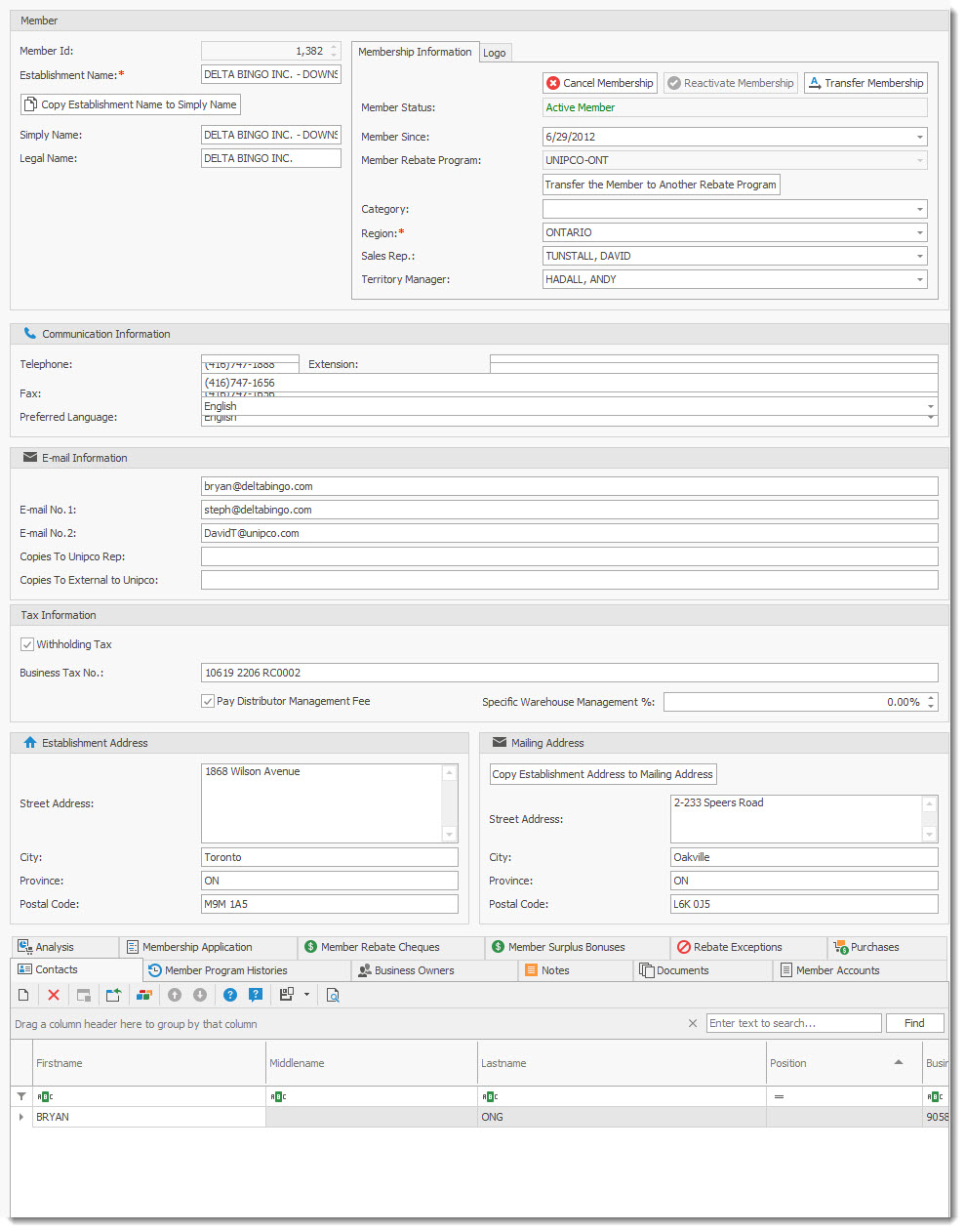
Member ID: is automatically generate by the system and cannot be changed by the user.
Establishment Name: the name the establishment uses.
Copy Establishment Name to Simply Name: copies the name of the establishment as is to the Simply ( Simply Accounting Name Field)
Simply Name: The name for the establishment that will be used to link the member to simply accounting data transfer records.
Legal Name: This is the legal name used by the establishment which can be different from the Establishment Name.
Membership Information Tab
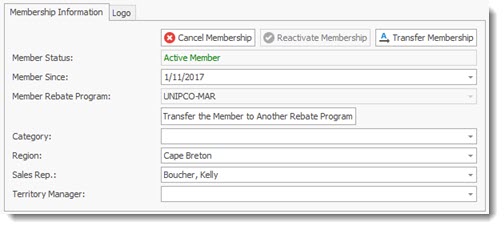
This section contains the current members status and key information.
The Cancel Membership button changes the status to Cancel
The Reactivate Membership button reactivates a Canceled Membership.
The Transfer Membership button transfers the membership to a New Owner.
Member Status: is the current status of the member
Member Since: date first became a member
Member Rebate Program: the rebate program the member is registered as a member
Transfer the member to another Rebate program button transfers the member to a new program.
Category: The category defined for the member (take-out, restaurant, hotel, etc. - user definable)
Region: Region in which the member is located. This information must be completed for the member to be assigned to a salesperson.
Sales Rep: Sales person responsible for the member
Territory Manager: person responsible for the region
The Logo Tab allows the entry for the members logo that can be used in reports.
To add a Logo double click in the logo field and a selection dialogue will appear that allows you to retrieve and upload the logo from your hard drive to the members profile.
Communication Information: contains the various methods you can communicate with the member.
The Email Information section are a list of emails to be used when sending reports.
Tax Information stores the members tax information.
Establishment Address and mailing address are the physical location and mailing address to use.
Contact tab:
Contains a list of Contacts for the member. Owners should be entered in the Business Owners tab (see below).
•To add a new contact use the New  record button in the tab section.
•To edit a record double click the record.
The Contact Profile dialogue will be displayed, Enter the Contact information.
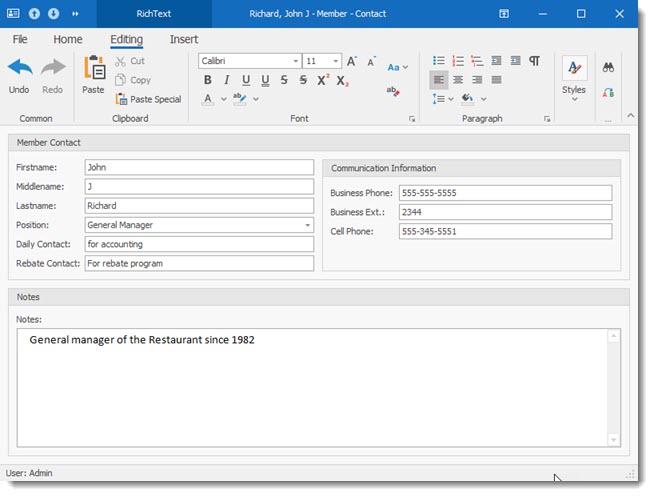
To Save:
▪ Select the File Option on the tool bar
▪ Select one of the Save Options.
Business Owner tab:
Contains a list of Business Owners for the member. The Business owners listed in this tab is use in all reports displaying or based on the business owners. This field should be entered for RHOP to perform as expected.
To Add or edit a member follow the same instructions as those for the Contact list
Note tab:
Contains a list of Notes associated to the member. Each note contains a date of when it was created.
To Add or edit a member note follow the same instructions as those for the Contact list
Documents tab:
Contains a list of Documents associated to the member. Each Document contains a document description, document type and date of when it was created.
To Add or edit a member document follow the same instructions as those for the Contact list
Member Accounts:
Listing of Accounts use by the member
Member Program Histories:
Listing of changes in the member programs
Analysis
Key values related to the members activities
Membership Application
Information provided on the membership application form
Rebate Exceptions tab:
Contains a list of Exceptions to rebates for the member. Each exception contains The exception name, The rebate and the exception for member or Unipco.
To Add or edit a member rebate exception follow the same instructions as those for the Contact list
Membership Application tab:
Contains a list of the special fields associated with a prospect membership application before he became a member. It is shown for historical purposes.
Member Rebate Cheques tab:
Contains a list of the Rebate Cheques issues for the member.
Member Surplus Bonus
The member surplus bonus tab permits users to enter any surplus bonus assigned to the member. This value is used in reports.

Rebate Exceptions (1)
Displays by Supplier a list of all Rebates Exception linked to the member.
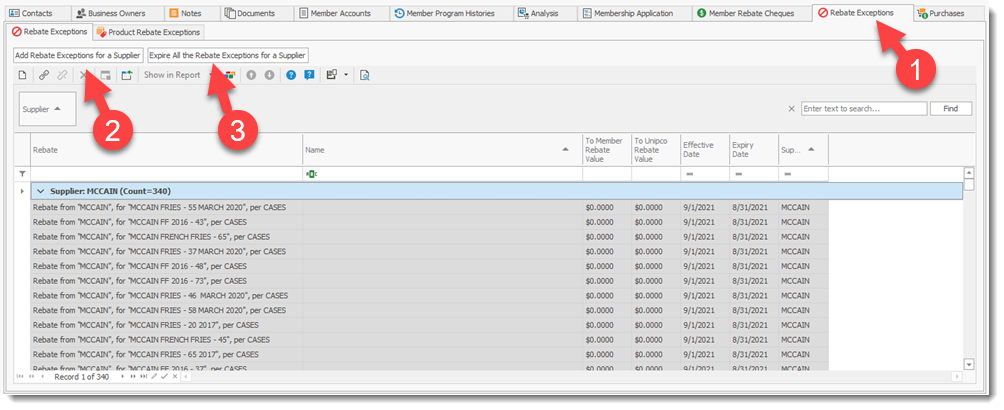
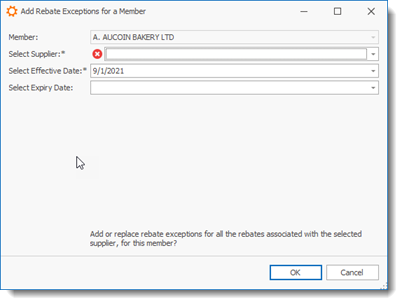
Select Add Rebate Exceptions for a Supplier (2) button to add an Rebate exception to the selected member and complete the required fields.
Select the Expire All the Rebate Exceptions for a Supplier (3) button to expire Rebates exception linked with a Supplier.
Purchases tab:
Contains a Drill Down list of the Purchases recorded for the member by period.
Purchases Drop Sizes tab:
Contains a list of the Purchases Drop Sizes recorded for the member by period.
Purchases Admin Fees tab:
Contains a list of the Purchases Admin Fees recorded for the member by period.
Warehouse Management fees
List of warehouse management fees charged to the member
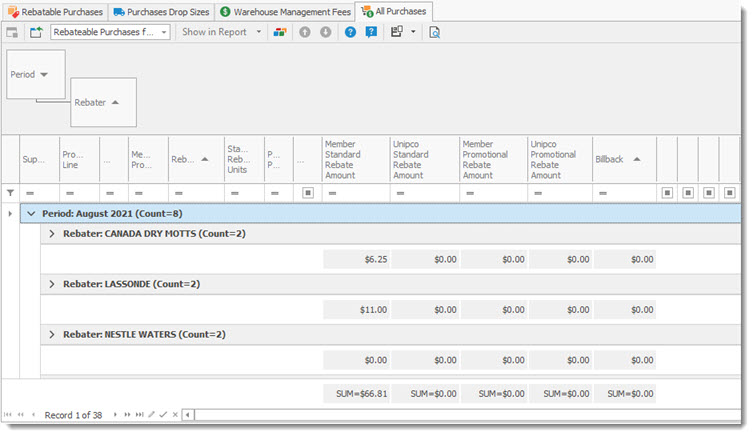
All Purchases
Listing of all Purchases for a period IMPORTANT this tab can take a long time to display depending on the volume of the member.
Change / Edit / Delete Member Accounts
Users can change or unlink a Member Account entry made in error.
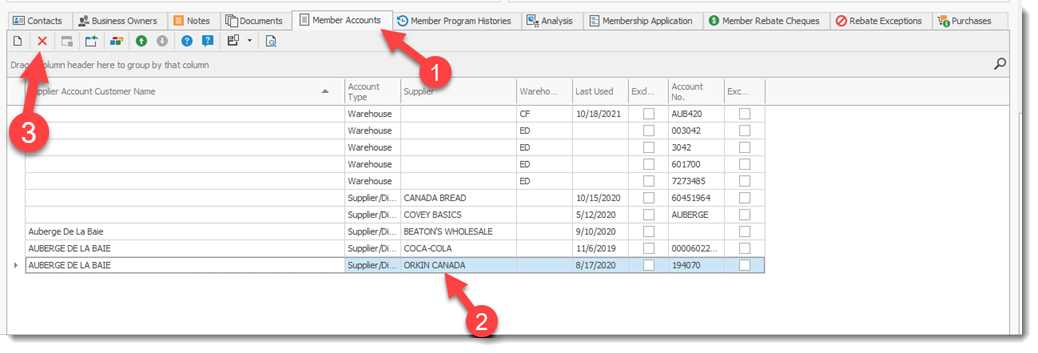
Open the Member Account Tab (1) and locate the incorrect record (2). The user has 2 options:
1) Delete the entry using the X (delete) button to remove the entry.
2) Edit and Change the entry by opening the record and making the required changes
