Maintain the Size and Content of Data-Bound Controls
Use the control's Can Grow and Can Shrink properties to make a data-bound control automatically adjust its height to its contents.
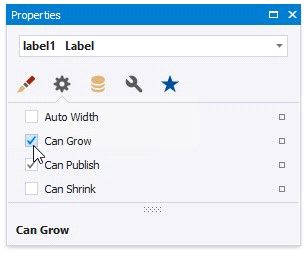
CAN GROW = NO |
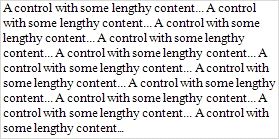
CAN GROW = YES |
|
|
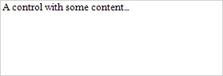
CAN SHRINK = NO |
CAN SHRINK = YES |
|
|


Use the Auto Width property to make a data-bound Label or Character Comb automatically adjust its width to its content. This option behavior depends on the control's current horizontal alignment (Text Alignment property value).
Text Alignment = Left

Text Alignment = Right

Text Alignment = Center

The control's Word Wrap property allows you to make a control display its contents in multiple lines when it does not fit into the control's dimensions.
AUTO WIDTH = NO, WORD WRAP = NO |
AUTO WIDTH = NO, WORD WRAP = YES |
|
|
AUTO WIDTH = YES, WORD WRAP = NO |
AUTO WIDTH = YES, WORD WRAP = YES |
|
|




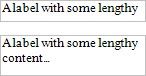
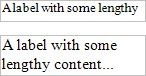
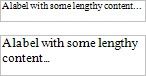
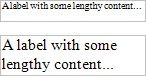
You can also use the opposite Text Fit Mode property to adjust a label or table cell's font size to fit the control's bounds.
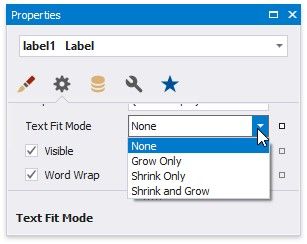
TEX T FIT MODE = NONE |
TEX T FIT MODE = GROW ONLY |
TEX T FIT MODE = SHRINK ONLY |
TEX T FIT MODE = SHRINK AND GROW |
|
|
|
|
This property is not available in the following cases:
The Can Grow, Can Shrink or Auto Width option is enabled;
The label's Angle property is specified;
The control's Anchor Horizontally or Anchor Vertically property is set to Both.