Lay Out Text in Columns
To split a text into columns, follow the steps below.
1.Click within a section which you wish to lay out in several columns.
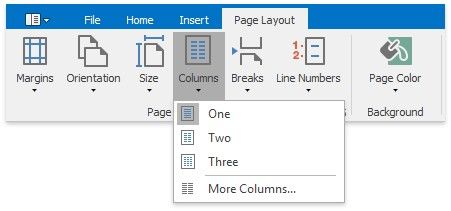
2.On the Page Layout tab, in the Page Setup group, click the Columns button and select the number of columns into which the text should be split...
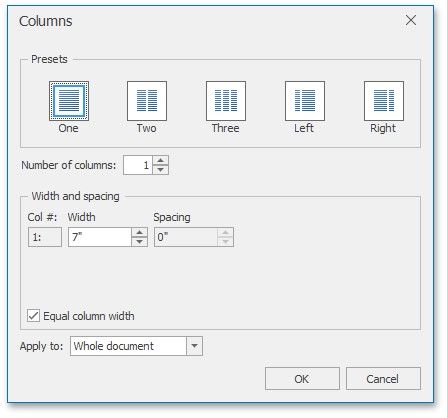
... or click More Columns to invoke the Columns dialog where you can adjust columns layout of the text in a more flexible way for the current section or the whole document.
To move the text to the next column (if the text in the current section is laid out into multiple columns), insert a column break.
1.Click within a document where you wish to insert a column break.
2.On the Page Layout tab, in the Page Setup group, click the Breaks button and select Column from the invoked list...
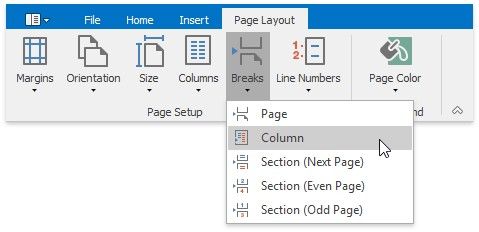
... or press CTRL+SHIFT+ENTER.
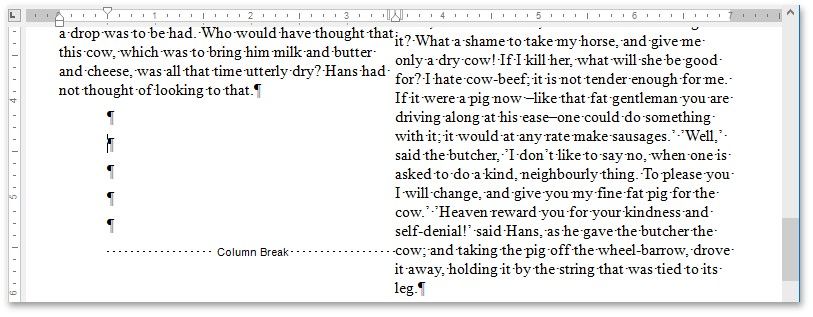
To show the column break mark, press CTRL+SHIFT+8 or click the Show/Hide Paragraph button on the File tab.

In a document, column breaks are marked as illustrated below.