Insert a Page Break
Insert Page Break
You can insert a page break in your document anywhere you want. To do this, follow the steps below.
1.Point to the position within a document where you want to insert a page break.
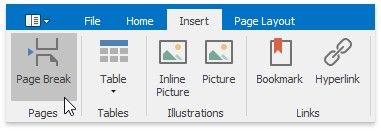
2.On the Insert tab, in the Pages group, click the Page break button ...
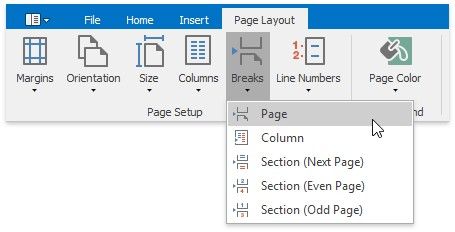
... or on the Page Layout tab, in the Page Setup group, click the Breaks button and select Page from the invoked list...
... or press CTRL+ENTER.
To show the page break mark, press CTRL+SHIFT+8 or on the Home tab, in the Paragraph group, click the Show/Hide button.

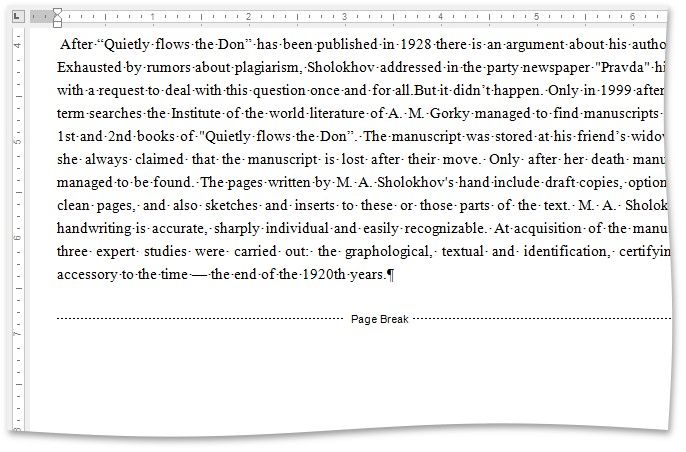
In a document, page breaks are marked as illustrated below.
Keyboard Shortcuts to Insert Breaks
You can use the following keyboard shortcuts to insert breaks of different types:
SHORTCUT |
DESCRIPTION |
CTRL+SHIFT+ENTER |
Inserts a column break in a document. |
CTRL+SHIFT+SPACE |
Inserts a non-breaking space. |
CTRL+ENTER |
Inserts a page break. |
ENTER |
Inserts a paragraph break. |
SHIFT+ENTER |
Inserts a line break. |
TAB |
Inserts a tab |