Insert a Comment
The Spreadsheet allows you to attach notes to individual cells by using comments. Comments are extremely useful when you need to provide additional information, such as reminders, notifications, or feedback in a document without modifying cell content.
Comments are displayed in a yellow box anchored to a cell. A cell containing a comment has a red triangular indicator in the corner.
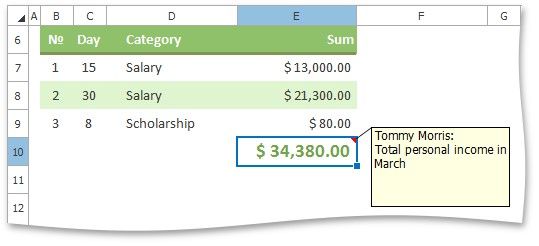
You can add new comments, edit existing comments, copy comments to other cells, move and resize the comment box, hide or delete comments if they are no longer needed.
Add a Comment
To insert a new comment, select the cell where you wish to place the comment, and do one of the following.
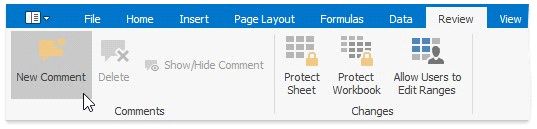
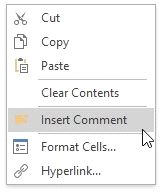
The new comment will be anchored to the cell. Type the desired text within the comment box. By default, the comment is accompanied by the user name of the person who created the comment. If you wish to change the default name, delete it and type a new name.
Edit a Comment
1. Select the cell that contains the comment you wish to edit.
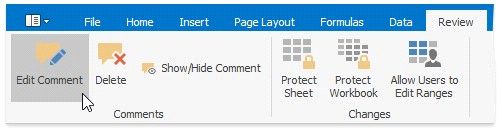
... or right-click the cell and select the Edit Comment item in the context menu.
The comment will be activated and the cursor will be positioned within the comment box. Change the comment text as needed.
Copy Comments Only
1.Select the cell(s) containing the comment(s) you wish to copy.
2.On the Home tab, in the Clipboard group, click Copy, or press CTRL+C.
3.Select the top-left cell of the destination area where you wish to insert the copied comment(s).
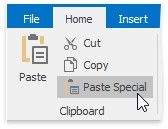
4.On the Home tab, in the Clipboard group, click the Paste Special button, or press CTRL+ALT+V.
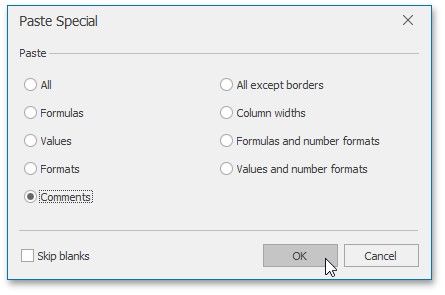
5.In the invoked Paste Special dialog, click Comments, and then click OK.
Move and Resize a Comment
1.Select the cell that contains the comment you wish to move or resize.

2.Click the comment box border to display the sizing handles (small rectangles at the corners and sides of the comment box).
3.Do one of the following.
 To move a comment, hover the mouse over the comment border so that the four-way resize arrow appears, and drag the comment to a new location.


Display or Hide a Comment
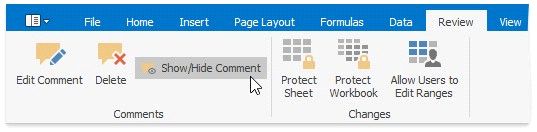
1.Select the cell that contains the comment you wish to display or hide.
2.Do one of the following.
Remove a Comment
To delete the existing comment, do the following.
1.Select the cell that contains the comment you wish to delete.
2.Do one of the following.
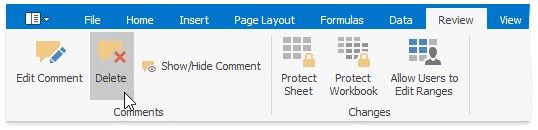
 On the Review tab, in the Comments group, click the Delete button.