Format Text
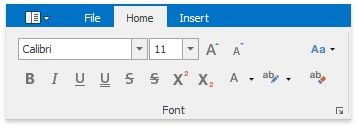
To format text, first select it and then use the Font page group on the Home tab to change the font family, size, color, etc.
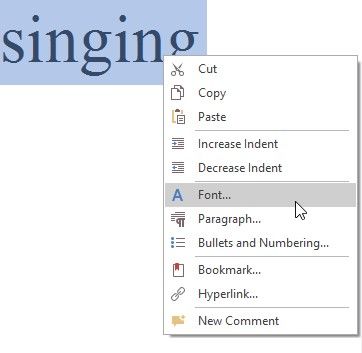
Also, you can modify the font using the Font dialog. Select the text that you want to format, right-click it and choose the Font item from the context menu.
The Font dialog appears as illustrated below.
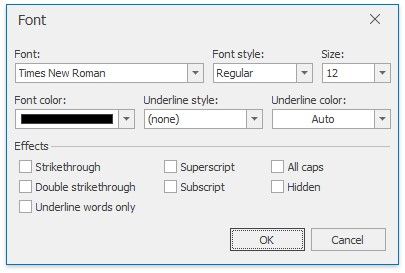
In this dialog, you can specify all required font parameters, and apply them to the selected text.
In addition, the Rich Editor provides a list of default keyboard shortcuts for text formatting:
|
|
CTRL+B |
Toggles the bold style on the selection. |
CTRL+I |
Toggles the italic style on the selection. |
CTRL+U |
Toggles the underline style on the selection. |
|
|
|
|
CTRL+D |
Invokes the Font dialog that allows you to change the font, size and style of the selected text. |
CTRL+PLUS |
Toggles the subscript style on the selection. |
CTRL+CLOSEBRACKETS (]) |
Increases the font size of the selected text by one point. |
CTRL+OPENBRACKETS ([) |
Decreases the font size of the selection by one point. |
CTRL+SHIFT+PERIOD |
Increases the font size of the selection to the closest larger predefined value. |
CTRL+SHIFT+COMMA |
Decreases the font size of the selection to the closest smaller predefined value. |
CTRL+SHIFT+D |
Toggles the double underline style on the selection. |
CTRL+SHIFT+PLUS |
Toggles the superscript style on the selection. |
CTRL+SHIFT+H |
Toggles between the normal and hidden text mode for the selection. To view the hidden text, press CTRL+SHIFT+8. |
CTRL+SPACE |
Clears formatting of selected text - resets it to default. |