IMPORTANT:
Before creating an employee you must create the security role(s) the user will be assigned as well as the security user profile that the employee will be linked with. The user profile provides the permissions and the ability to logon to RHOP.
|
This section records information on your employees and provides access to employees to the RHOP application. You can add, modify or delete users profile as required.
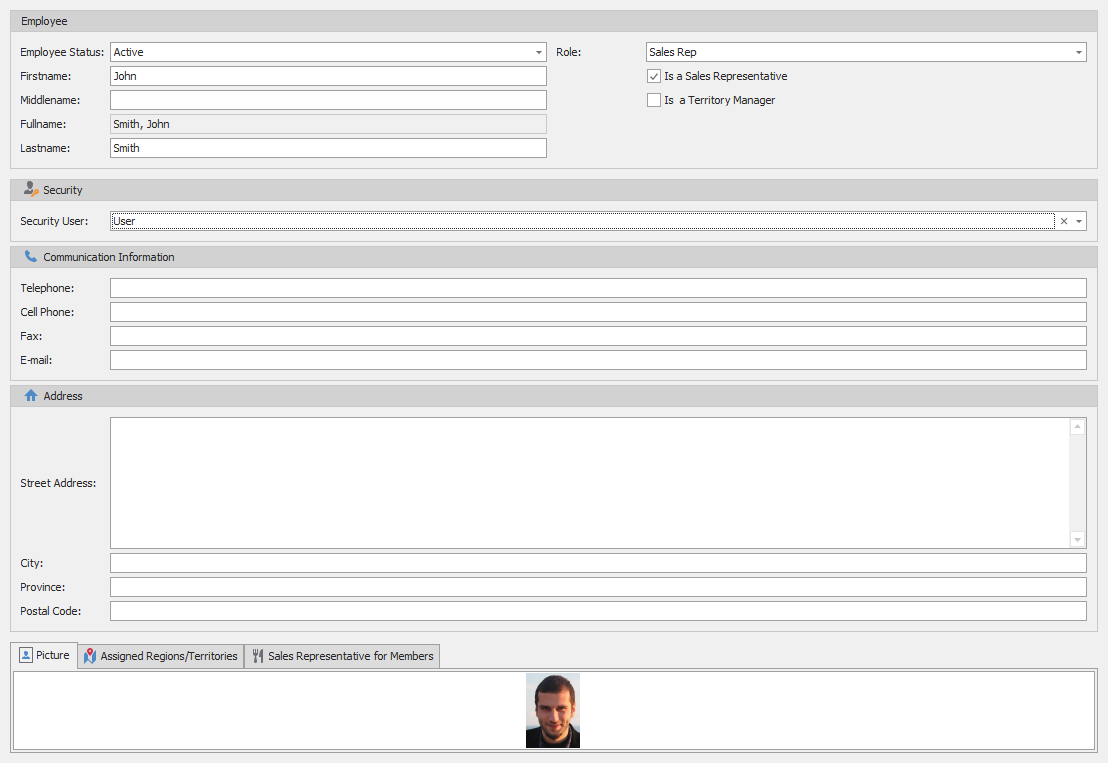
Employee Basic Profile Information:
Employee Status: You can assign either Active or non-active as a status. Only active profiles have access to the application.
Role: The role assigned to the employee: (i.e. Staff, accountant , etc.) The role represents the user role in the organization. Uses the Contact Position table defined in the System Management \ Common \ Contact Position table.
You can record the name and function of an employee in the organization
Employee Security:
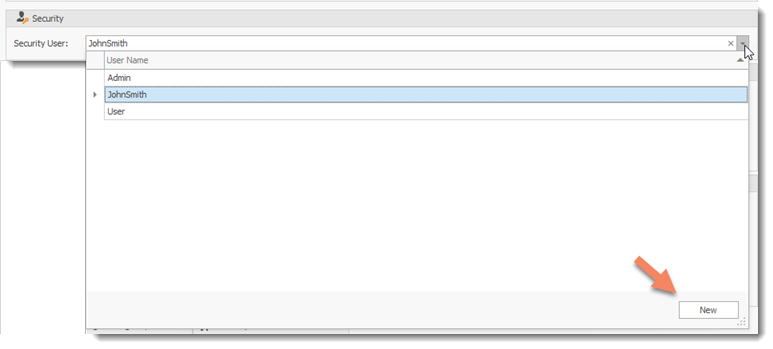
Security User: Assigns the user security access setting to the user. This links the employee profile with the User security profile for tracking and giving the employee access to the system. This link also contains the username, password and access rights (Role) the user is provided to access the system. The security user settings can be pre-defined (users that are pre-defined or already exist are shown in the drop-down list) or defined at employee profile creation time by selecting the New button on the bottom right corner of the drop-down. The new buton opens the User screen defined in the System Management \ Security \ User screen.
Communication & Address Information:
The fields associated on how to communicate with the user and the fields associated with his residential address.
Employee Tabs
Picture: You can load a picture of the employee
Assigned Regions / Territories: You can assign regions or territories to a user. By assigning regions or territories you are able to track activity based on the user and his link to the assigned regions/territories. Salespersons must have regions assigned for them to see the assigned members. Member profiles must also be assigned a region to appear in the salesperson list.
Sales Representative for Members: You can assign responsibility for specific members to the employees