Display Hidden Pivot Table Fields
To display hidden fields, use a simple or advanced Field List (to learn more about Field Lists, see Field List Overview).
First, invoke a Field List. For information on how to do this, see Invoke a Field List.
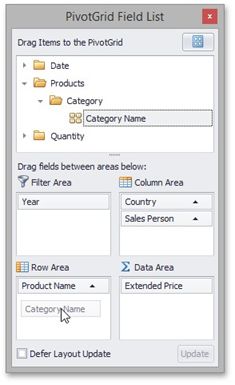
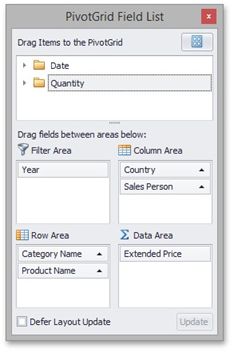
To display a hidden field, drag-and-drop the field from the Field List onto the required area of Pivot Table. This works for both simple and advanced Field Lists.
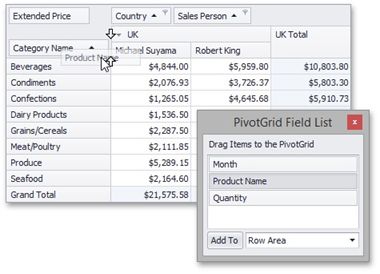
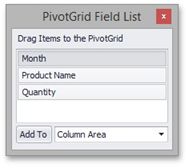
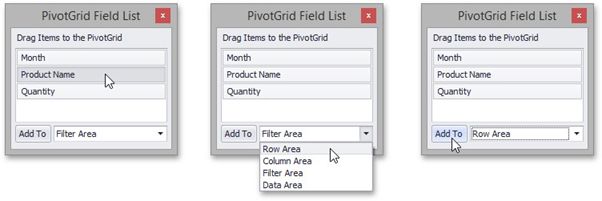
If you are using a simple Field List, you can display the required field as follows.
1.Click the required field in the Field List.
2.In the drop-down combo box, select a Pivot Table area within which this field should be displayed.
3.Click the Add To button.
If you are using an advanced Field List, you can display a hidden field by dragging its header from the hidden fields section to the section corresponding to the required Pivot Table area.